

Create an account
To get started with Enhance you need an account in Enhance’s web app. You can create one by signing up here: https://app.enhancelabs.ai/sign-up Once you’ve signed up you can proceed with connecting your AI agent to Enhance.Connect to Claude Code via Claude Desktop
Claude Desktop Plugin (Recommended)
In a new session in Claude Code paste the following command, this will install the Enhance Plugin from Anthropic's marketplace.
Or install manually
Or install manually
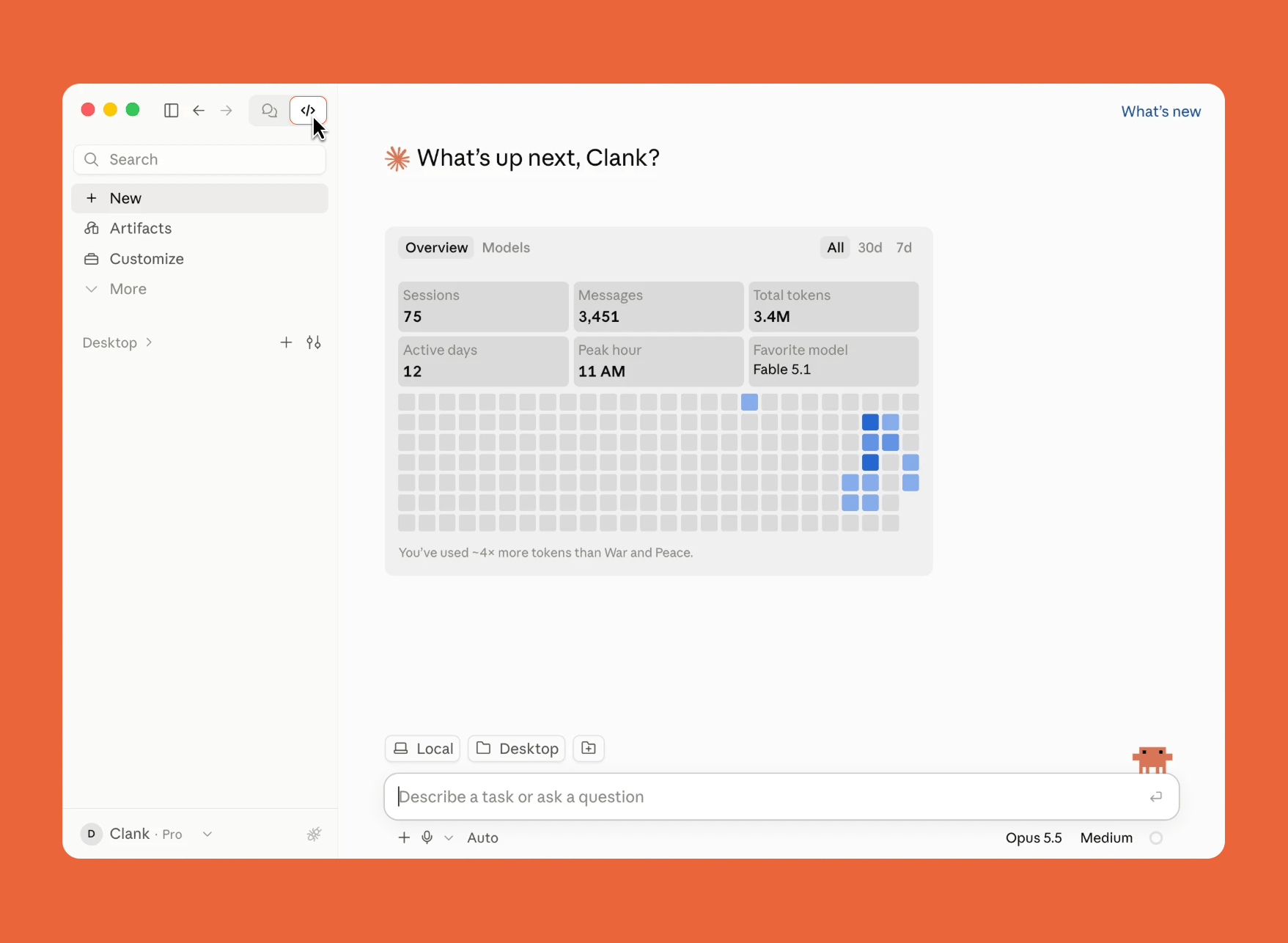
Open the desktop app and click on the Code tab
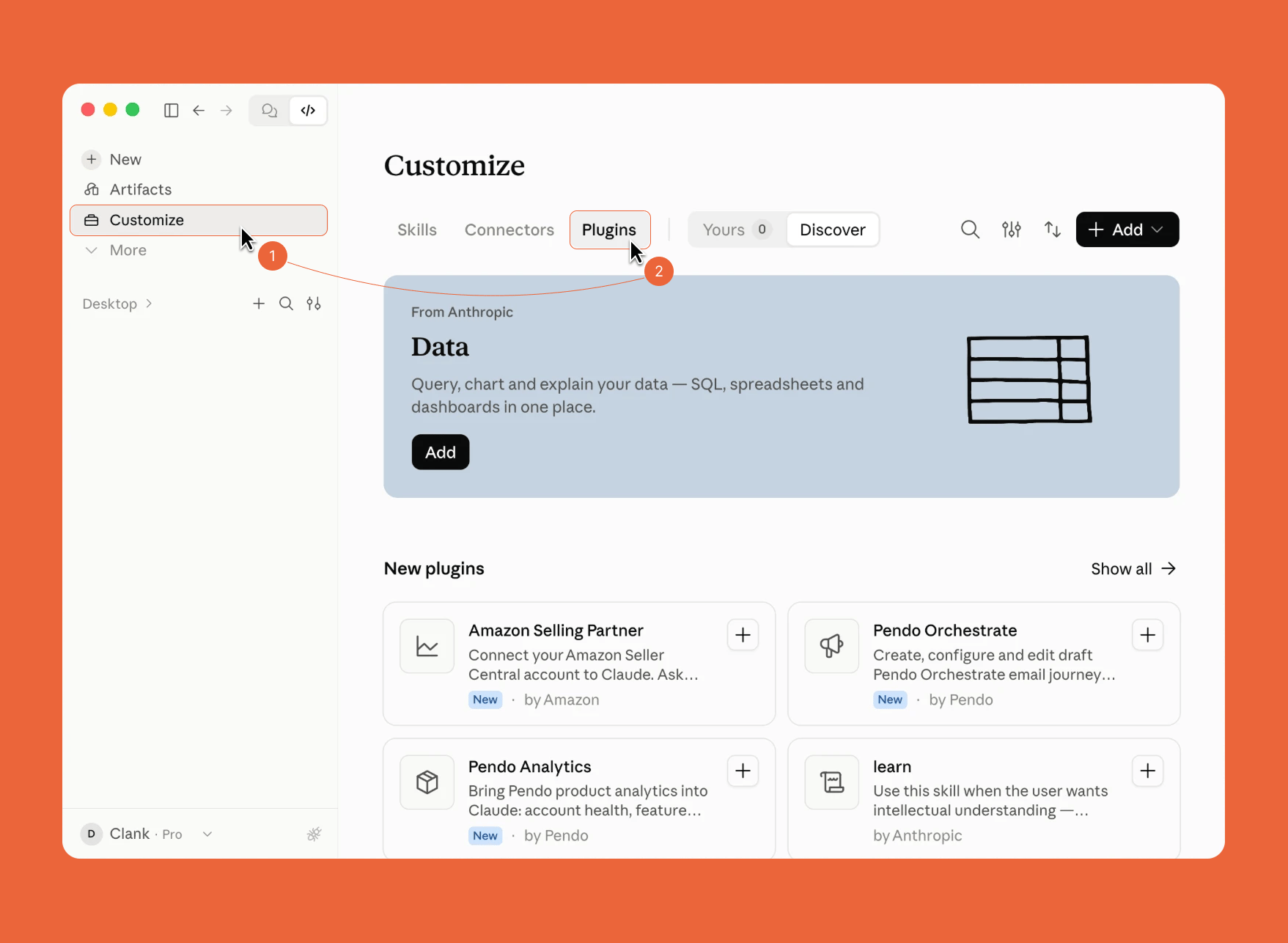
Click Customize in the side bar then click Plugins
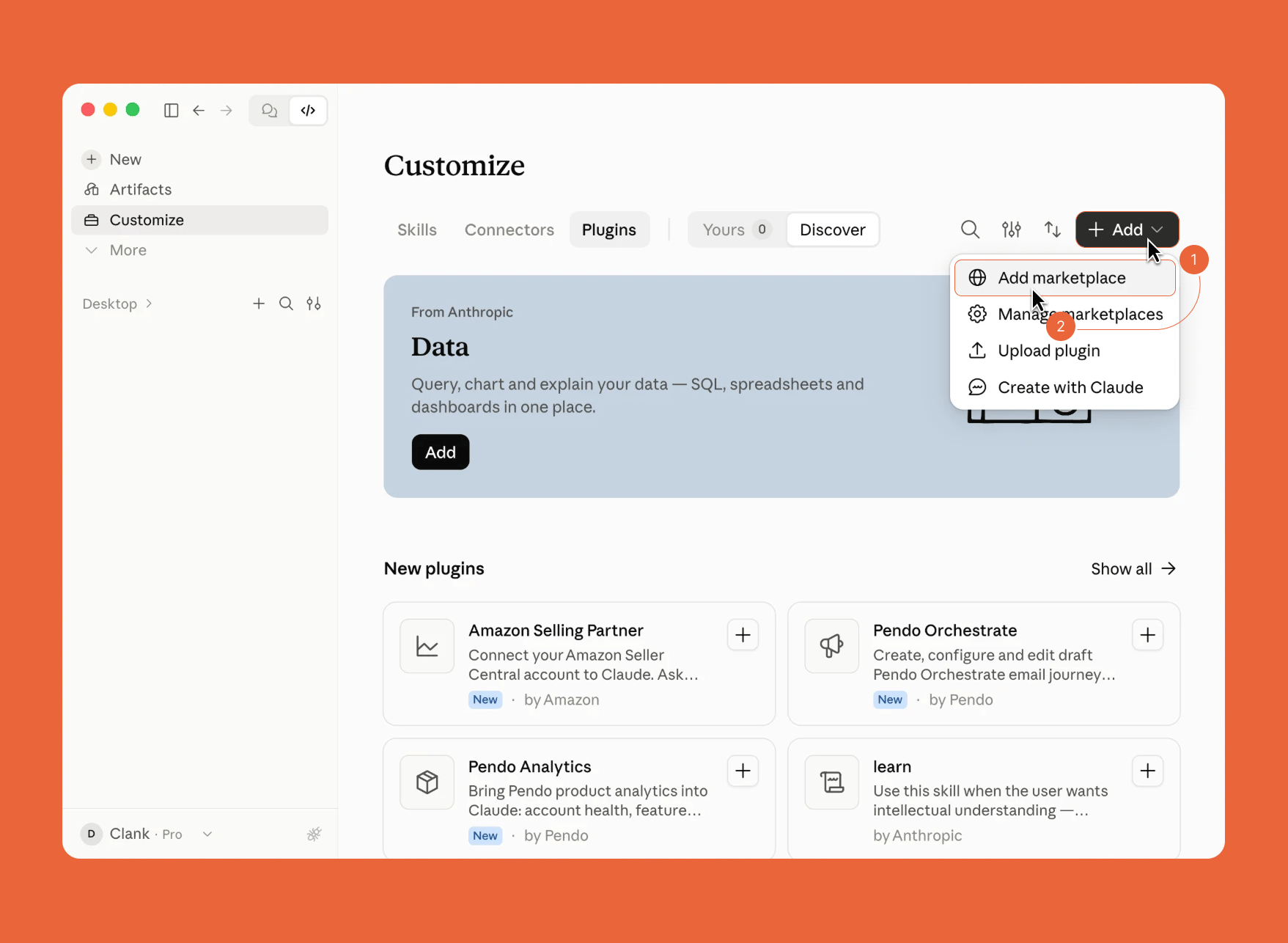
Click Add > Add Marketplace
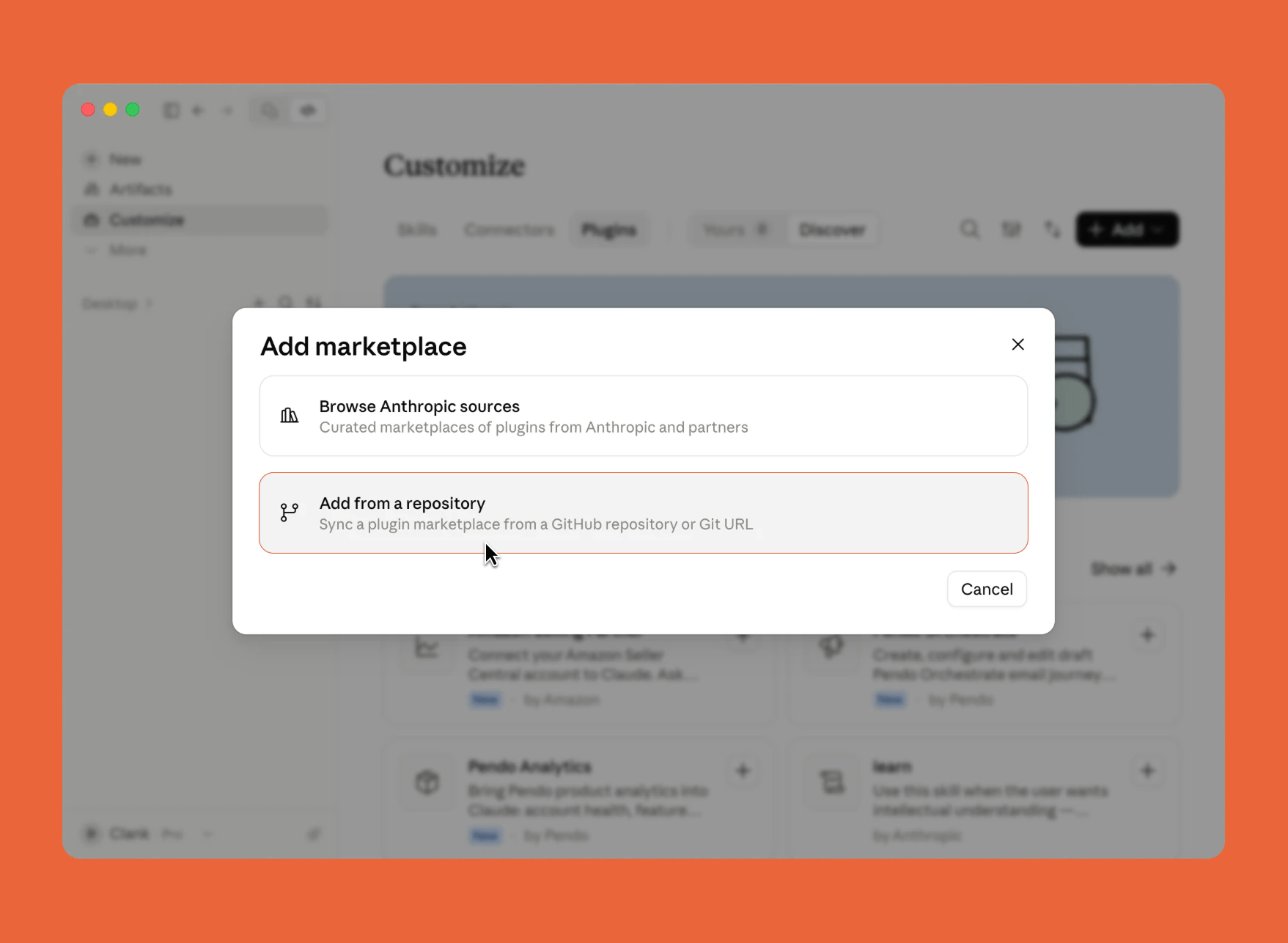
Select Add from a repository.
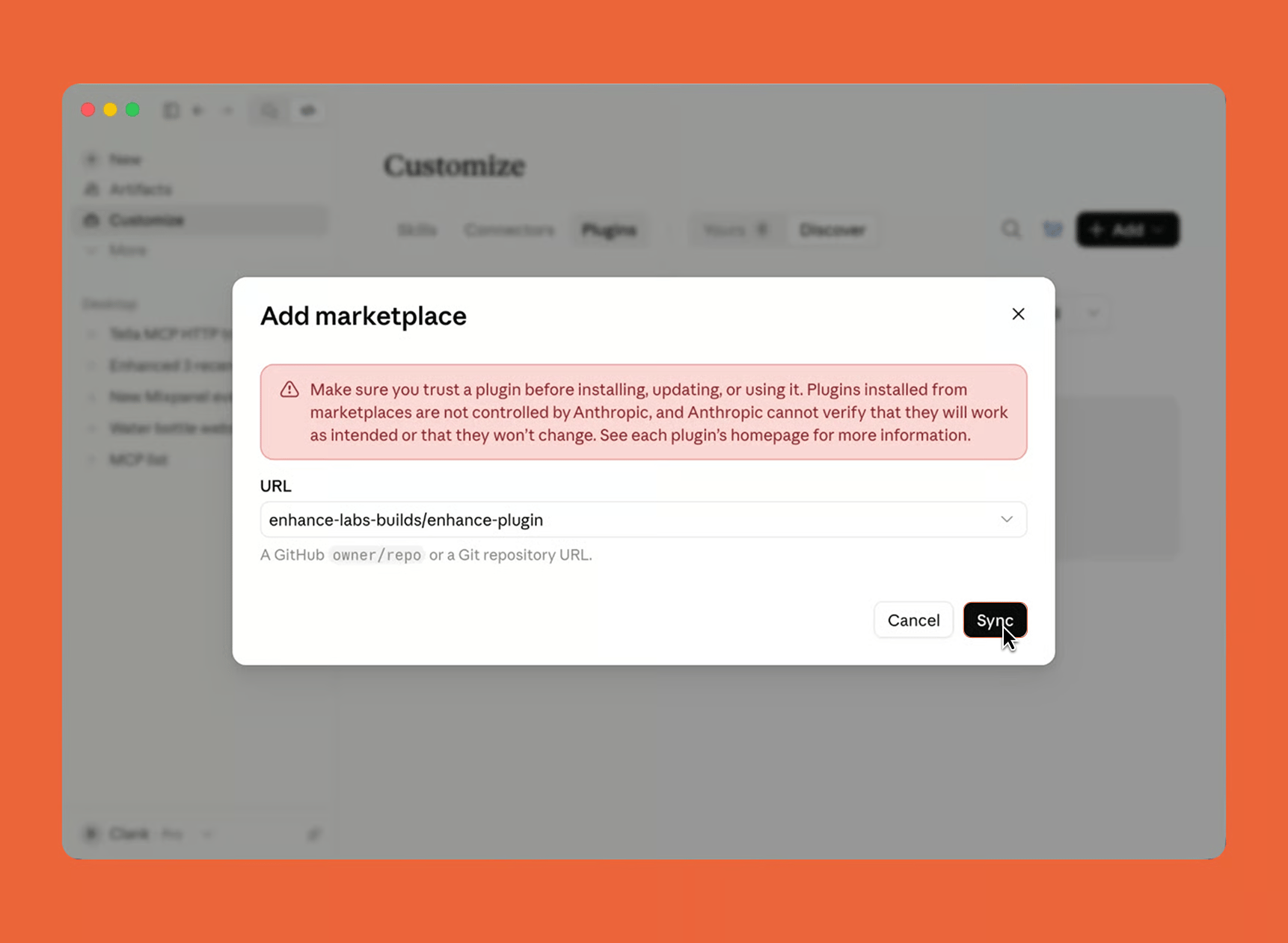
Paste the Enhance official marketplace url enhance-labs-builds/enhance-plugin and click Sync
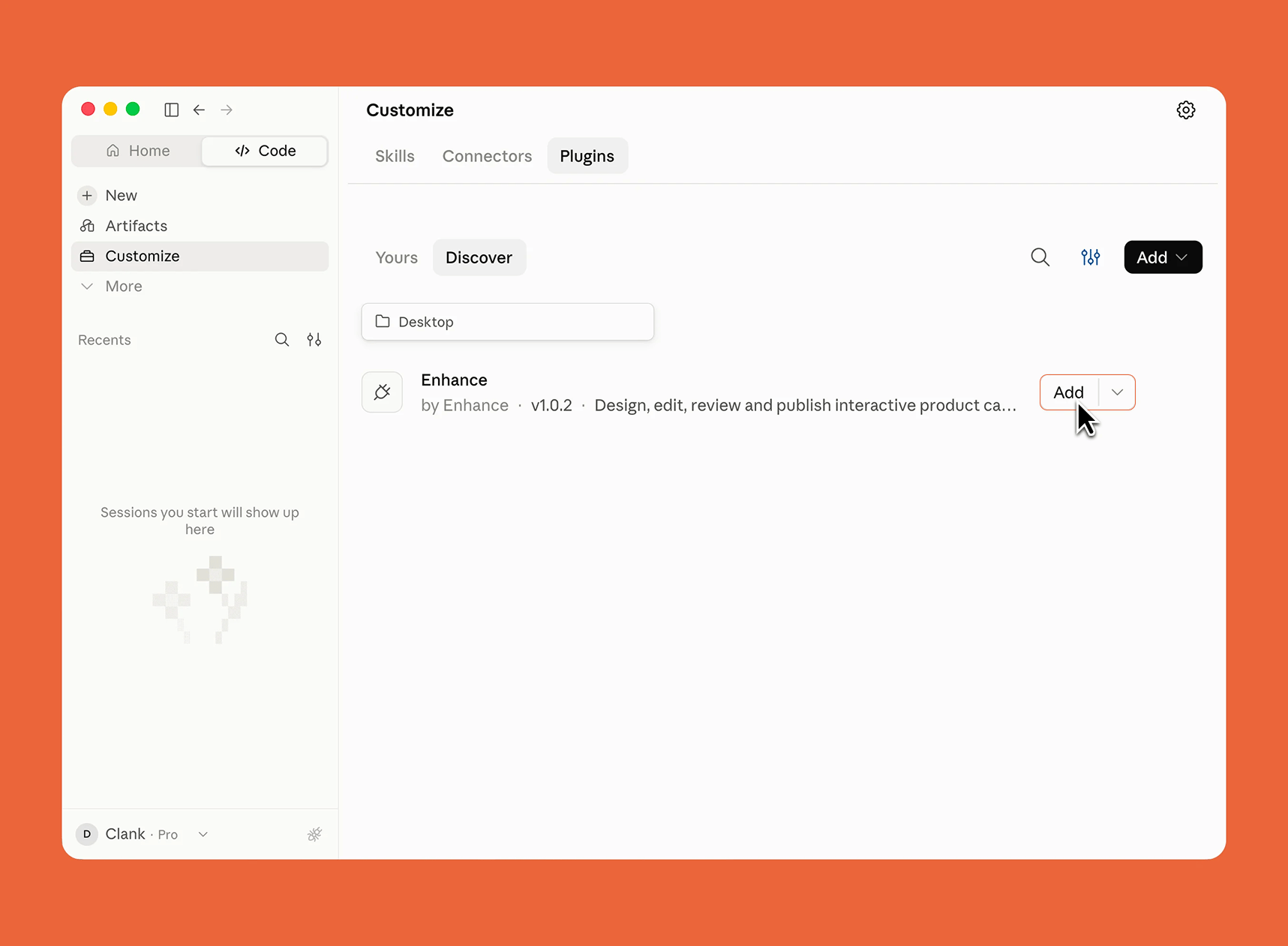
Click the Add button on the Enhance plugin
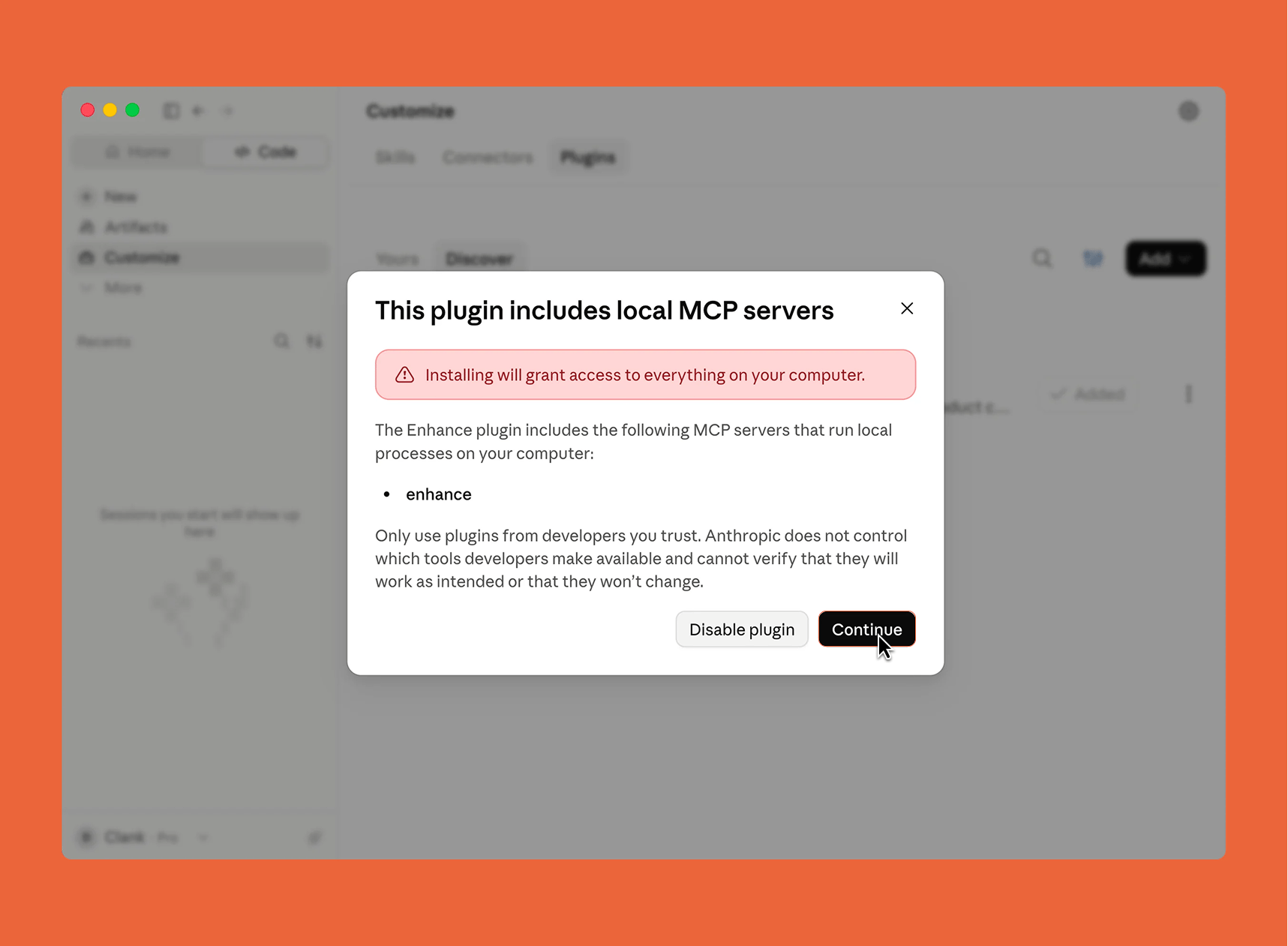
Click Continue to enable the Enhance plugin
Run your first prompt
Claude Code Desktop MCP
Open the desktop app and head to the Code tab
Click Customize in the side bar then click Connectors > Add
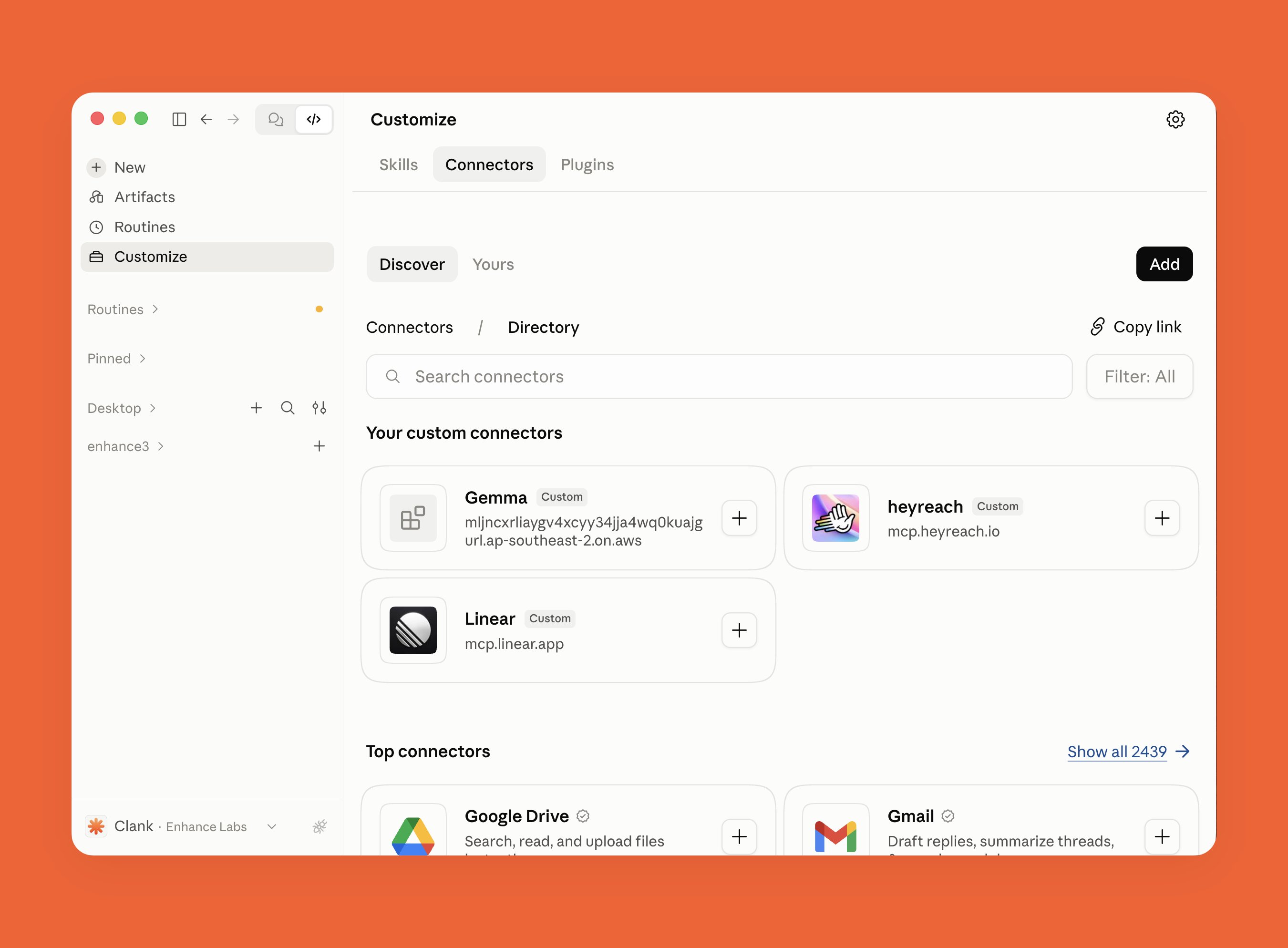
Enter Enhance as the name and https://api.enhancelabs.ai/mcp as the url and click Continue
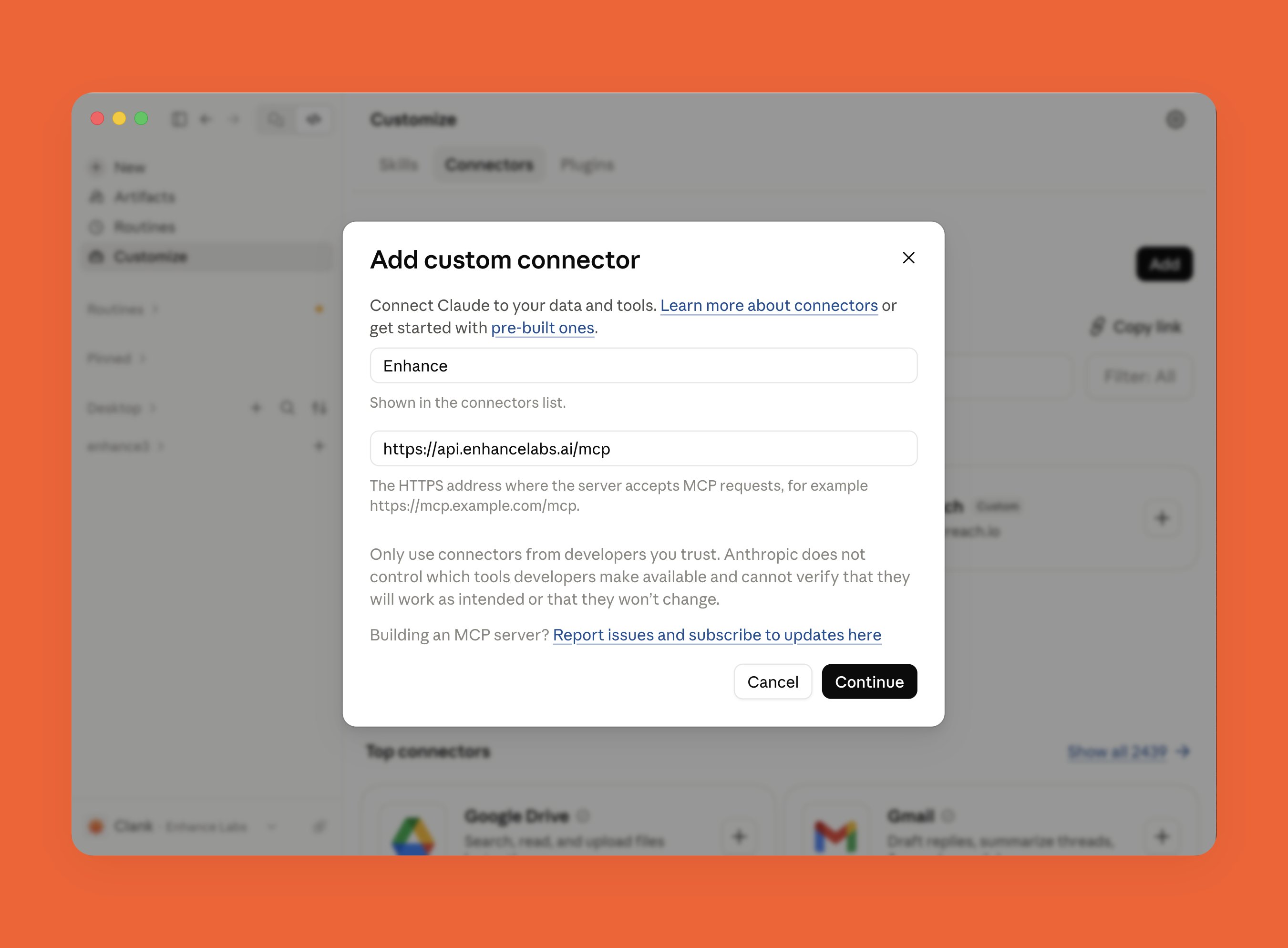
Scroll through the permissions and click Add
Then click Connect
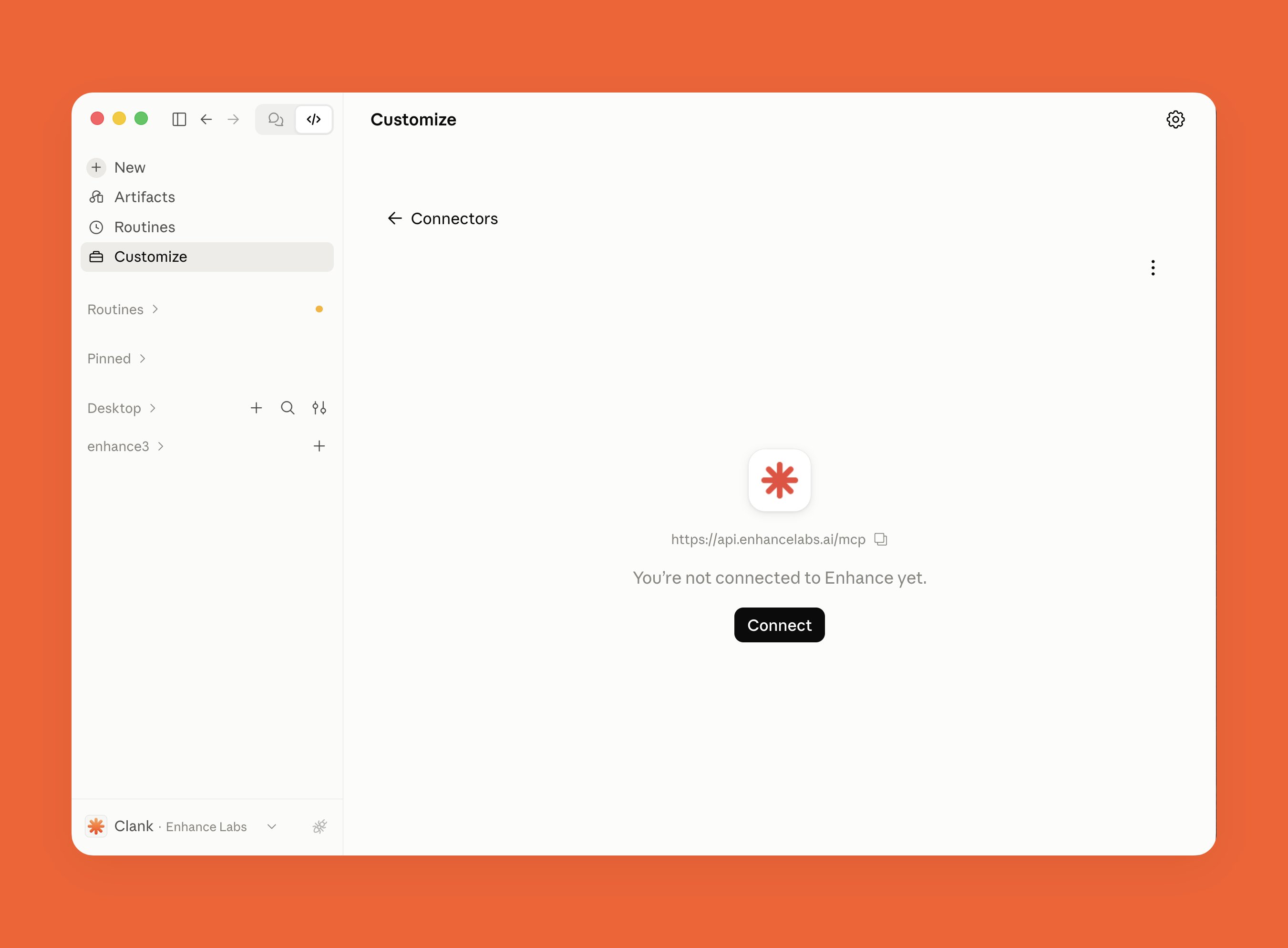
Claude will open a link in your browser asking if you are connecting a connector, click Continue connecting
Lastly, Claude will open a browser for a one-time OAuth, click Allow
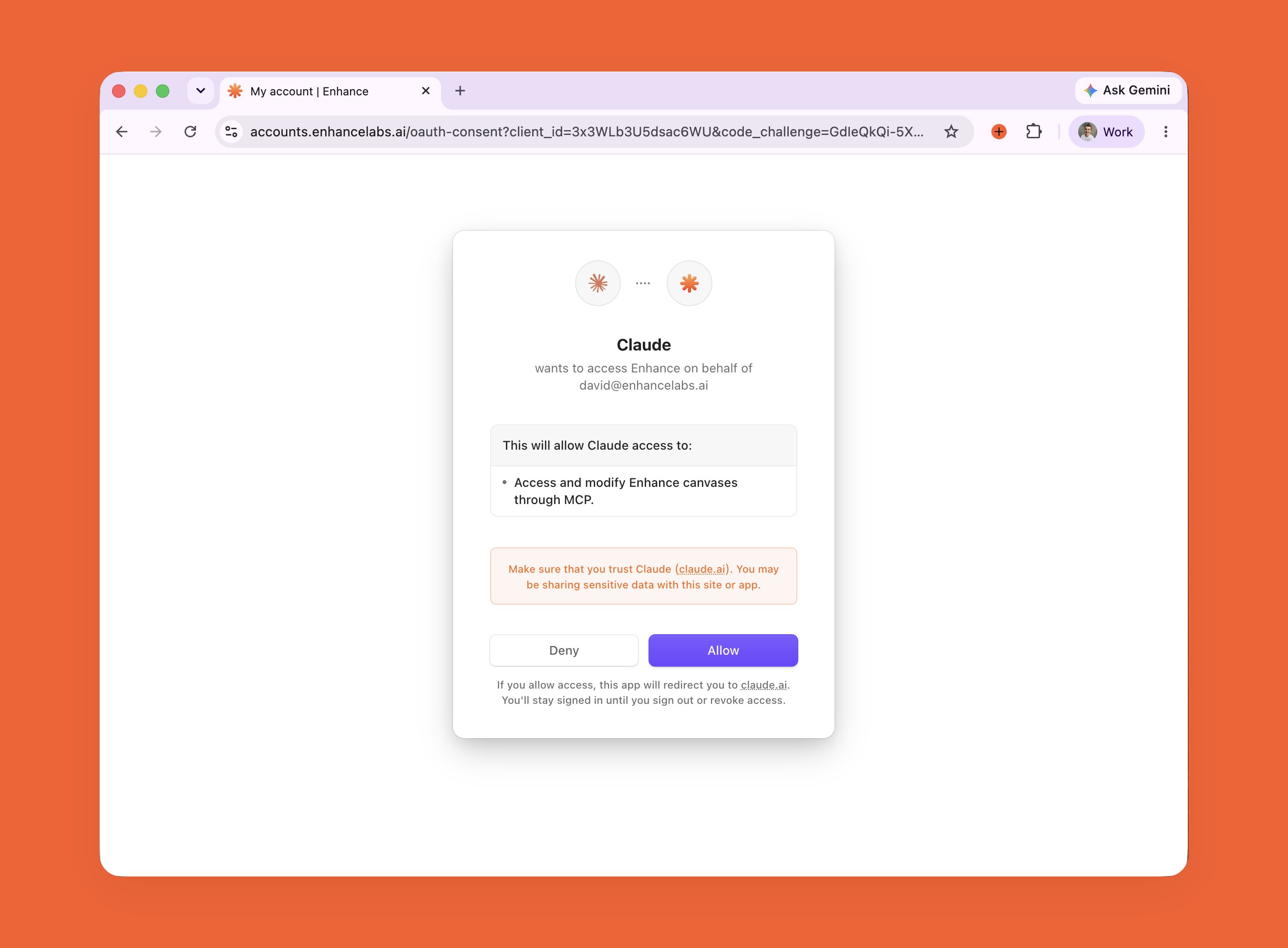
/mcp command.Run your first prompt
Connect to Codex
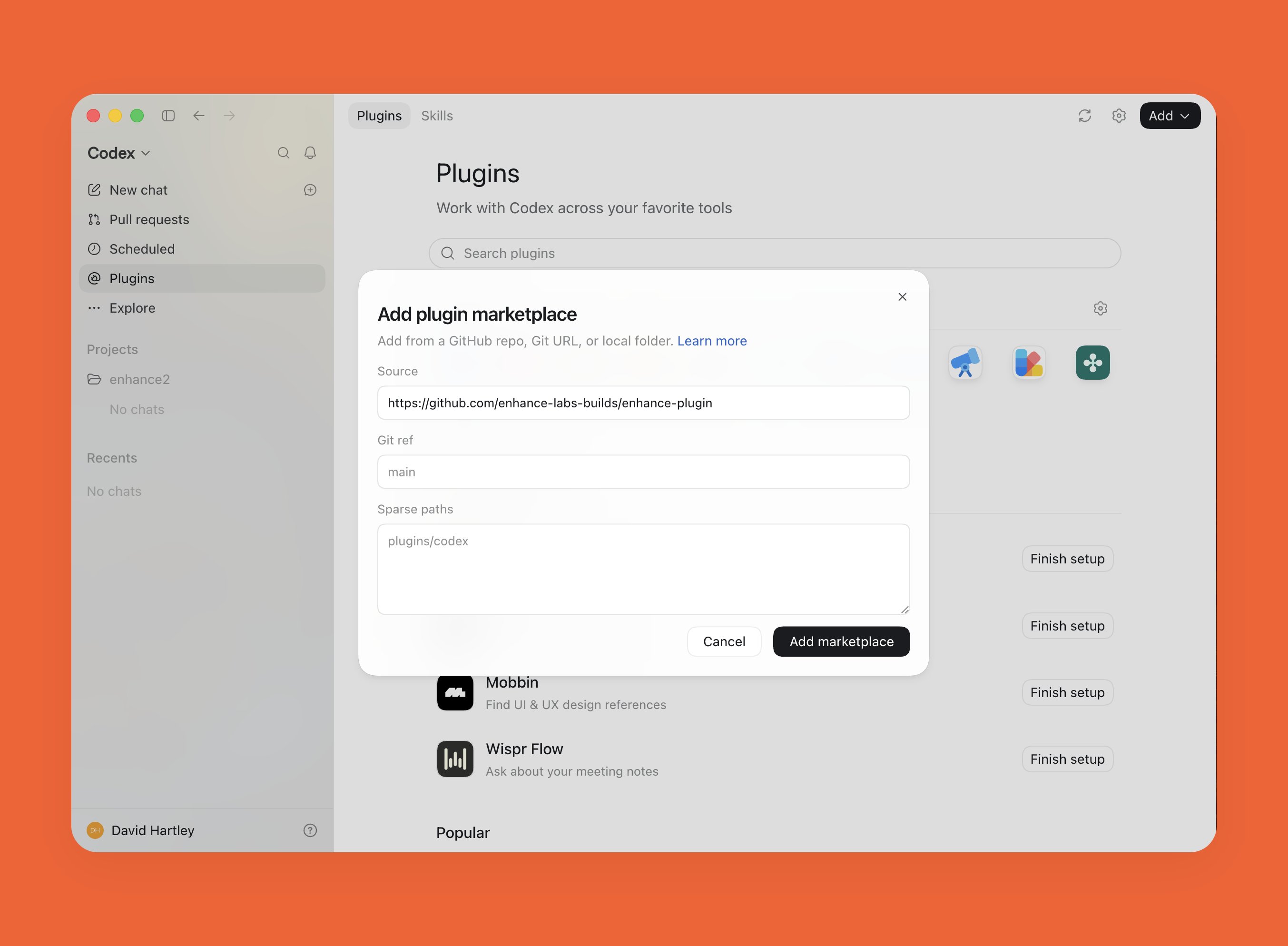
Codex Desktop Plugin (Recommended)Open the Codex desktop app and click Plugins in the side bar then Add > Add a marketplace
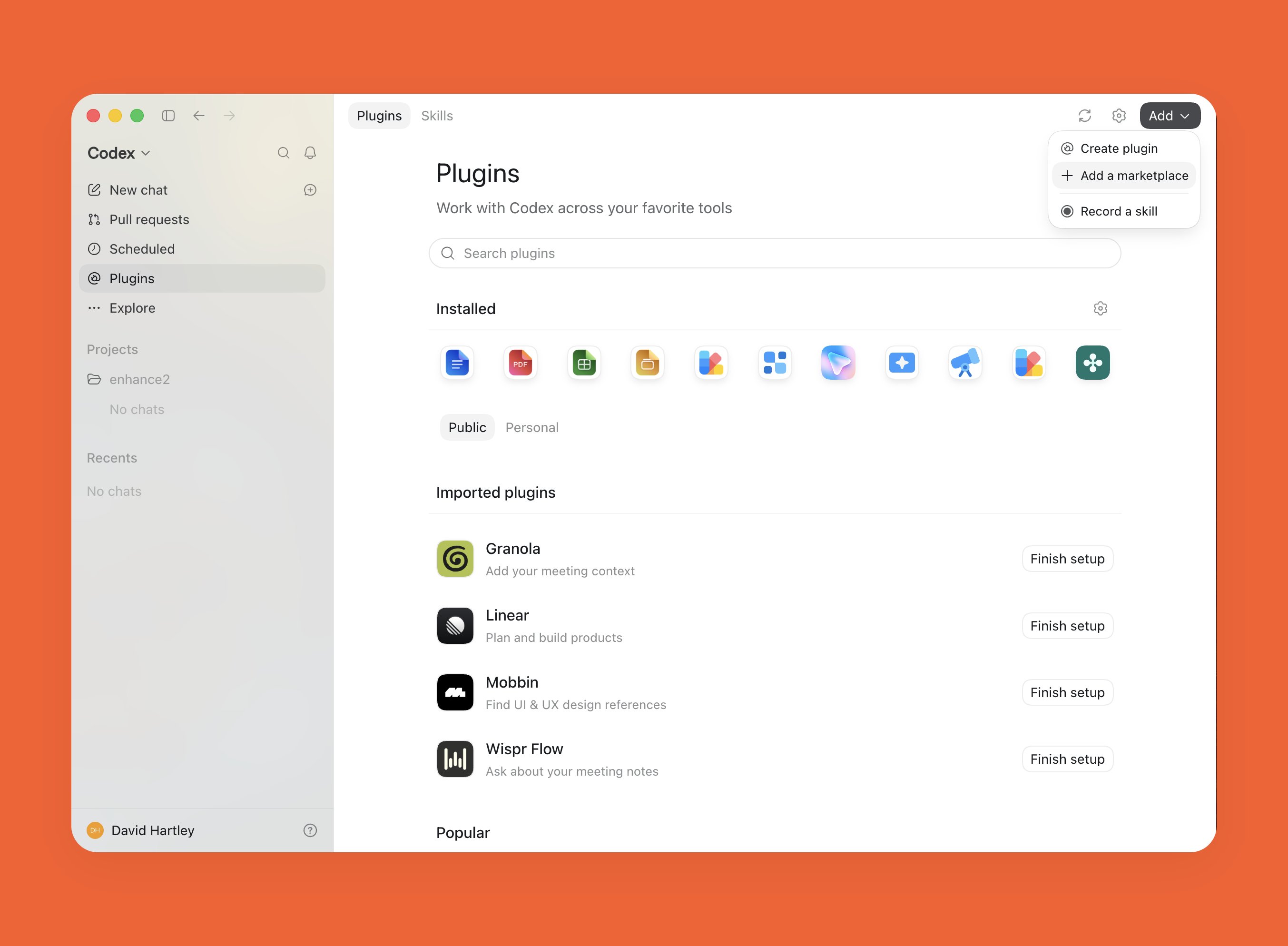
Paste the Enhance marketplace url https://github.com/enhance-labs-builds/enhance-plugin and click Add Marketplace
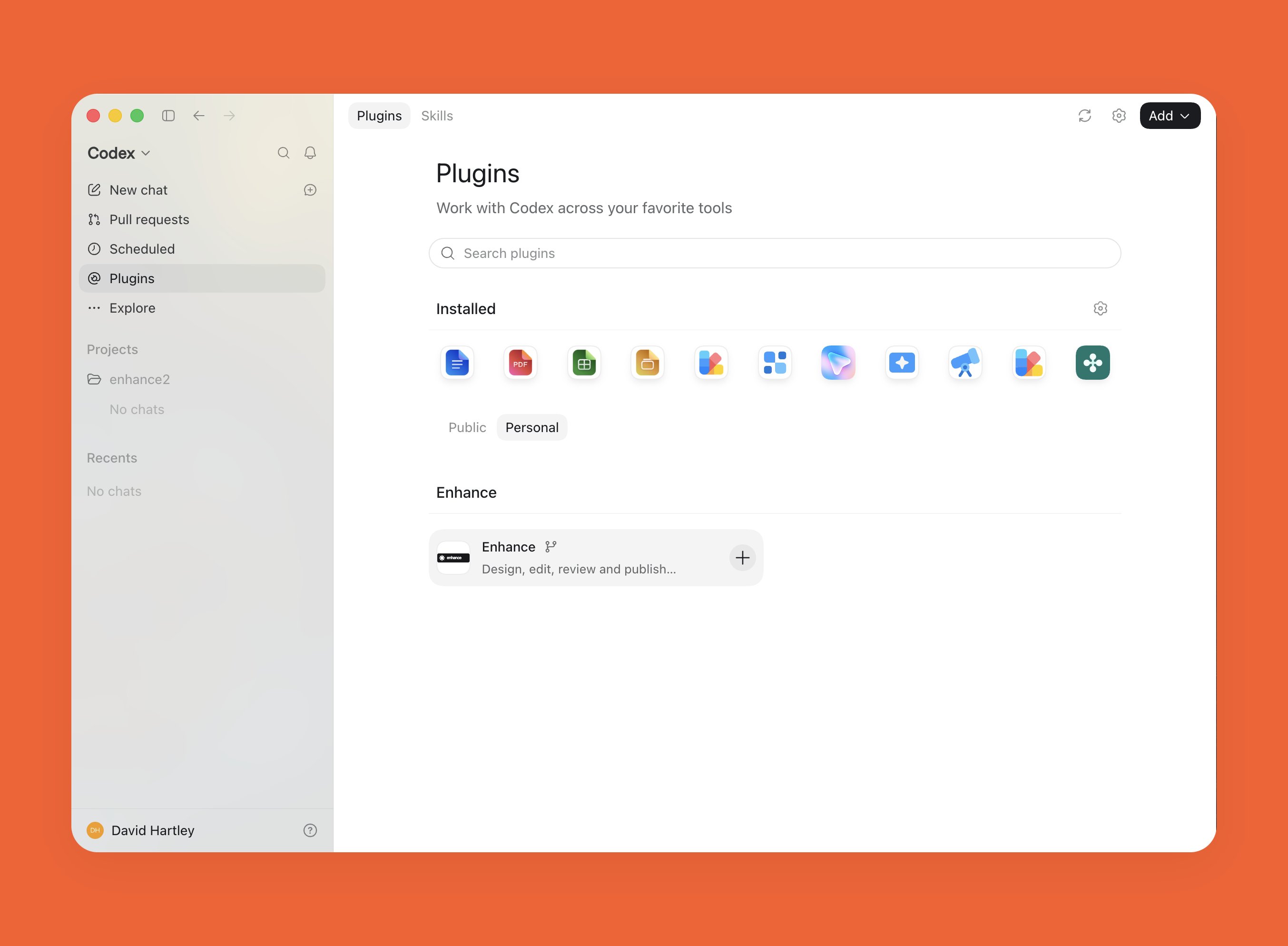
Navigate to Plugins > Personal and click the + button on the Enhance Plugin to install Enhance
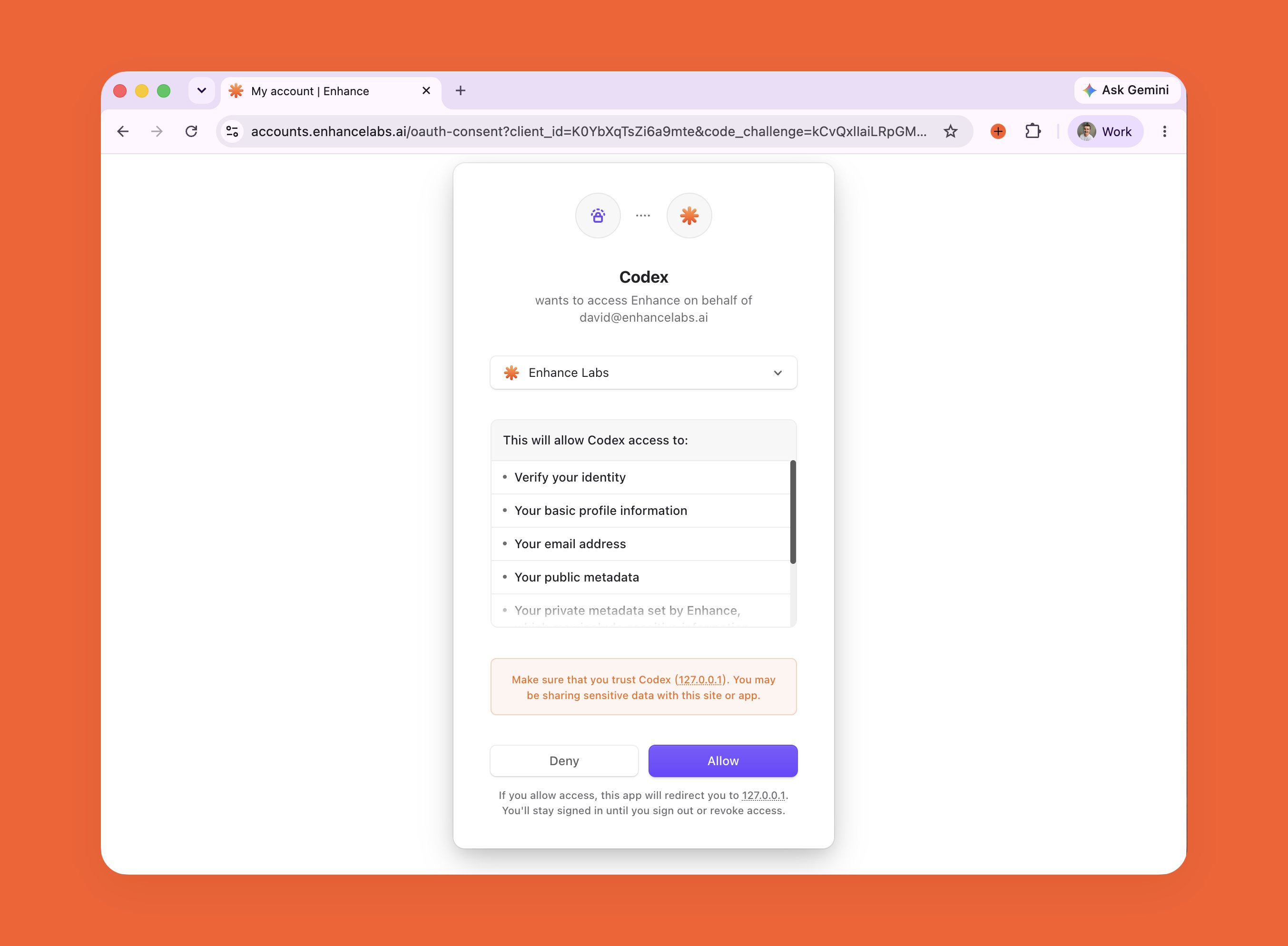
@Enhance in a chat. On your first use of Enhance, Codex will open a browser for a one-time OAuth. Click Allow when this opens to use the plugin.Run your first prompt
Codex Desktop MCP
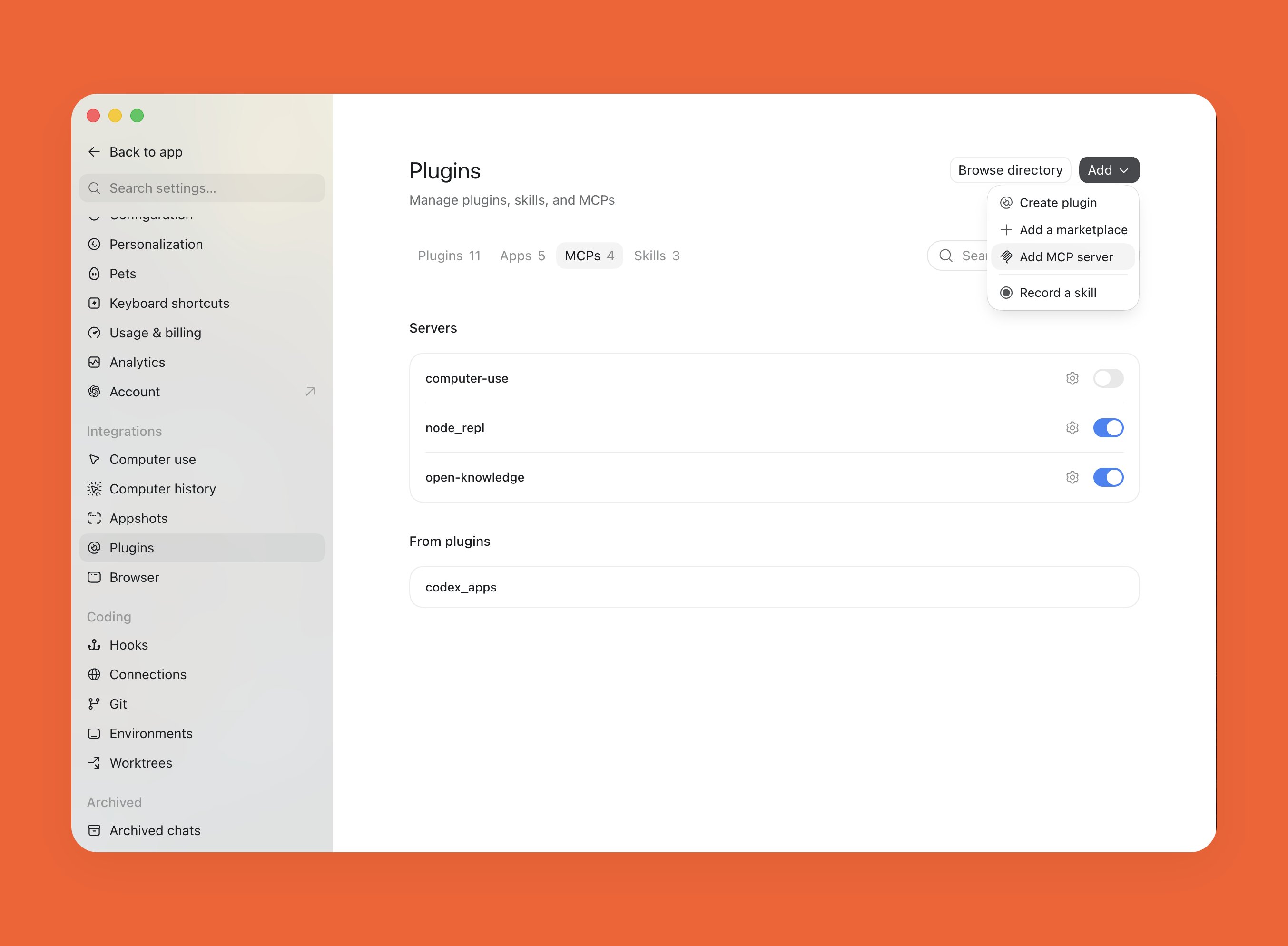
Open the Codex desktop app and go to Settings > Plugins then Click Add > Add MCP server
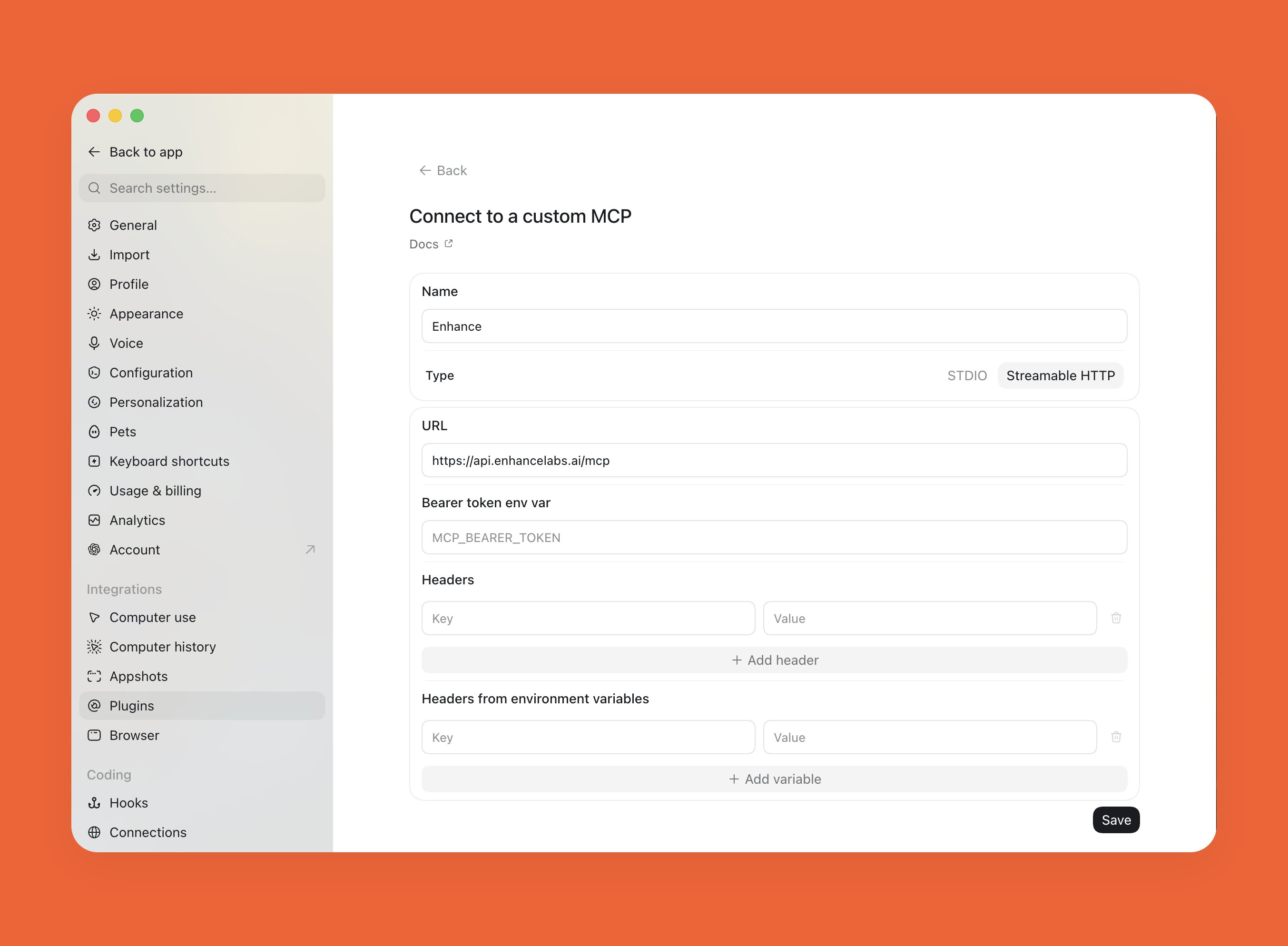
Select "Streamable HTTP", put Enhance as the name and https://api.enhancelabs.ai/mcp as the URL then click Save
Then click the Authenticate button on Enhance in the list of MCP servers and Codex will open a browser for a one-time OAuth, click Allow
Run your first prompt
Connect to Cursor
Cursor MCPOpen the Cursor desktop app and paste the following command in a new chat
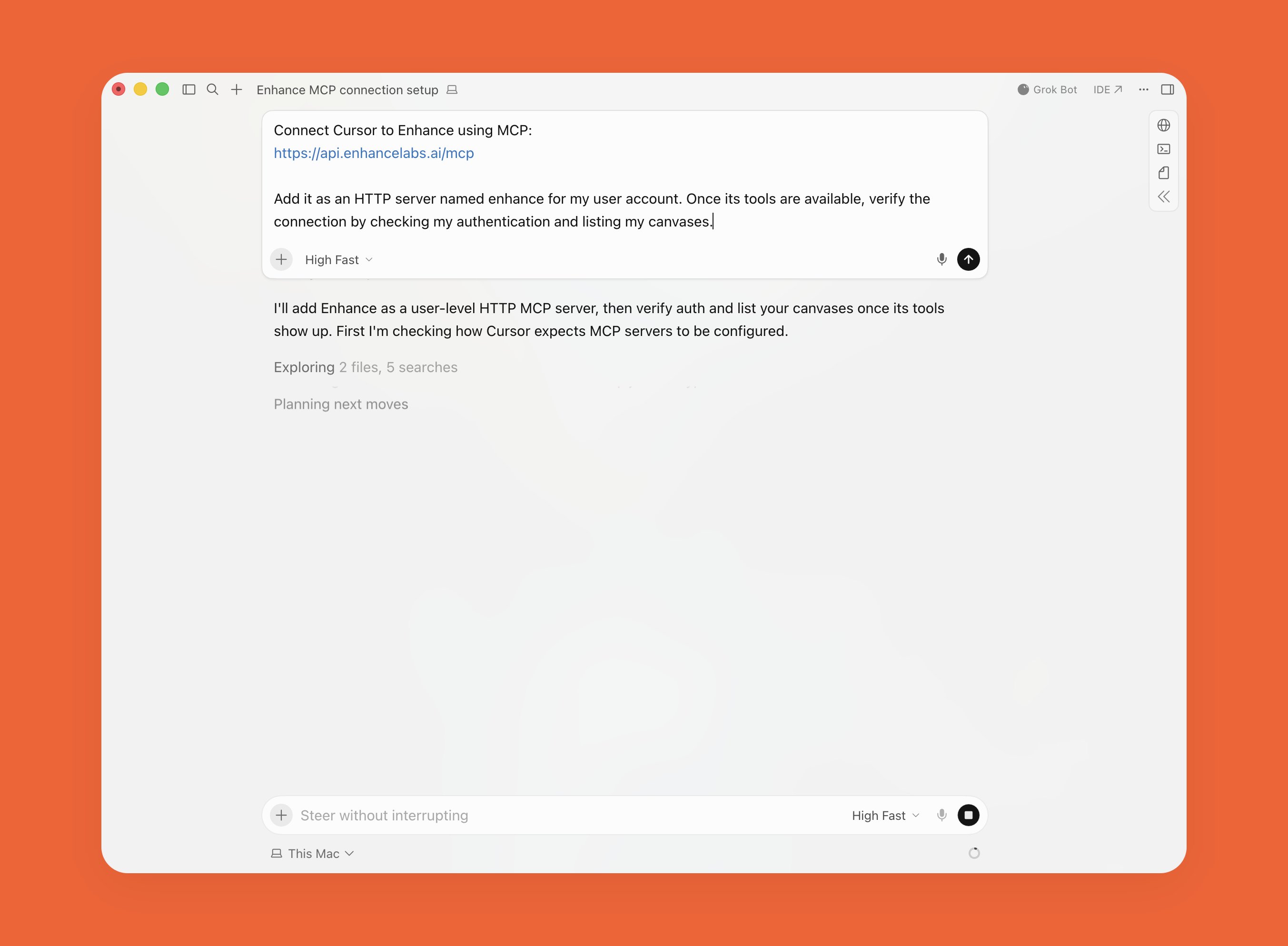
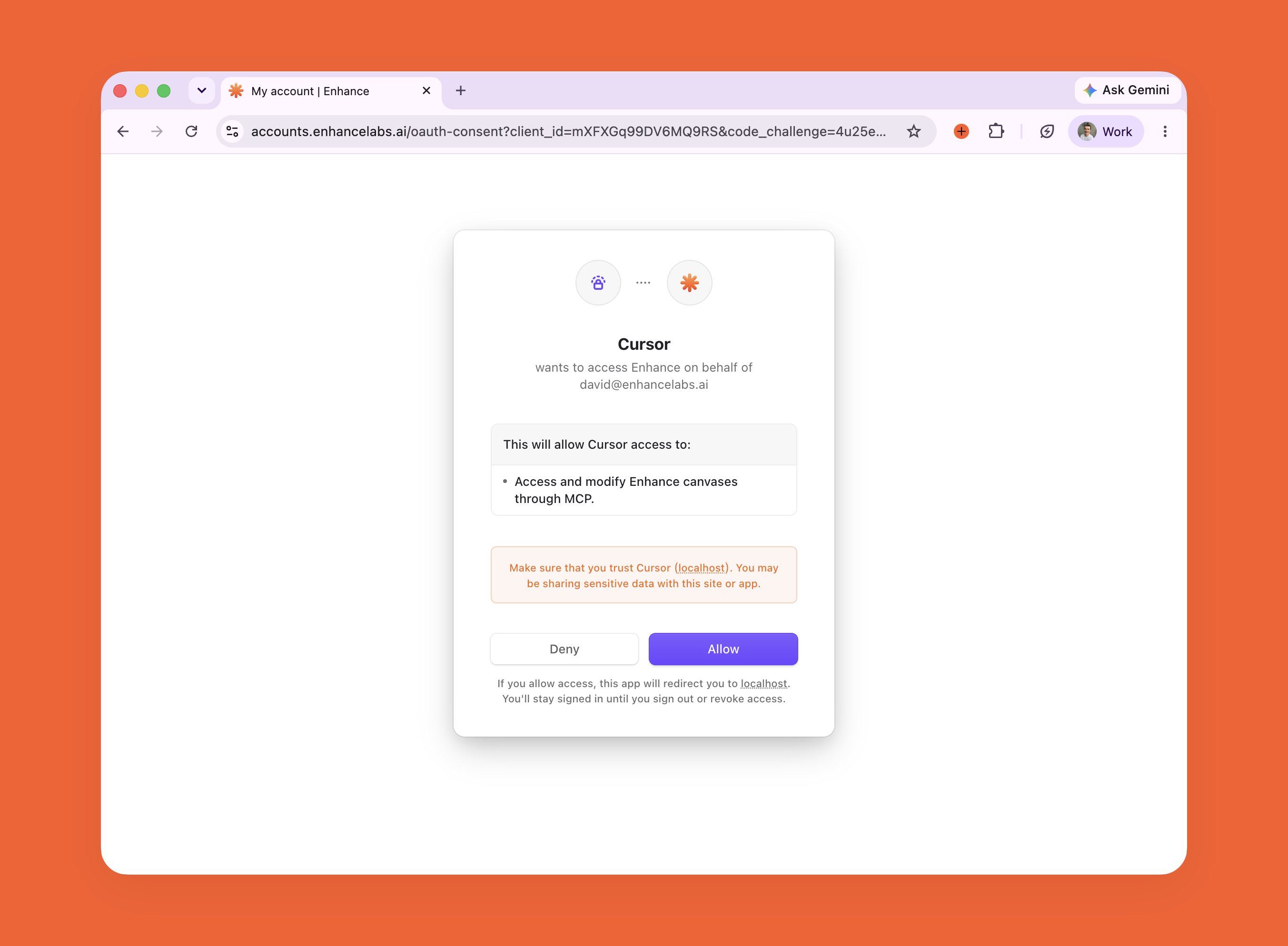
Click Authenticate when prompted by Cursor in the chat. This will open a browser for a one-time OAuth, click Allow
Run your first prompt