> ## Documentation Index
> Fetch the complete documentation index at: https://docs.enhancelabs.ai/llms.txt
> Use this file to discover all available pages before exploring further.
# Connect to Claude Code Desktop via MCP (copy)
```text theme={null}
Set up the Enhance plugin in Claude Code using this marketplace:
https://github.com/enhance-labs-builds/enhance-plugin
Install enhance@enhance for my user account. Once its tools are available,
verify the connection by checking my authentication and listing my canvases.
```
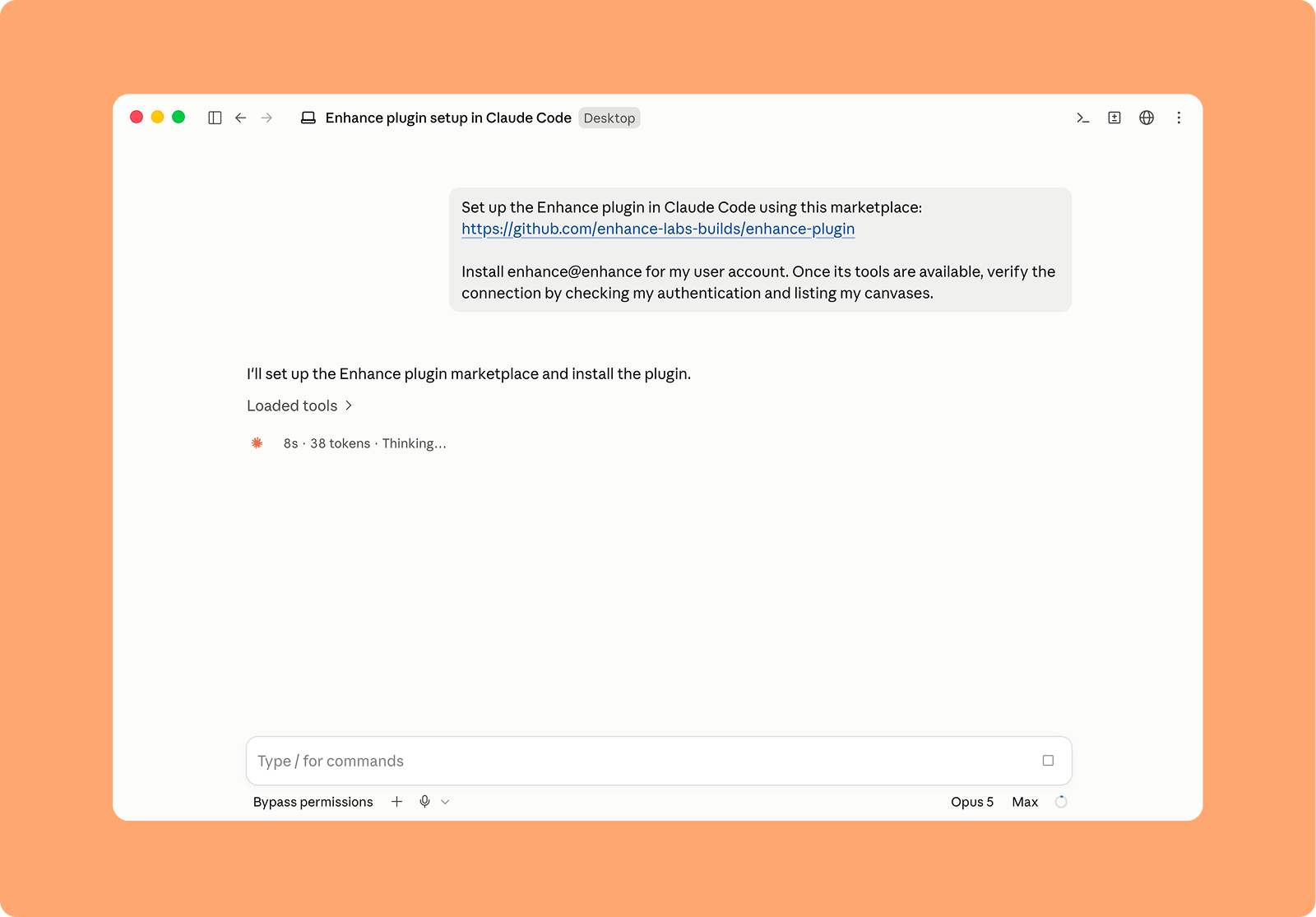 1. To connect to Claude Code install the plugin by running the following command in a normal Claude Code session.
```text theme={null}
```
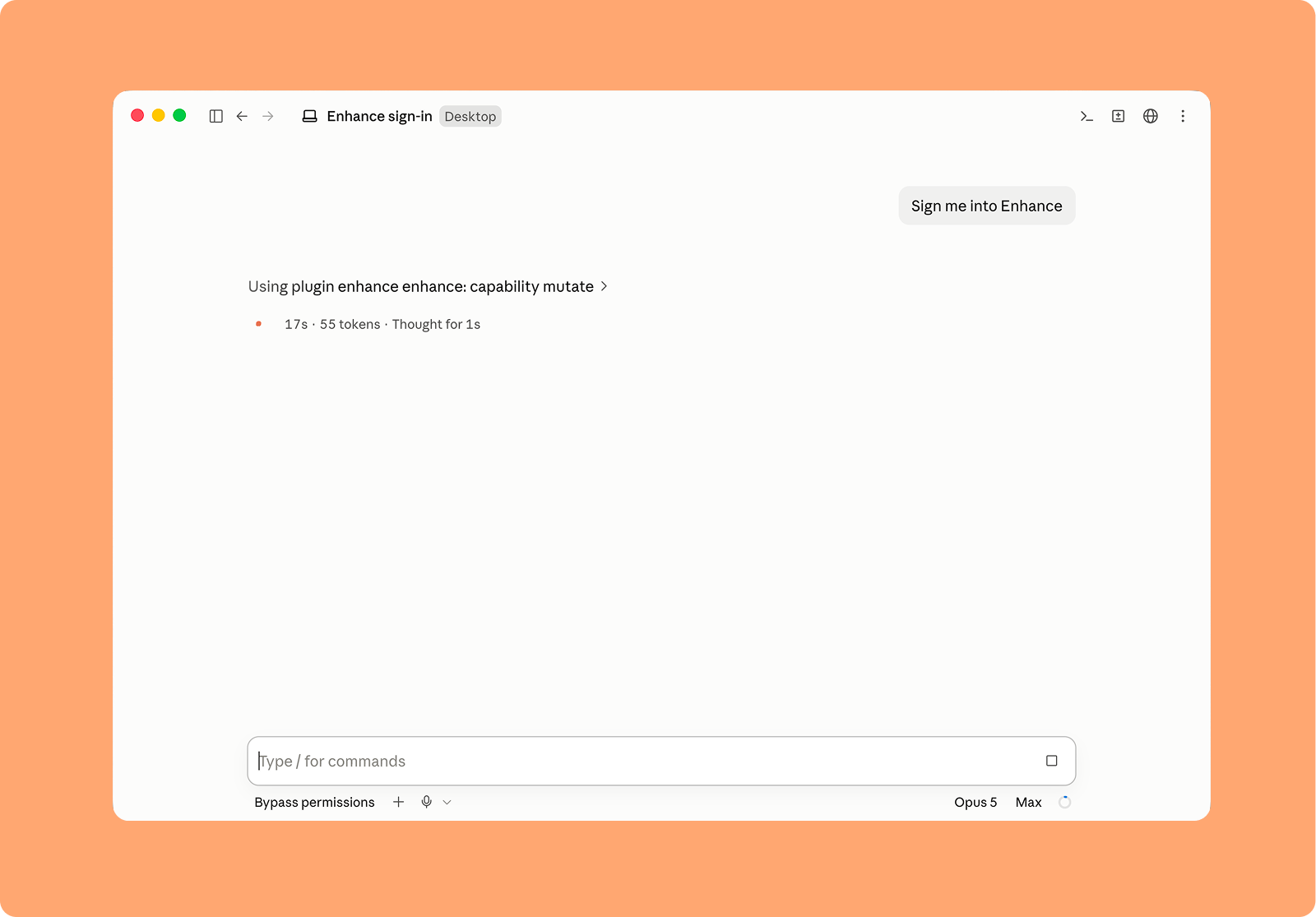
2. Restart Claude Code, then ask Claude to sign you into Enhance.
1. To connect to Claude Code install the plugin by running the following command in a normal Claude Code session.
```text theme={null}
```
2. Restart Claude Code, then ask Claude to sign you into Enhance.
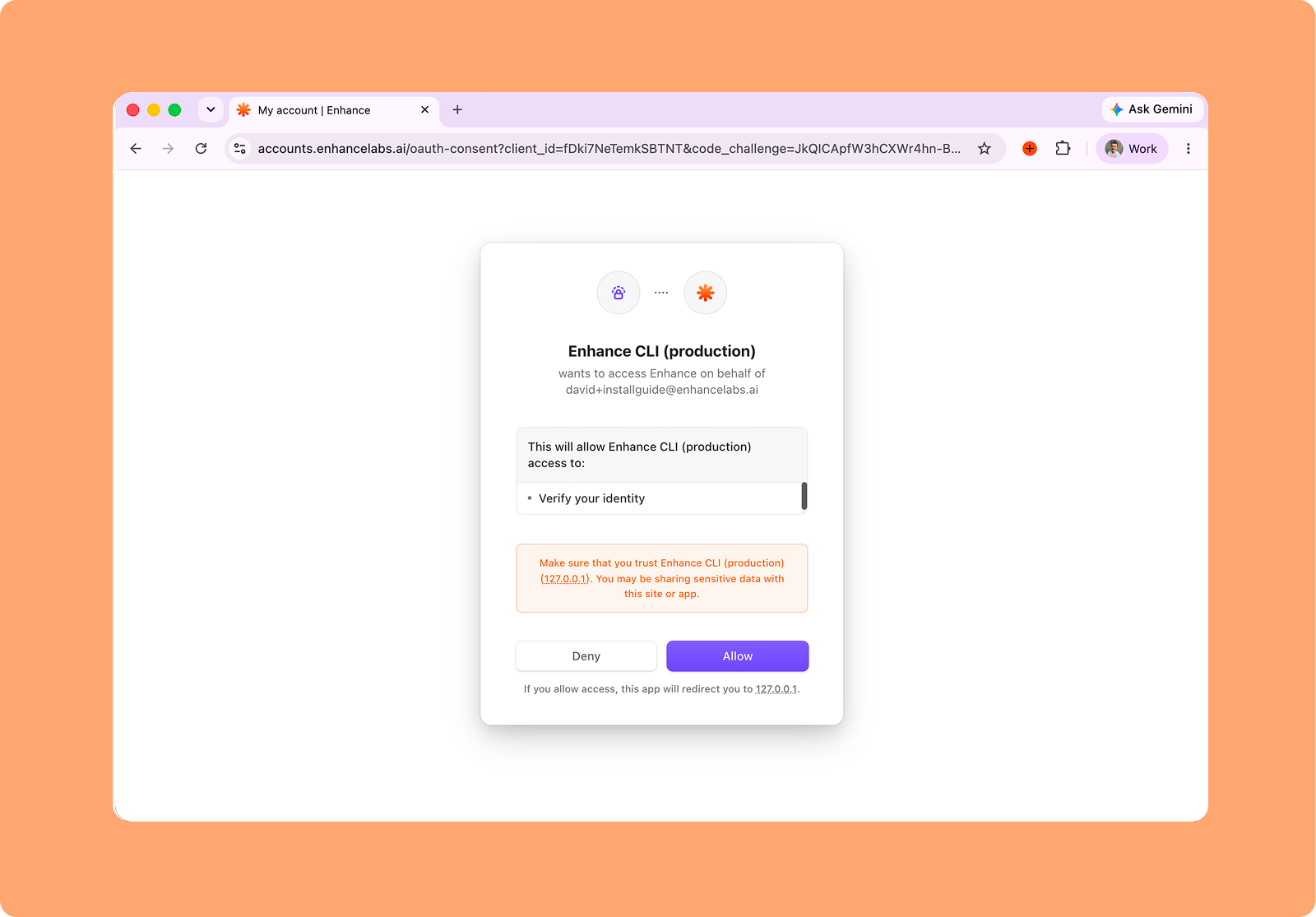
 3. Complete the sign-in page that opens in your browser to authenticate Enhance with Claude Code.
 Once connected you should see Enhance in your list of available MCPs when you run the `/MCP` command in Claude.