Create an account
To get started with Enhance you need an account in Enhance’s web app. You can create one by signing up here: https://app.enhancelabs.ai/sign-up Once you’ve signed up you can proceed with connecting your AI agent to Enhance.Connect to Claude Code Desktop via MCP Plugin
To connect to Claude Code install the plugin by running the following command in a normal Claude Code session.
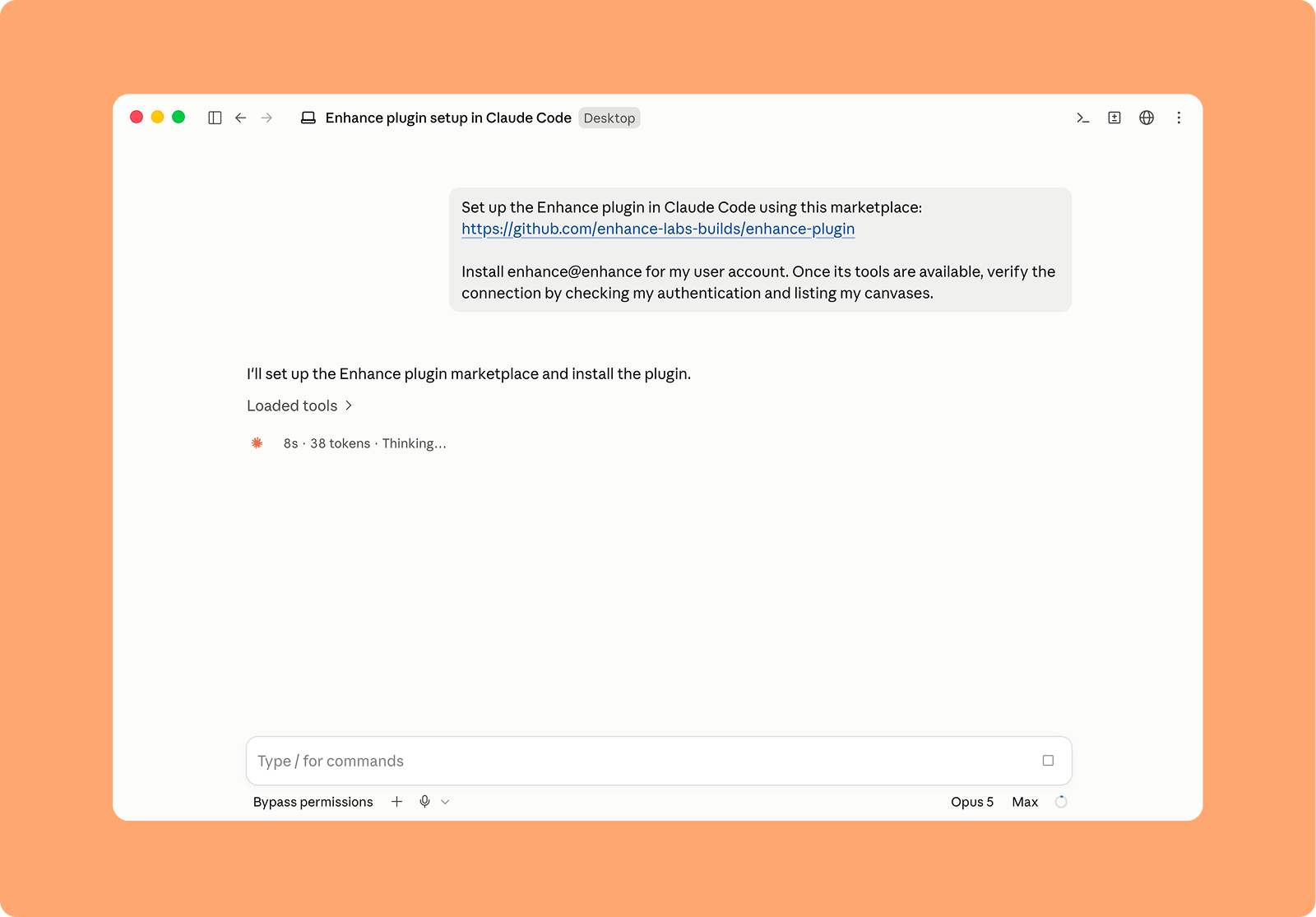
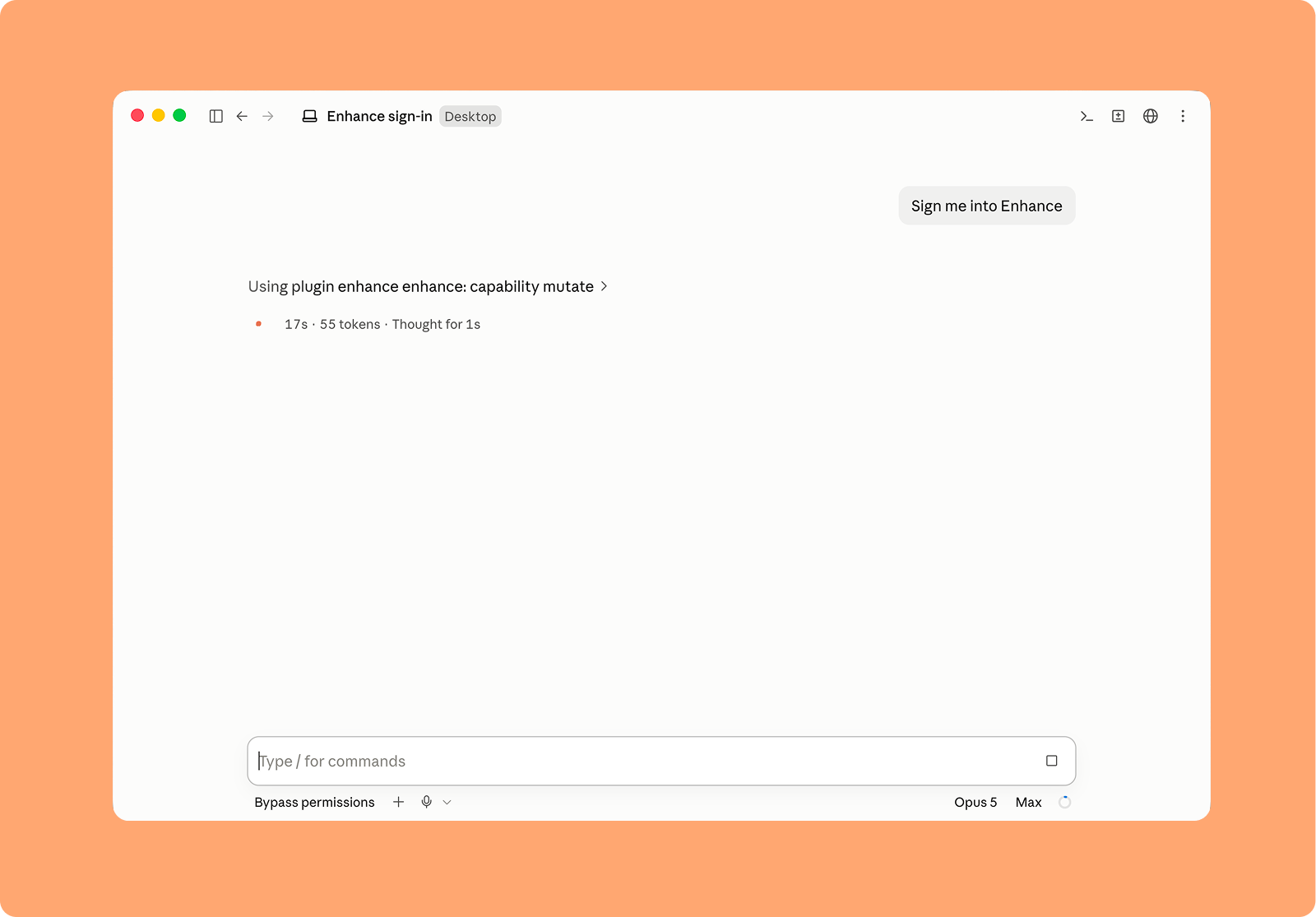
Restart Claude Code, then ask Claude to sign you into Enhance.
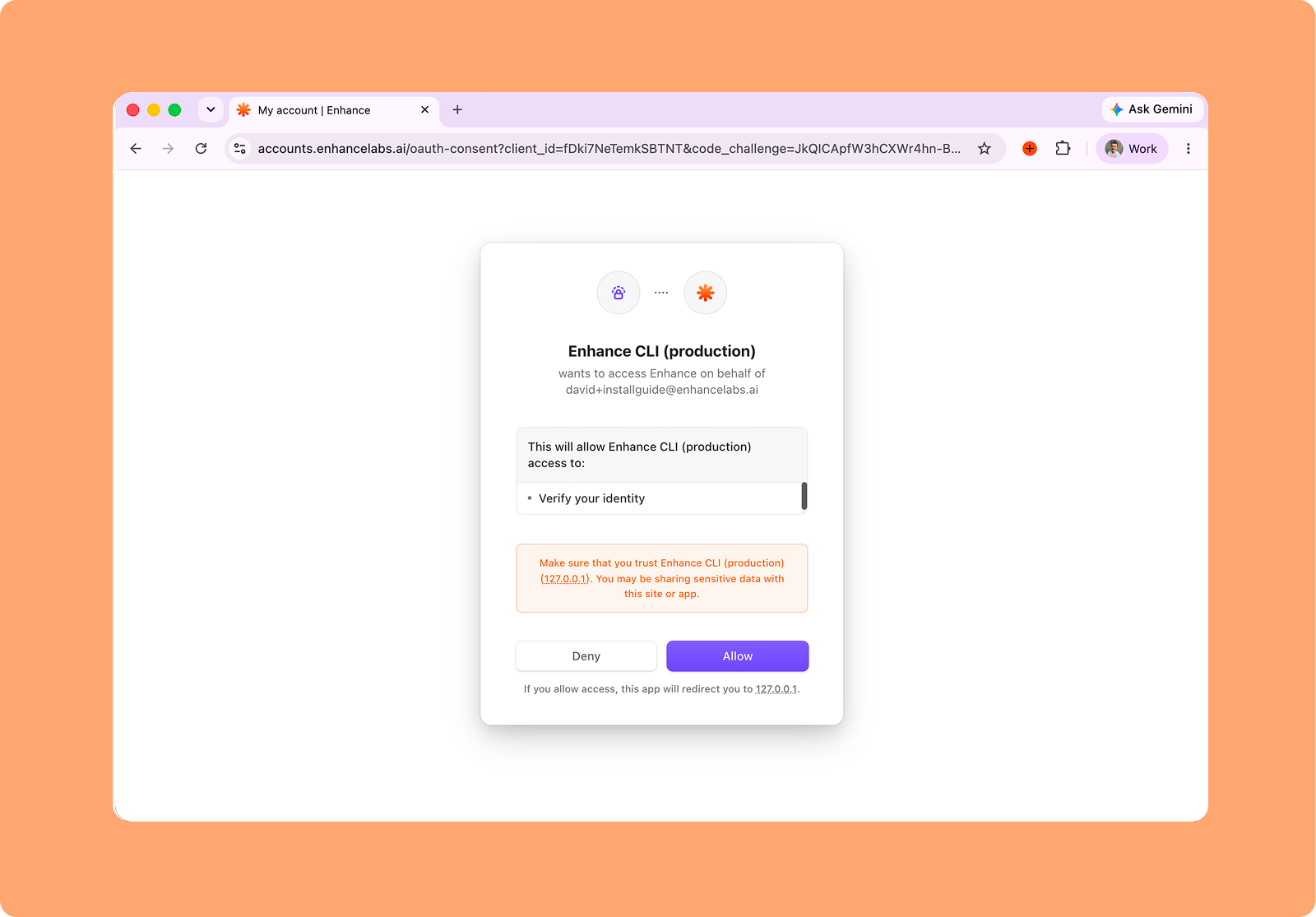
Complete the sign-in page that opens in your browser to authenticate Enhance with Claude Code
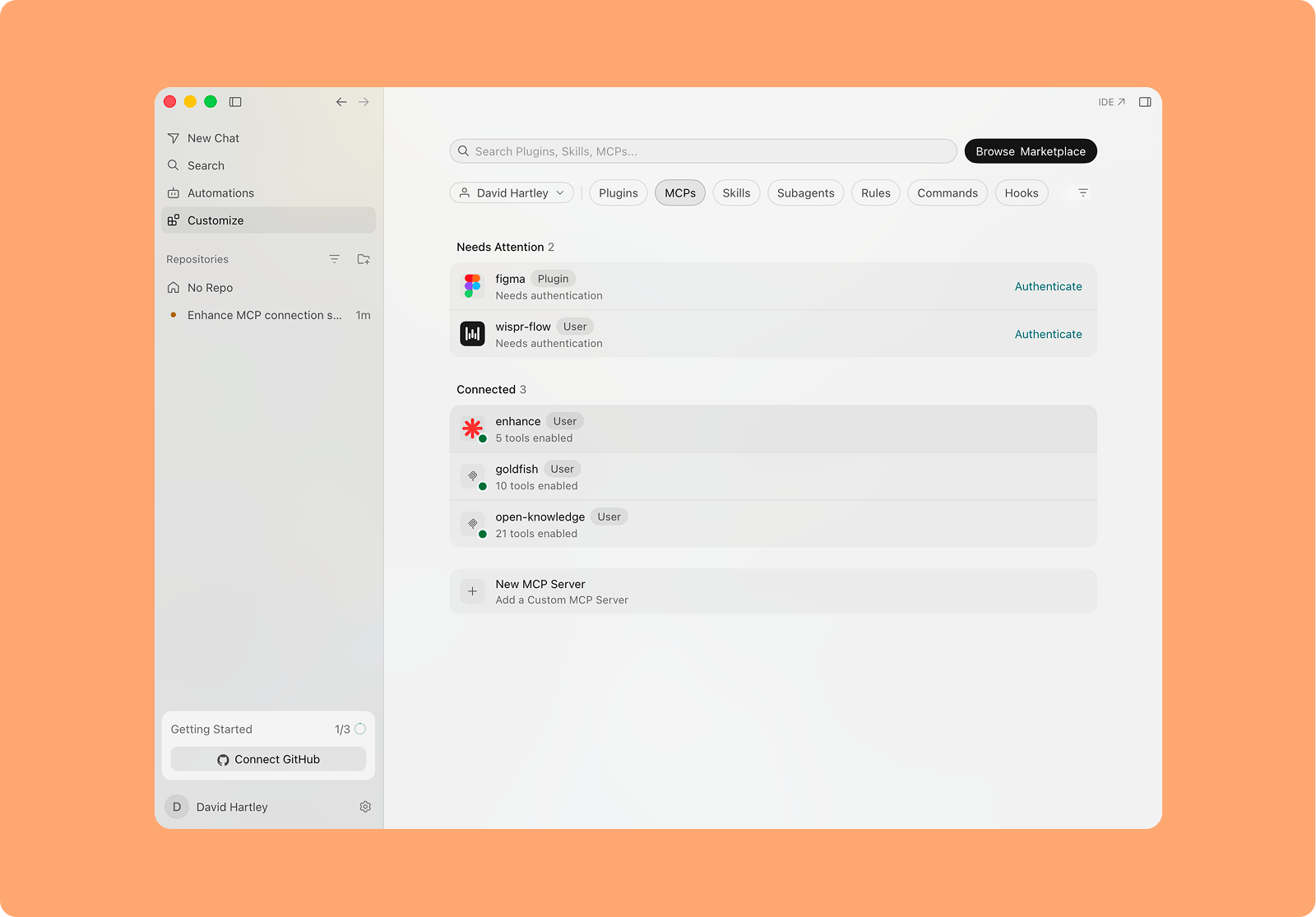
/MCP command in Claude.Connect to Claude Code, Cursor, Codex via CLI
To connect to your favourite AI tool, install the CLI by running the following command in a normal Claude Code, Codex or Cursor session.
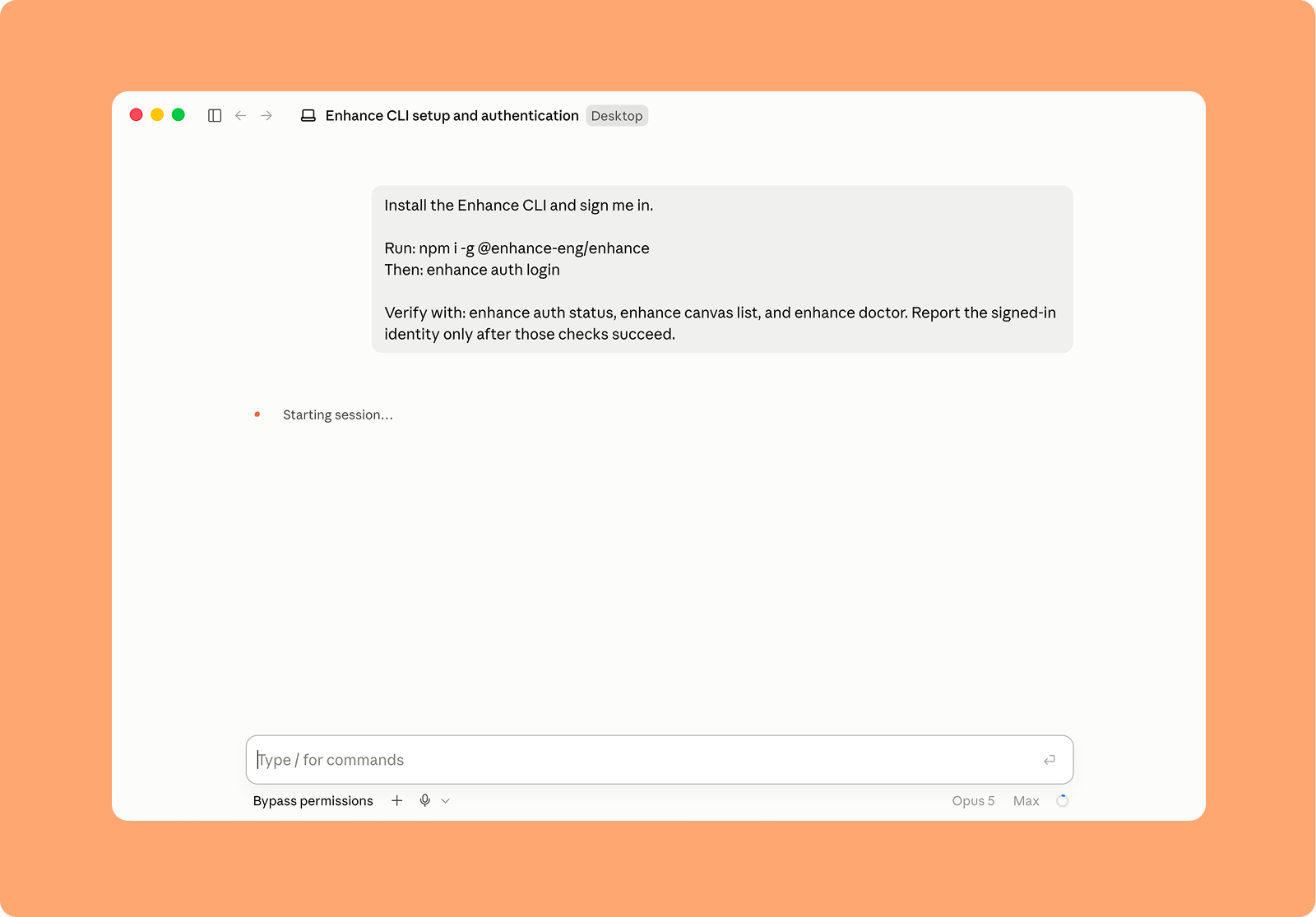
Complete the sign-in page that opens in your browser to authenticate Enhance
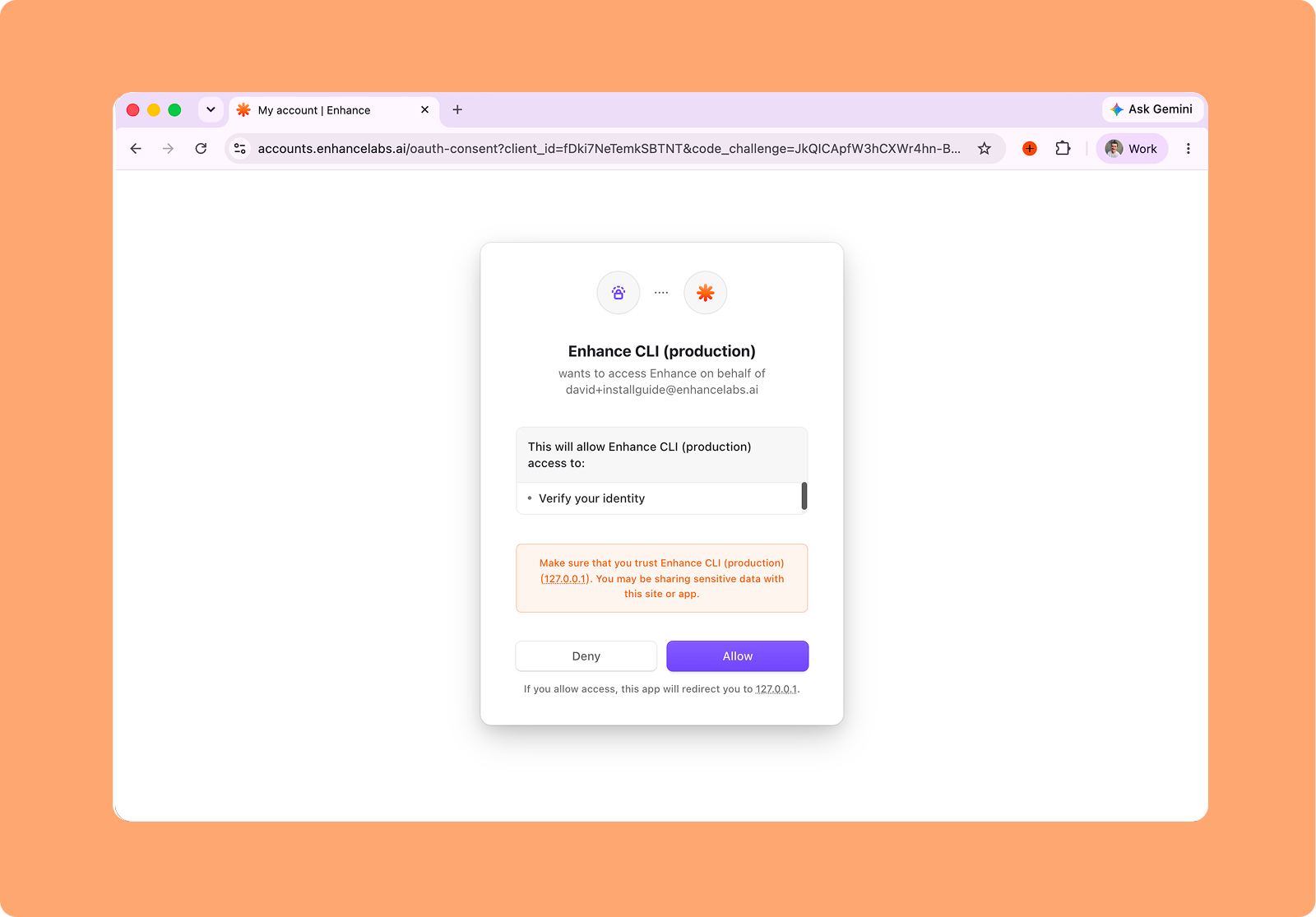
Connect to Codex via MCP
To connect to Codex install the plugin by running the following command in a normal Codex session.
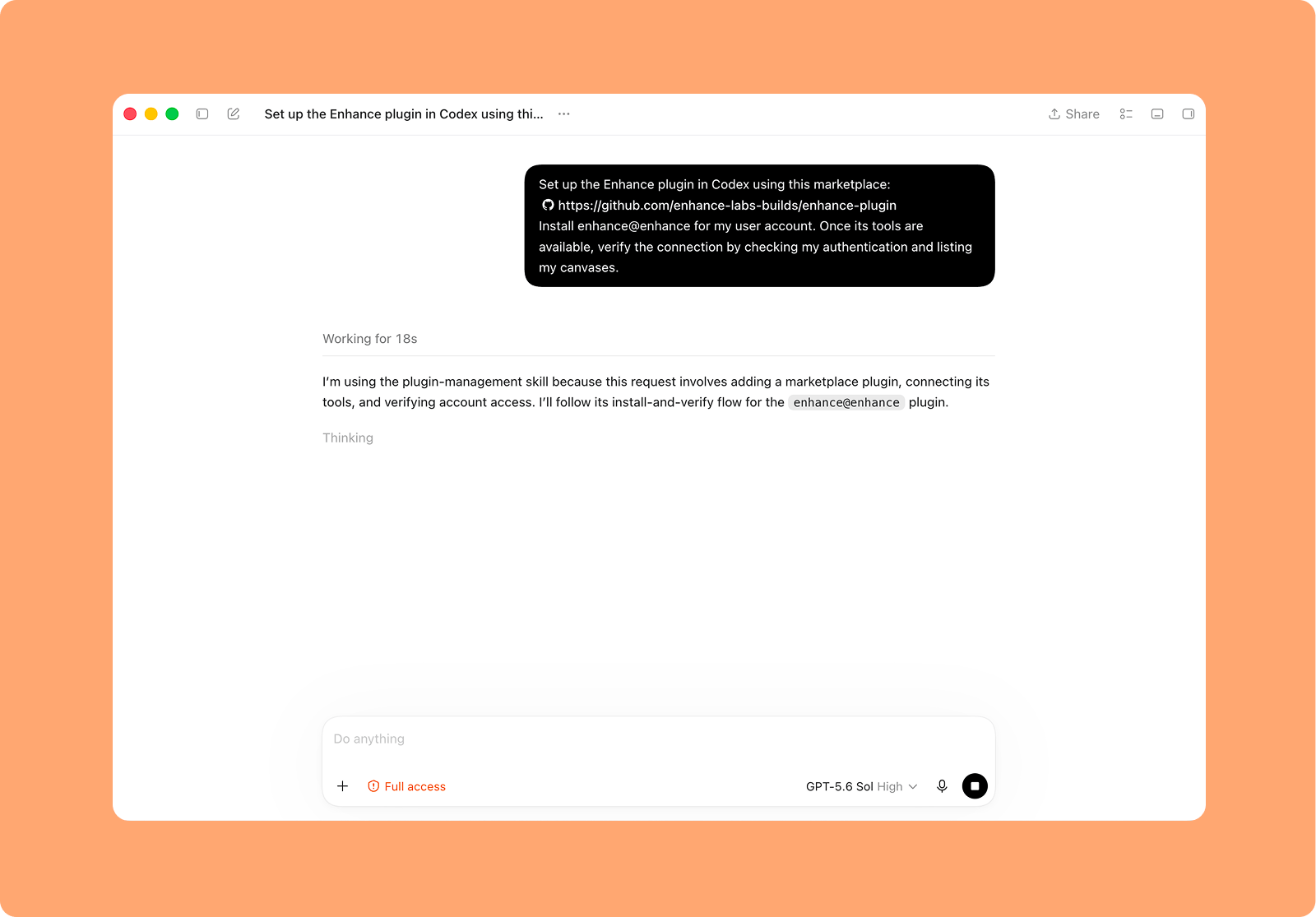
Complete the sign-in page that opens in your browser to authenticate Enhance
Restart Codex, then Enhance will be available for use
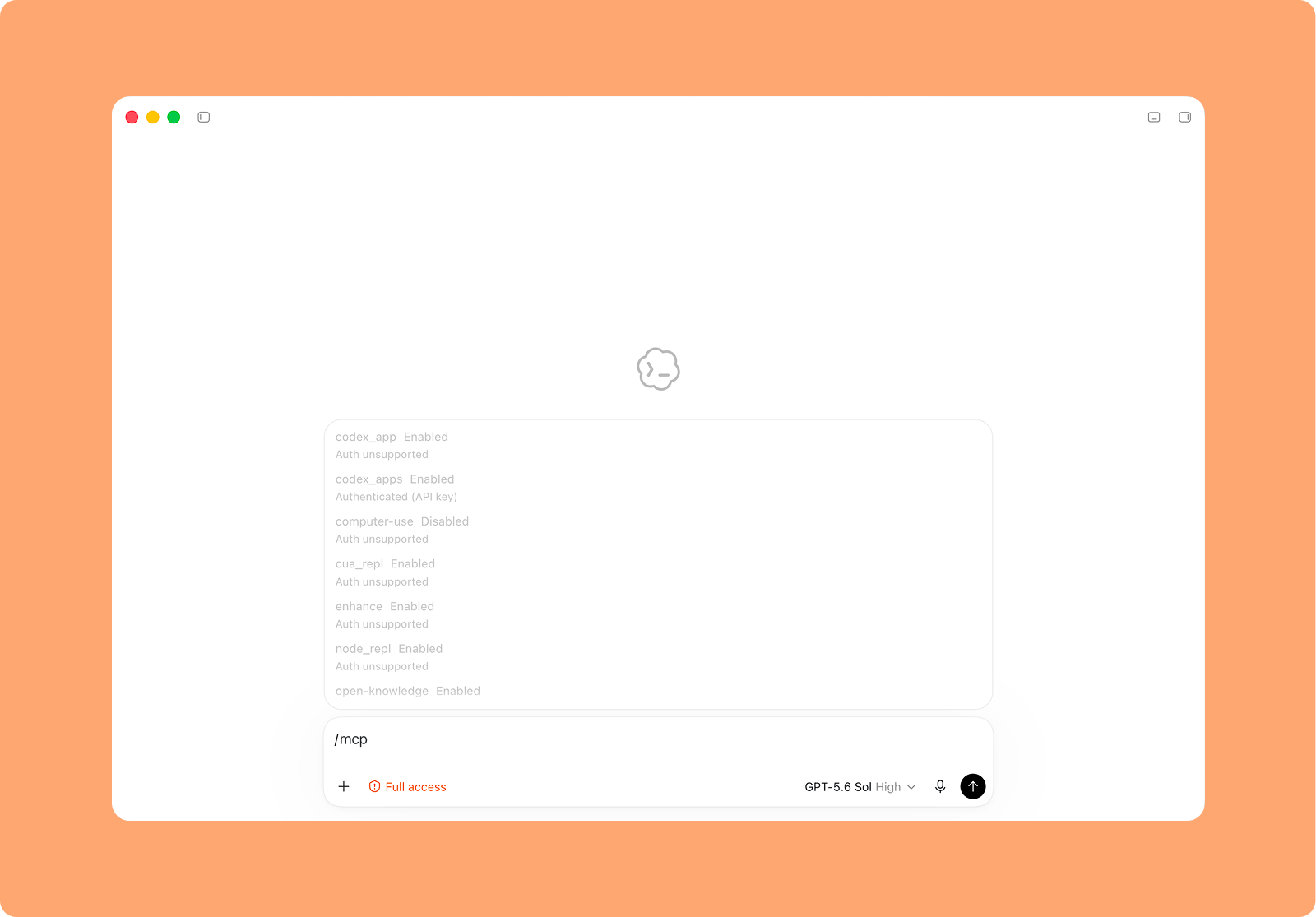
/MCP command.Connect to Cursor via MCP
To connect to Cursor run the following command in a normal Cursor session.
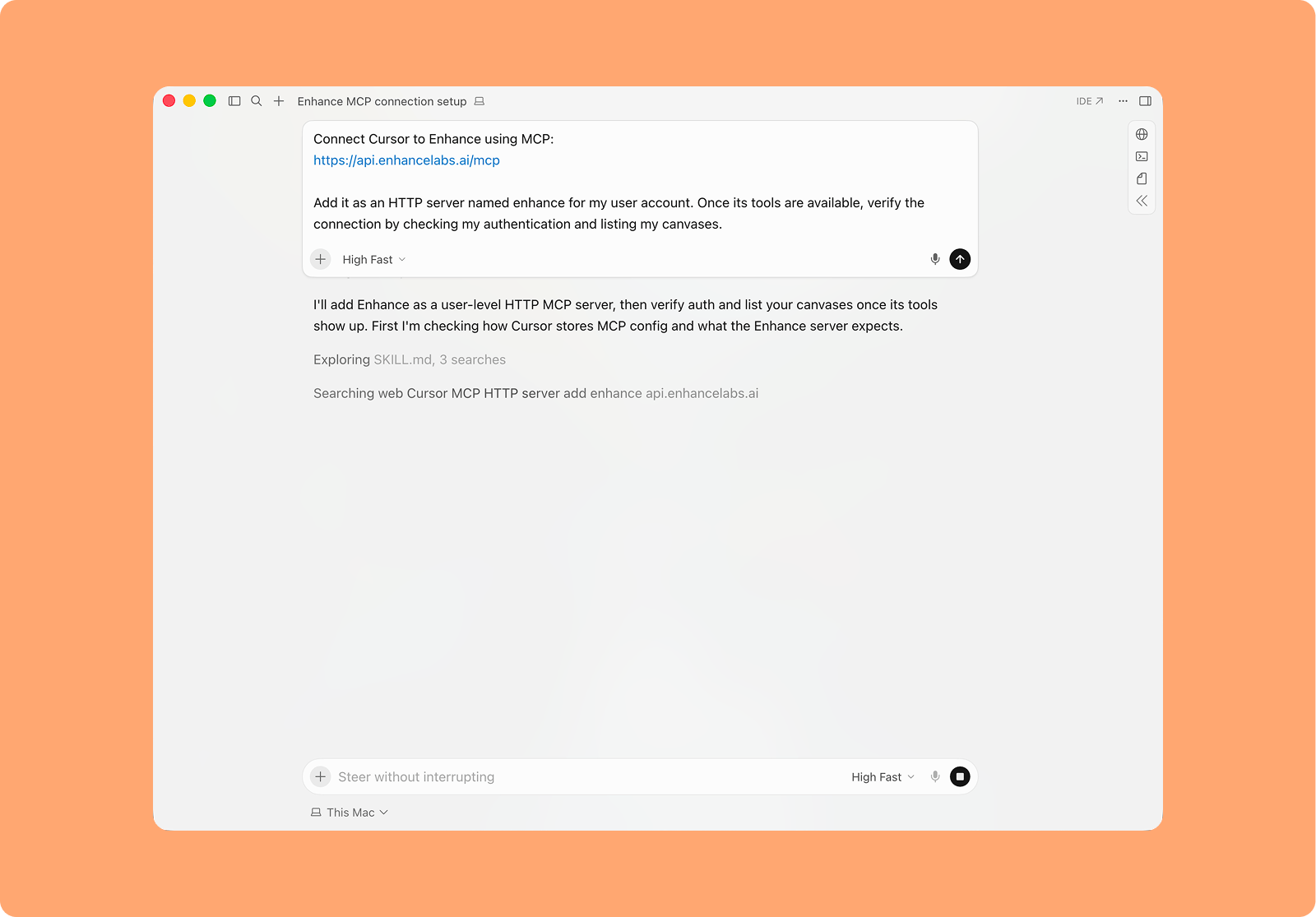
Complete the sign-in page that opens in your browser to authenticate Enhance
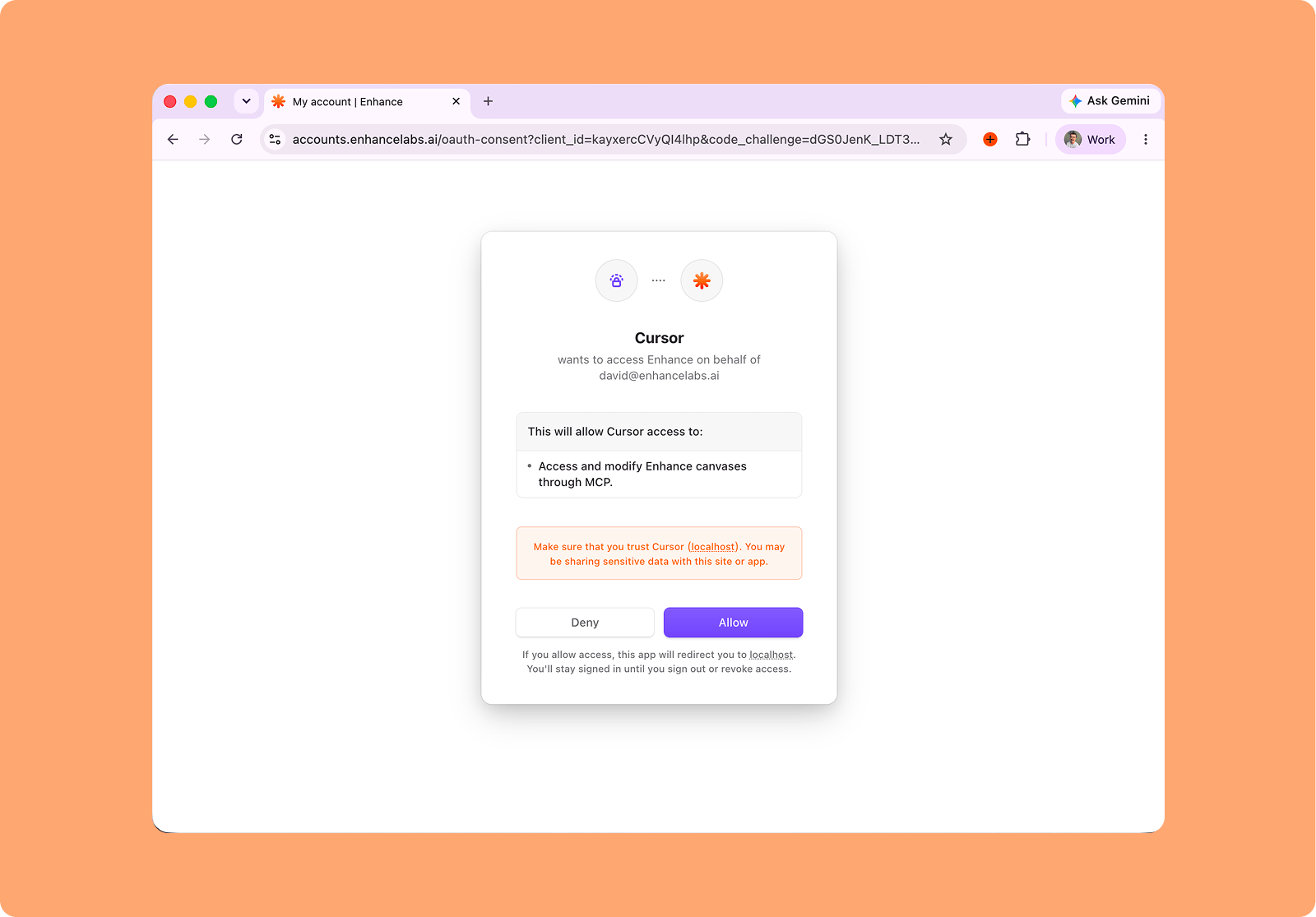
Once connected you should see the Enhance MCP in the list of available MCPs in Cursor underCustomize > MCPs