> ## Documentation Index
> Fetch the complete documentation index at: https://docs.enhancelabs.ai/llms.txt
> Use this file to discover all available pages before exploring further.

# Getting started OLD

## Create an account

To get started with Enhance you need an account in Enhance's web app. You can create one by signing up here: [https://app.enhancelabs.ai/sign-up](https://app.enhancelabs.ai/sign-up)

Once you've signed up you can proceed with connecting your AI agent to Enhance.<br /><br /><br />

## Connect to Claude Code Desktop via MCP Plugin

<Steps>
  <Step title="To connect to Claude Code install the plugin by running the following command in a normal Claude Code session.">
    ```text wrap theme={null}
    Set up the Enhance plugin in Claude Code using this marketplace:
    https://github.com/enhance-labs-builds/enhance-plugin

    Install enhance@enhance for my user account. Once its tools are available, verify the connection by checking my authentication and listing my canvases.
    ```
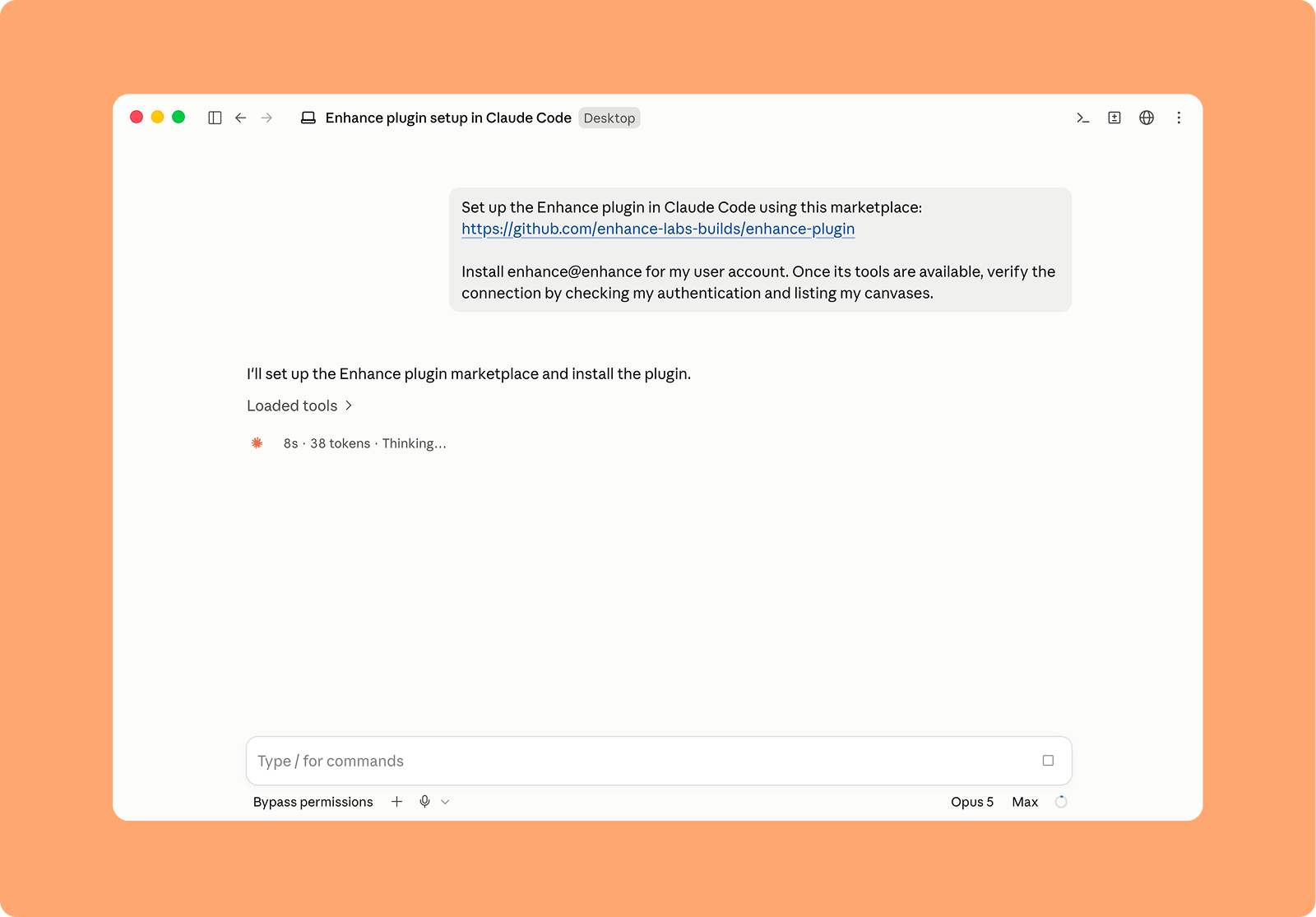
    <img src="https://mintcdn.com/enhance-labs/Ck5AeJTiMjRQJkw7/Enhance-Claude-Code-Install.png?fit=max&auto=format&n=Ck5AeJTiMjRQJkw7&q=85&s=220b0d41a6d4824f769e3c6d225b3ff2" alt="Enhance Claude Code Install" width="1600" height="1115" data-path="Enhance-Claude-Code-Install.png" />
  </Step>

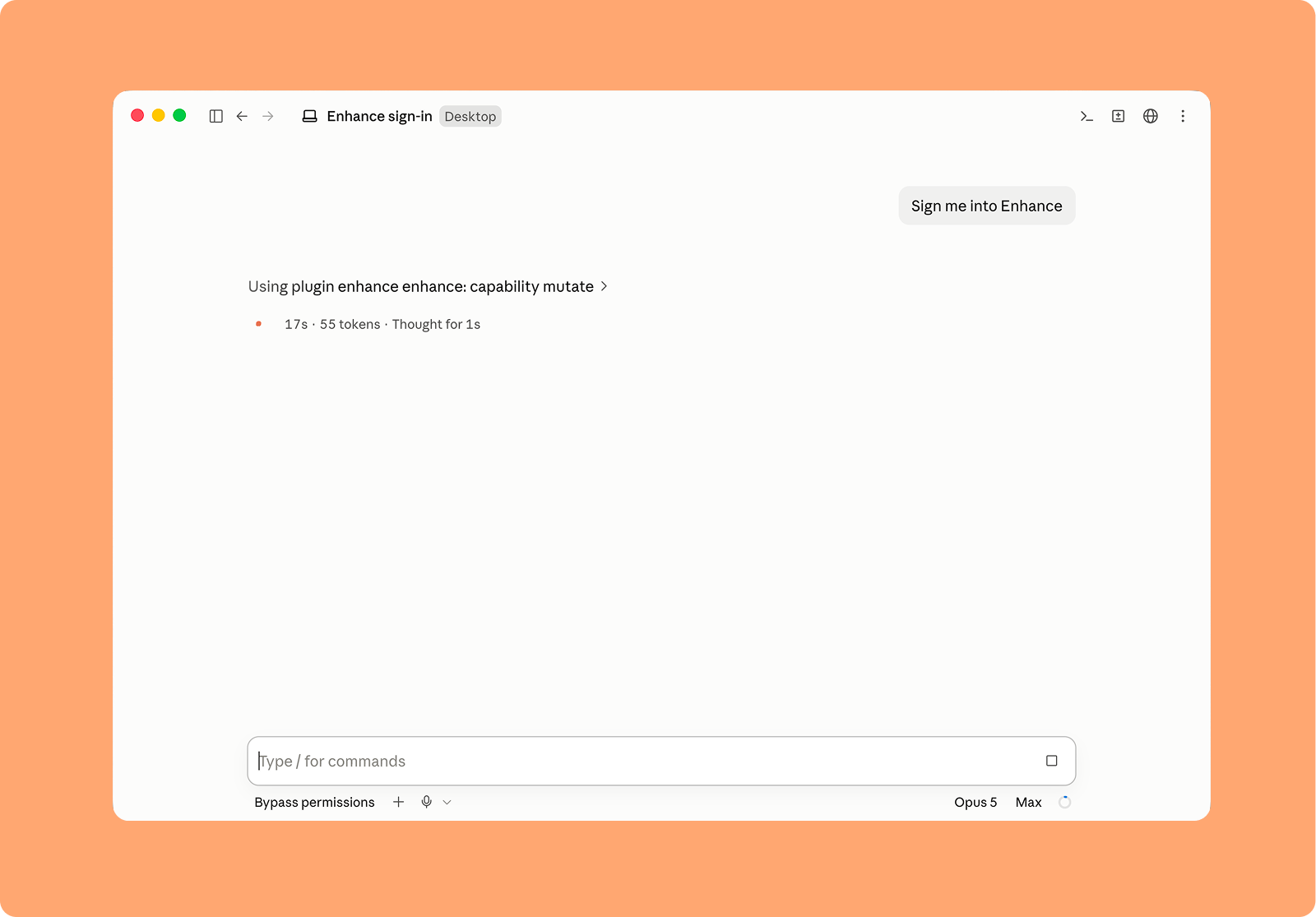
  <Step title="Restart Claude Code, then ask Claude to sign you into Enhance.">
    <img src="https://mintcdn.com/enhance-labs/Ck5AeJTiMjRQJkw7/images/Enhance-Auth.png?fit=max&auto=format&n=Ck5AeJTiMjRQJkw7&q=85&s=64ae9897632b0040f1a676e95413ae8f" alt="Enhance Auth" width="1600" height="1115" data-path="images/Enhance-Auth.png" />
  </Step>

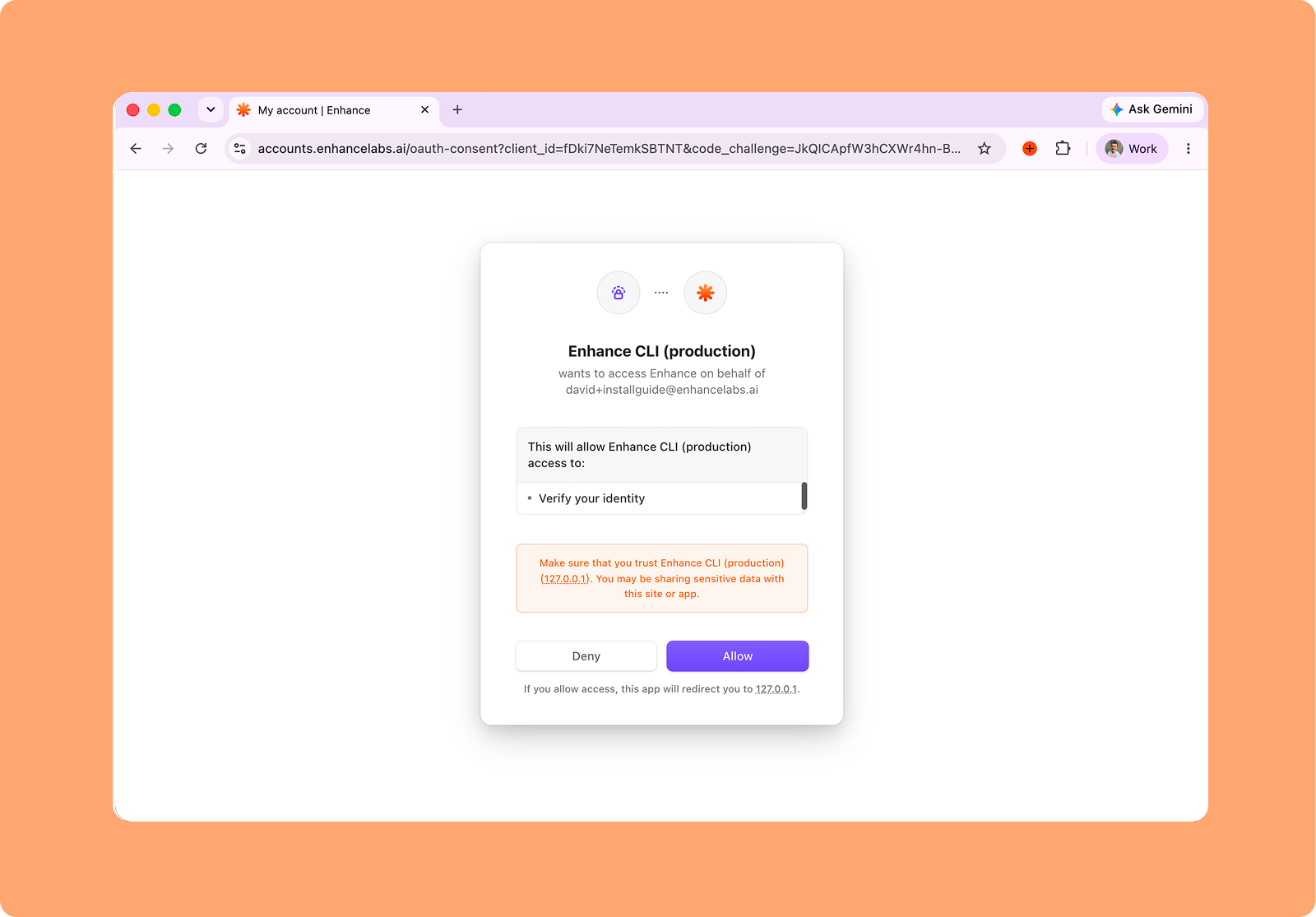
  <Step title="Complete the sign-in page that opens in your browser to authenticate Enhance with Claude Code">
    <img src="https://mintcdn.com/enhance-labs/Ck5AeJTiMjRQJkw7/images/Enhance-CLI-Auth.png?fit=max&auto=format&n=Ck5AeJTiMjRQJkw7&q=85&s=52291a5d727e1d4022a0332e455f47b7" alt="Enhance CLI Auth" width="1600" height="1115" data-path="images/Enhance-CLI-Auth.png" />

    Once connected you should see Enhance in your list of available MCPs when you run the `/MCP` command in Claude.
  </Step>
</Steps>

<br />

<br />

<br />

<br />

<br />

## Connect to Claude Code, Cursor, Codex via CLI

<Steps>
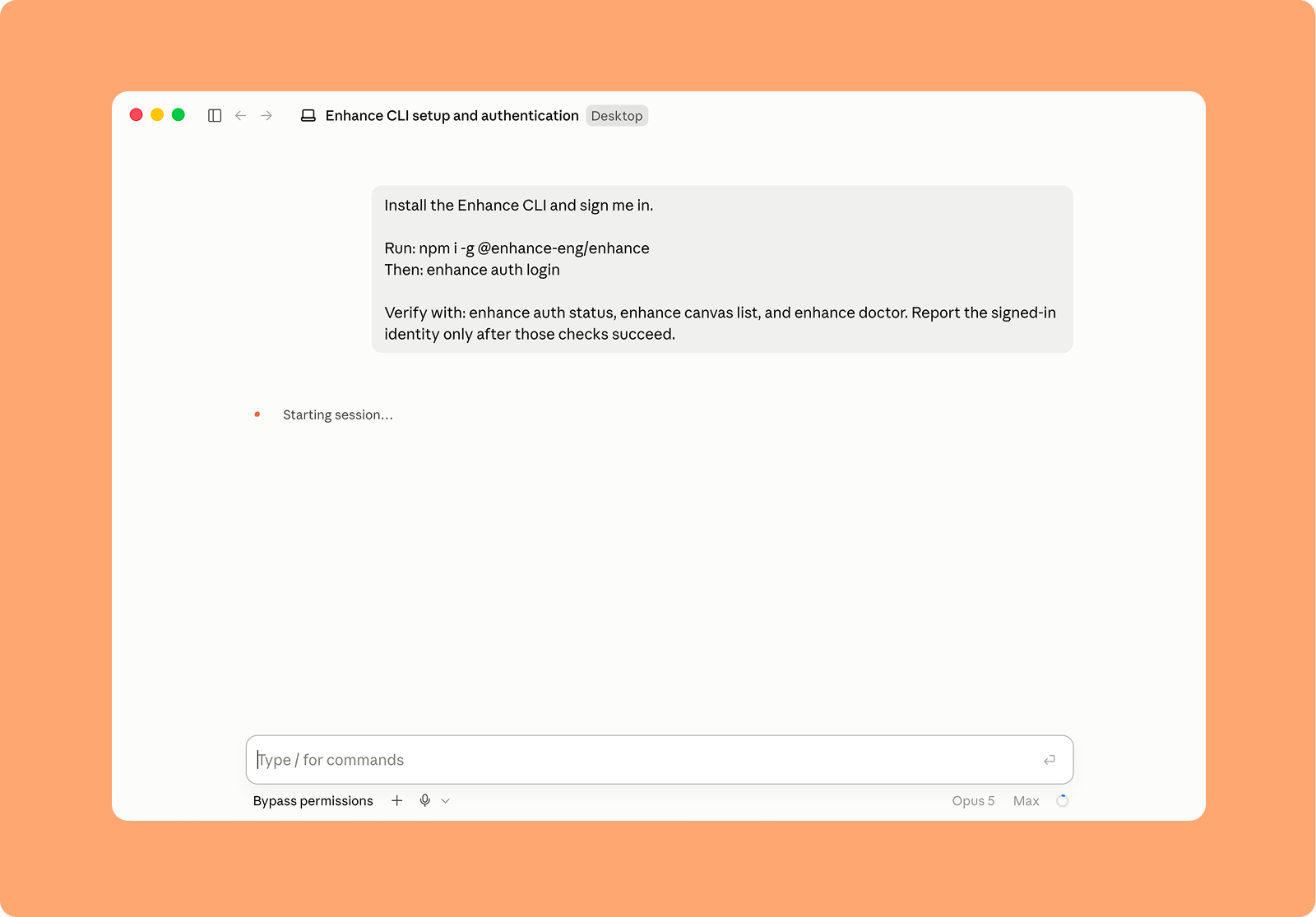
  <Step title="To connect to your favourite AI tool, install the CLI by running the following command in a normal Claude Code, Codex or Cursor session.">
    ```text wrap theme={null}
    Install the Enhance CLI and sign me in.

    Run: npm i -g @enhance-eng/enhance
    Then: enhance auth login

    Verify with: enhance auth status, enhance canvas list, and enhance doctor. Report the signed-in identity only after those checks succeed.
    ```

    <img src="https://mintcdn.com/enhance-labs/fAY0Nvg7rzj3wA8b/images/Enhance-cli-Install.png?fit=max&auto=format&n=fAY0Nvg7rzj3wA8b&q=85&s=406dc02619a4ff7b50b9f71771445274" alt="Enhance Cli Install" width="1600" height="1115" data-path="images/Enhance-cli-Install.png" />
  </Step>

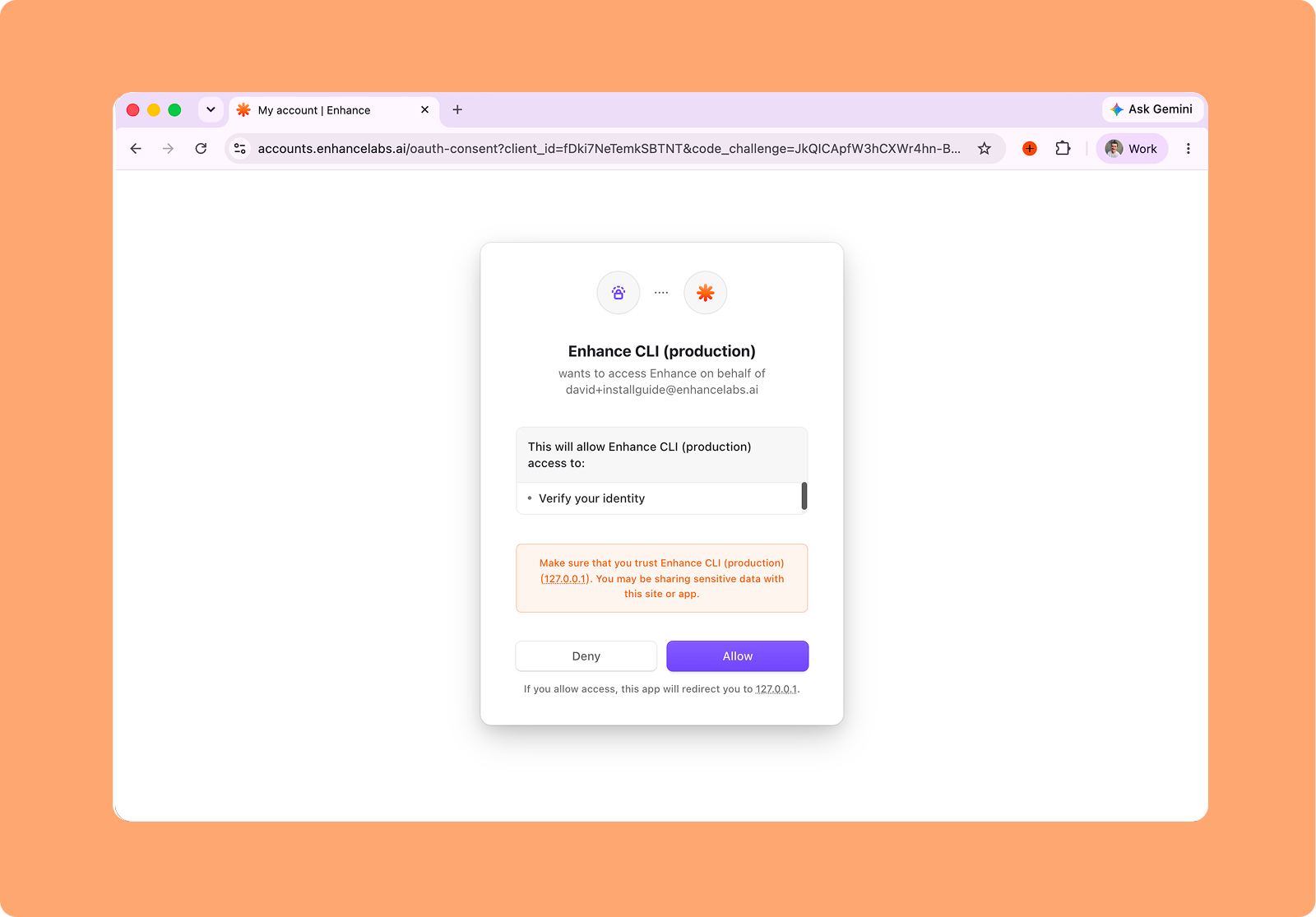
  <Step title="Complete the sign-in page that opens in your browser to authenticate Enhance">
    <img src="https://mintcdn.com/enhance-labs/fAY0Nvg7rzj3wA8b/images/enhance-cli-auth-2.png?fit=max&auto=format&n=fAY0Nvg7rzj3wA8b&q=85&s=1c14cbbfce617e84d056ff5df9240f9d" alt="Enhance Cli Auth 2" width="1600" height="1115" data-path="images/enhance-cli-auth-2.png" />

    Once connected you should be able to ask your AI tool to start designing in Enhance.
  </Step>
</Steps>

<br />

<br />

<br />

## Connect to Codex via MCP

<Steps>
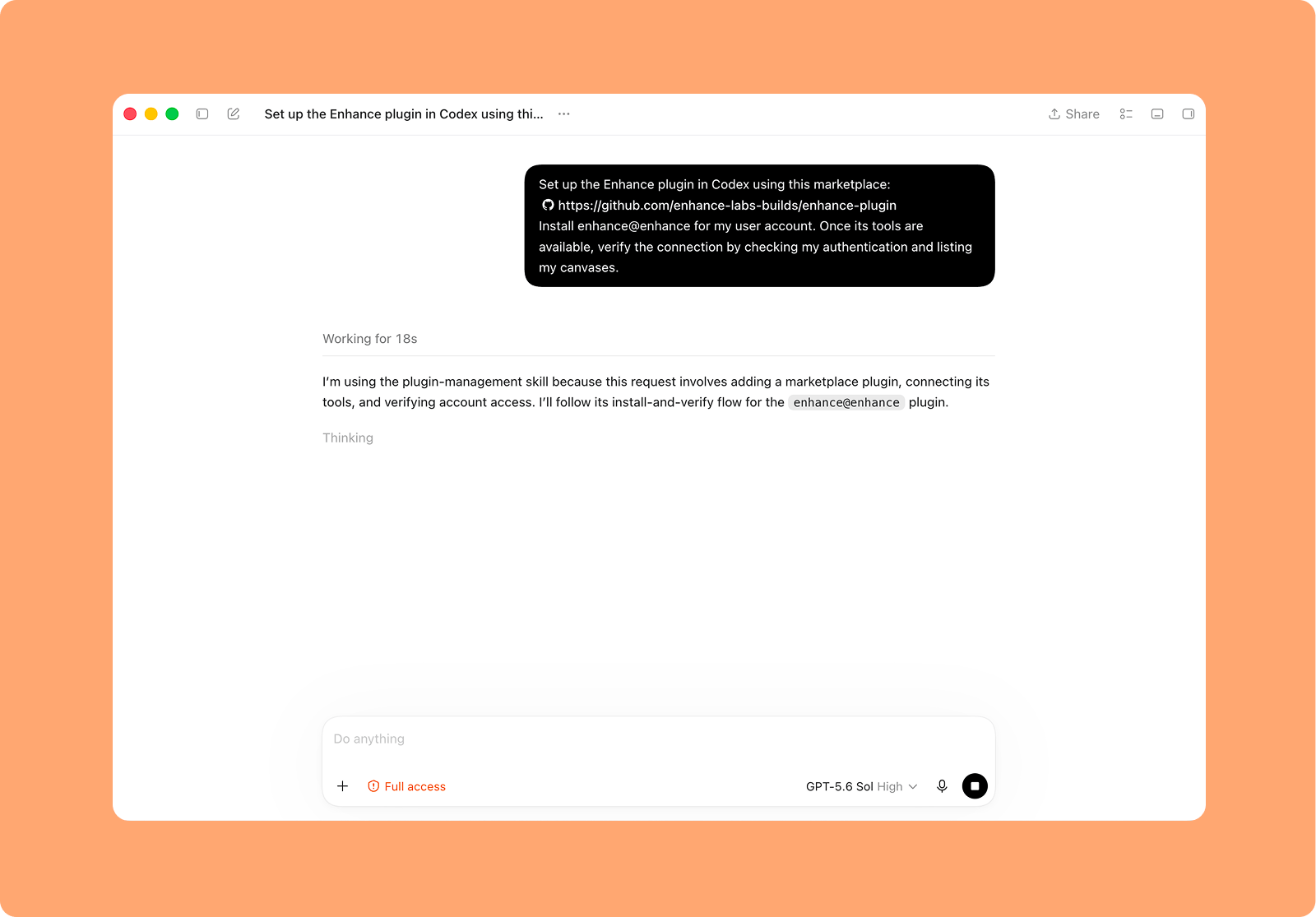
  <Step title="To connect to Codex install the plugin by running the following command in a normal Codex session.">
    ```text wrap theme={null}
    Set up the Enhance plugin in Codex using this marketplace:
    https://github.com/enhance-labs-builds/enhance-plugin

    Install enhance@enhance for my user account. Once its tools are available, verify the connection by checking my authentication and listing my canvases.
    ```
    <img src="https://mintcdn.com/enhance-labs/v4z4P_efsAcAy38u/images/codex-prompt.png?fit=max&auto=format&n=v4z4P_efsAcAy38u&q=85&s=4311180909f3e834f1cfe81188d43daf" alt="Codex Prompt" width="1600" height="1115" data-path="images/codex-prompt.png" />
  </Step>

  <Step title="Complete the sign-in page that opens in your browser to authenticate Enhance">
    <img src="https://mintcdn.com/enhance-labs/fAY0Nvg7rzj3wA8b/images/enhance-cli-auth-2.png?fit=max&auto=format&n=fAY0Nvg7rzj3wA8b&q=85&s=1c14cbbfce617e84d056ff5df9240f9d" alt="Enhance Cli Auth 2" width="1600" height="1115" data-path="images/enhance-cli-auth-2.png" />
  </Step>

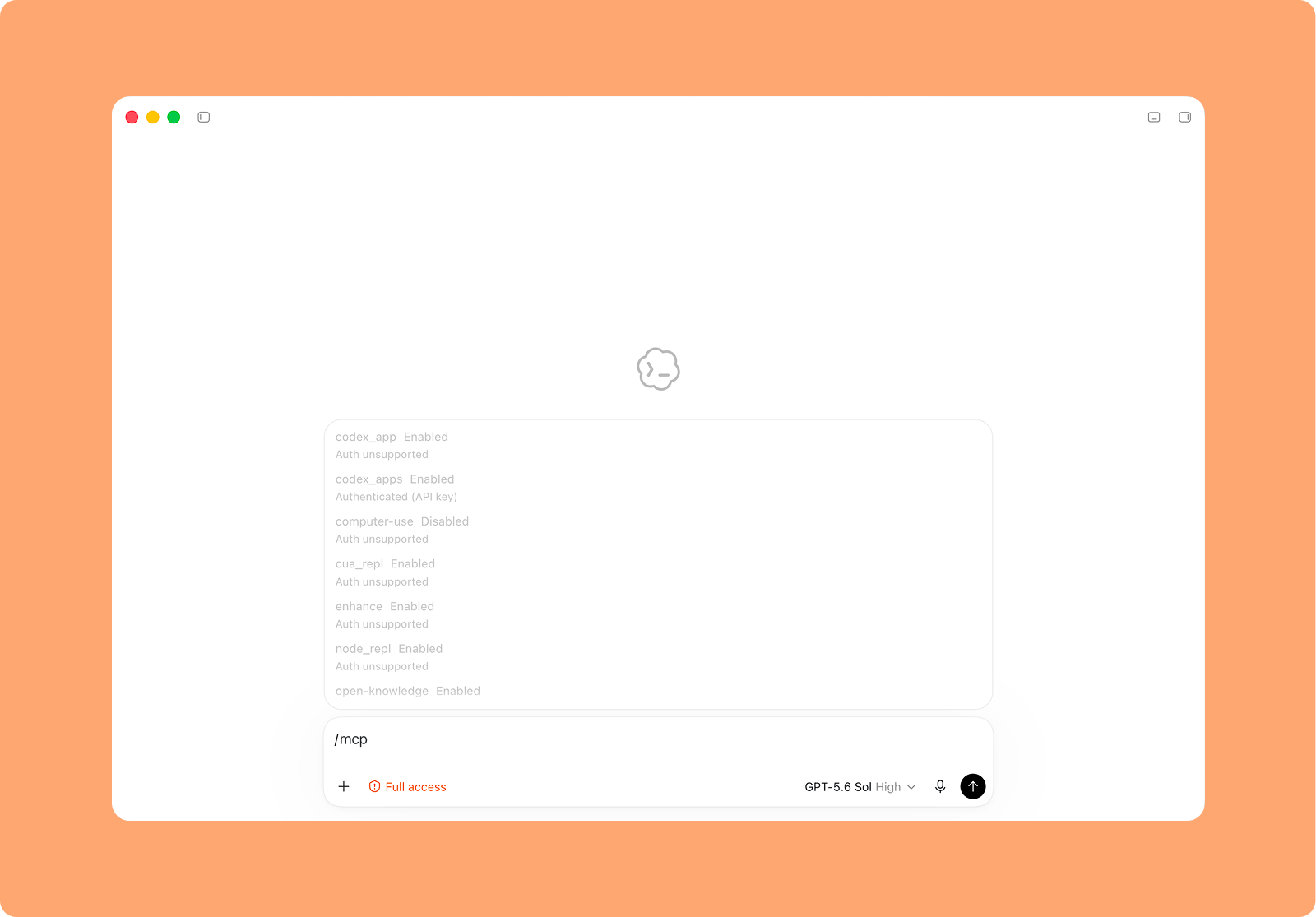
  <Step title="Restart Codex, then Enhance will be available for use ">
    <img src="https://mintcdn.com/enhance-labs/v4z4P_efsAcAy38u/images/codex-mcp-2.png?fit=max&auto=format&n=v4z4P_efsAcAy38u&q=85&s=28df8a2b12e36fff9db1c63f47574366" alt="Codex Mcp 2" width="1600" height="1115" data-path="images/codex-mcp-2.png" />

    After restarting Codex, you should then see Enhance in your list of available MCPs when you run the `/MCP` command.
  </Step>
</Steps>

## Connect to Cursor via MCP

<Steps>
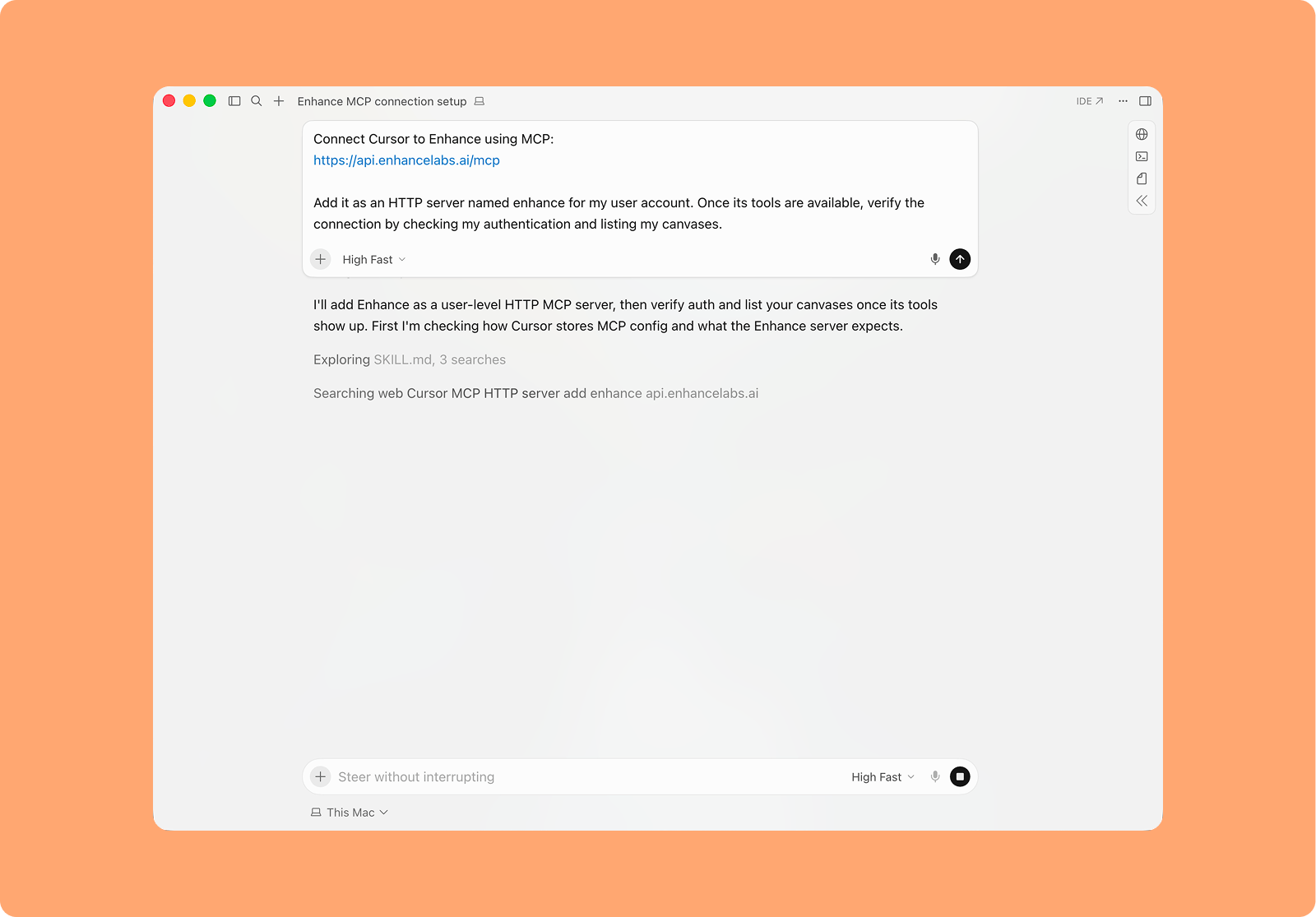
  <Step title="To connect to Cursor run the following command in a normal Cursor session.">
    ```text wrap theme={null}
    Connect Cursor to Enhance using MCP:
    https://api.enhancelabs.ai/mcp

    Add it as an HTTP server named enhance for my user account. Once its tools are available, verify the connection by checking my authentication and listing my canvases.
    ```
    <img src="https://mintcdn.com/enhance-labs/PlRbETwRhiQeMLn9/cursor-prompt.png?fit=max&auto=format&n=PlRbETwRhiQeMLn9&q=85&s=133a540d440f2b98f2d7331e124b2bd5" alt="Codex Prompt" title="Codex Prompt" lightAlt="Codex Prompt" darkAlt="Codex Prompt" className="dark:hidden" width="1600" height="1115" data-path="cursor-prompt.png" />

    <img src="https://mintcdn.com/enhance-labs/v4z4P_efsAcAy38u/images/codex-prompt.png?fit=max&auto=format&n=v4z4P_efsAcAy38u&q=85&s=4311180909f3e834f1cfe81188d43daf" alt="Codex Prompt" title="Codex Prompt" lightAlt="Codex Prompt" darkAlt="Codex Prompt" className="hidden dark:block" width="1600" height="1115" data-path="images/codex-prompt.png" />
  </Step>

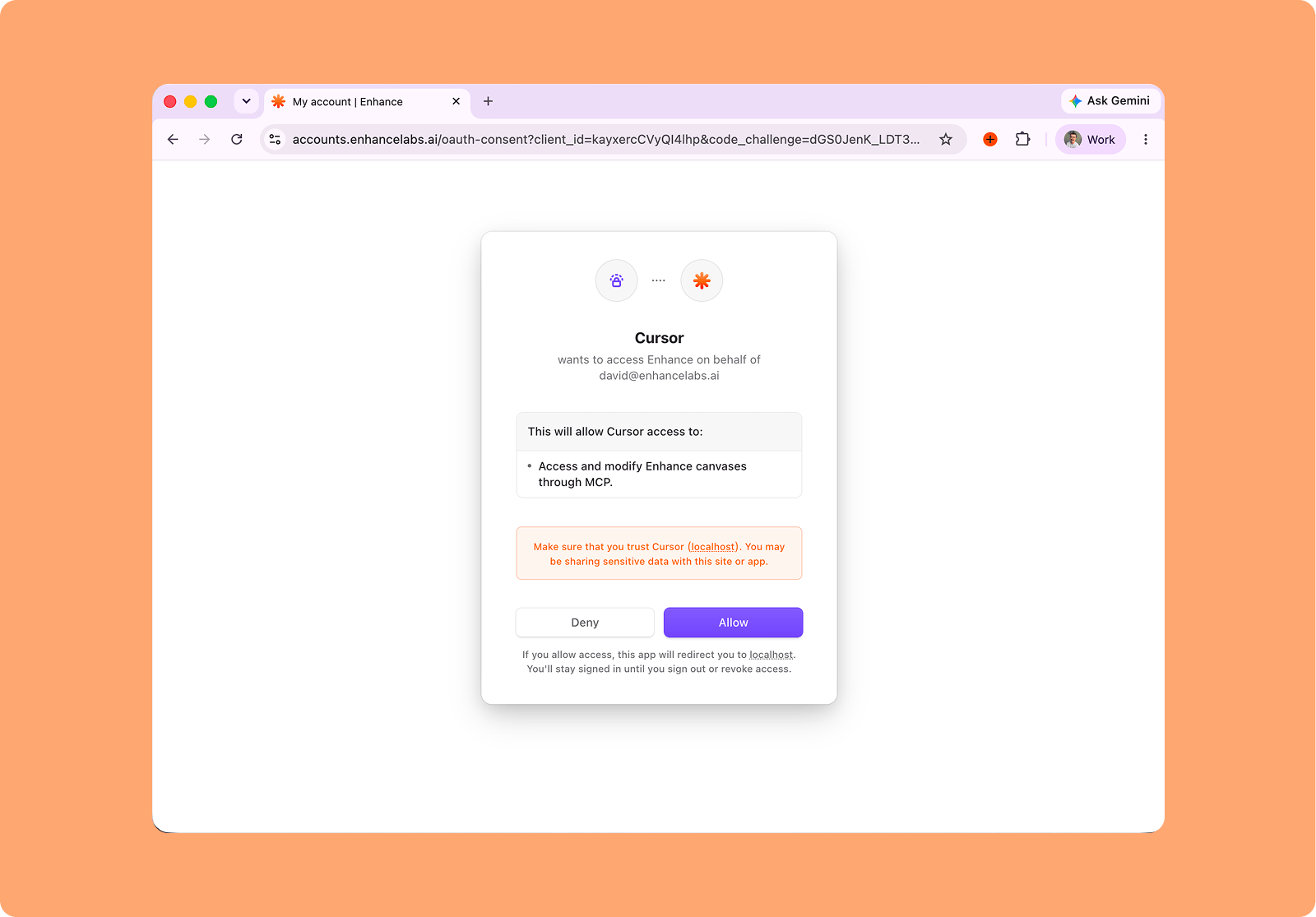
  <Step title="Complete the sign-in page that opens in your browser to authenticate Enhance">
    <img src="https://mintcdn.com/enhance-labs/PlRbETwRhiQeMLn9/cursor-auth.png?fit=max&auto=format&n=PlRbETwRhiQeMLn9&q=85&s=e13e6ca456116b3a79f710e19753b500" alt="Cursor Auth" width="1600" height="1115" data-path="cursor-auth.png" />
  </Step>

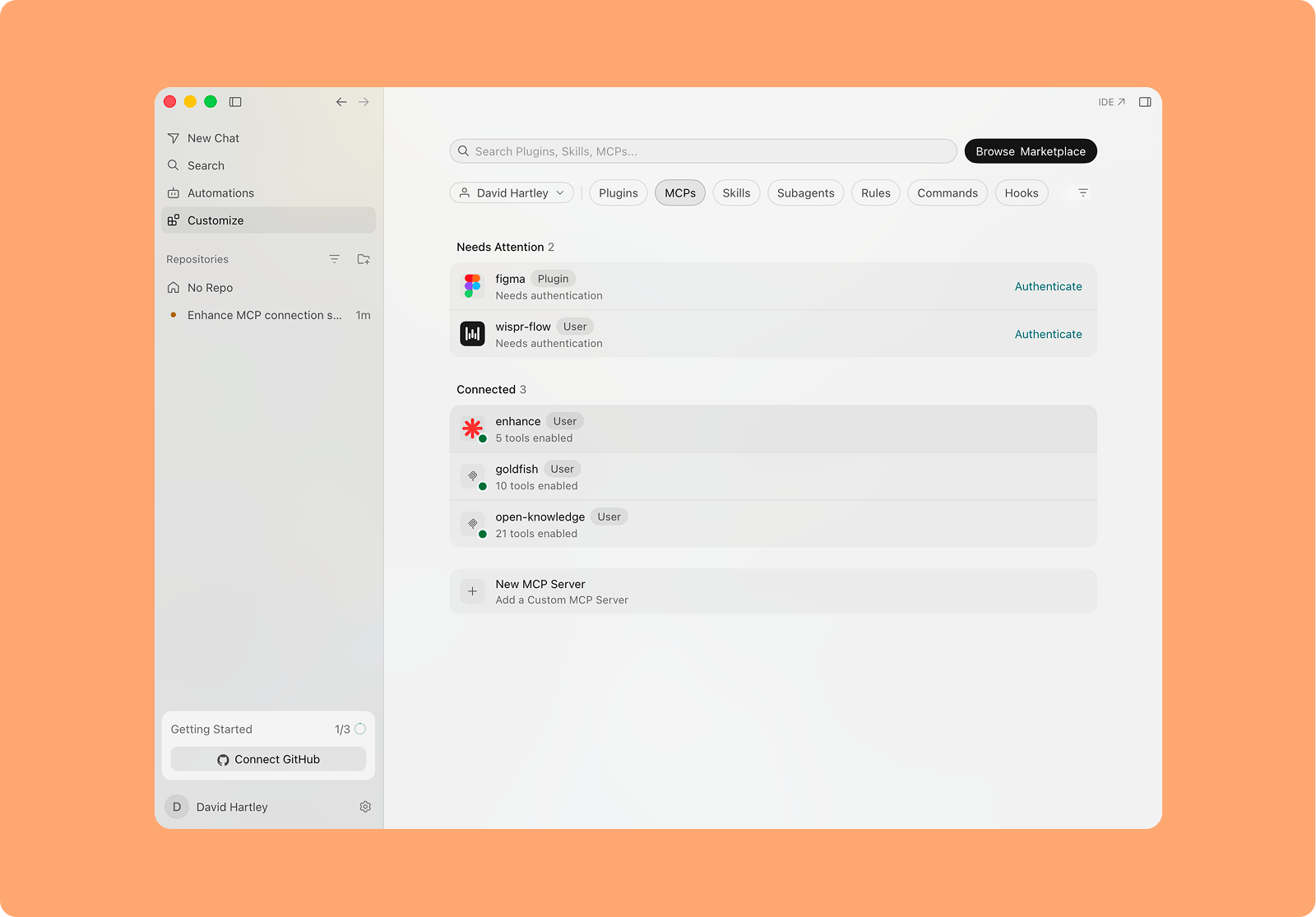
  <Step title="Once connected you should see the Enhance MCP in the list of available MCPs in Cursor under`Customize > MCPs`">
    <img src="https://mintcdn.com/enhance-labs/PlRbETwRhiQeMLn9/enhance-cursor-mcp.png?fit=max&auto=format&n=PlRbETwRhiQeMLn9&q=85&s=913101325ec9c5384ddbb2c329ca19c2" alt="Enhance Cursor Mcp" width="1600" height="1115" data-path="enhance-cursor-mcp.png" />
  </Step>
</Steps>