> ## Documentation Index
> Fetch the complete documentation index at: https://docs.enhancelabs.ai/llms.txt
> Use this file to discover all available pages before exploring further.

# Getting started 

## Create an account

To get started with Enhance you need an account in Enhance's web app. You can create one by signing up here: [https://app.enhancelabs.ai/sign-up](https://app.enhancelabs.ai/sign-up)

Once you've signed up you can proceed with connecting your AI agent to Enhance.<br /><br /><br />

## Connect to Claude Code via Claude Desktop

**Plugin (Recommended)**
<Steps>
  <Step title="Open the desktop app and head to the Code tab" />

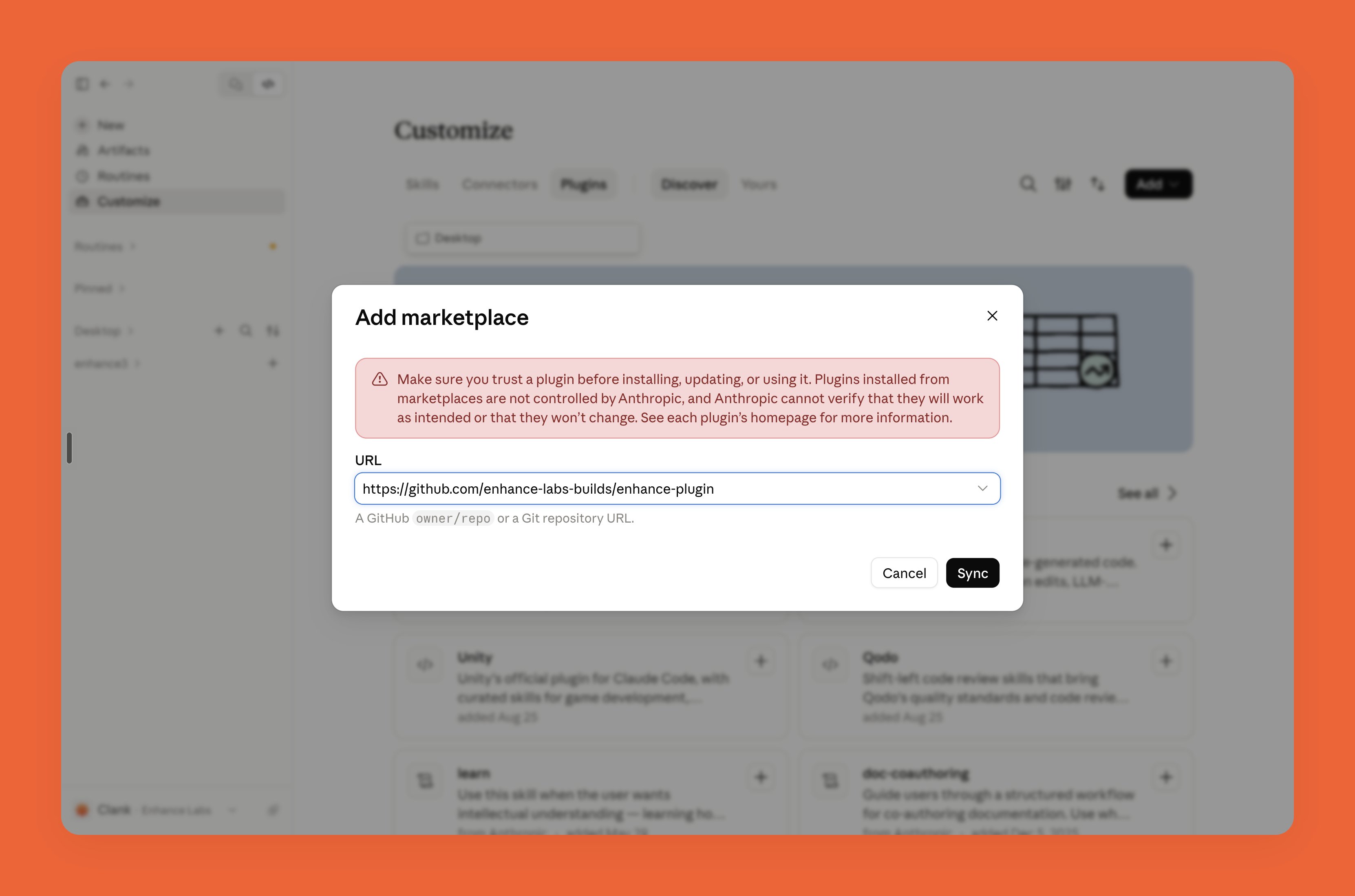
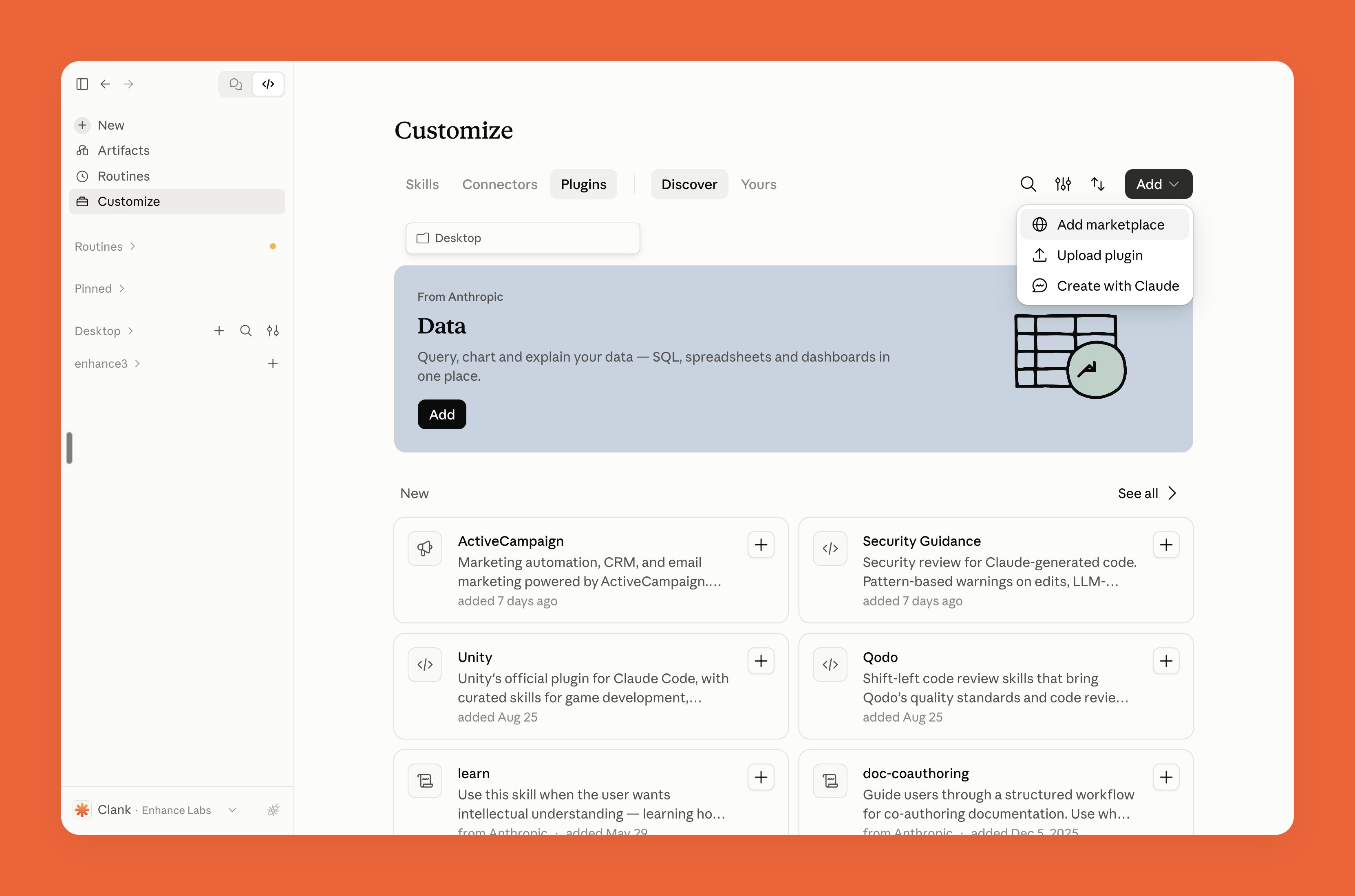
  <Step title="Click Customize in the side bar then click Plugins > Add > Add Marketplace ">
    <img src="https://mintcdn.com/enhance-labs/b7nVqCYDKh507TlF/images/enhance-b01-5-26-18.png?fit=max&auto=format&n=b7nVqCYDKh507TlF&q=85&s=b28d84f538d673249f8c21c1151b64c6" alt="Enhance B01 5 26 18" width="3324" height="2198" data-path="images/enhance-b01-5-26-18.png" />
  </Step>

  <Step title="Paste the Enhance marketplace url `https://github.com/enhance-labs-builds/enhance-plugin` and click Sync">
    <img src="https://mintcdn.com/enhance-labs/b7nVqCYDKh507TlF/images/enhance-b03-5-27-37.png?fit=max&auto=format&n=b7nVqCYDKh507TlF&q=85&s=2533af2fee48b06dac435bf66242bb68" alt="Enhance B03 5 27 37" width="3324" height="2198" data-path="images/enhance-b03-5-27-37.png" />
  </Step>

  <Step title="Restart Claude Code , then paste the following command in a new chat">
    ```text wrap theme={null}
    Install enhance@enhance for my user account. Once its tools are available, verify the connection by checking my authentication and listing my canvases.
    ```
  </Step>

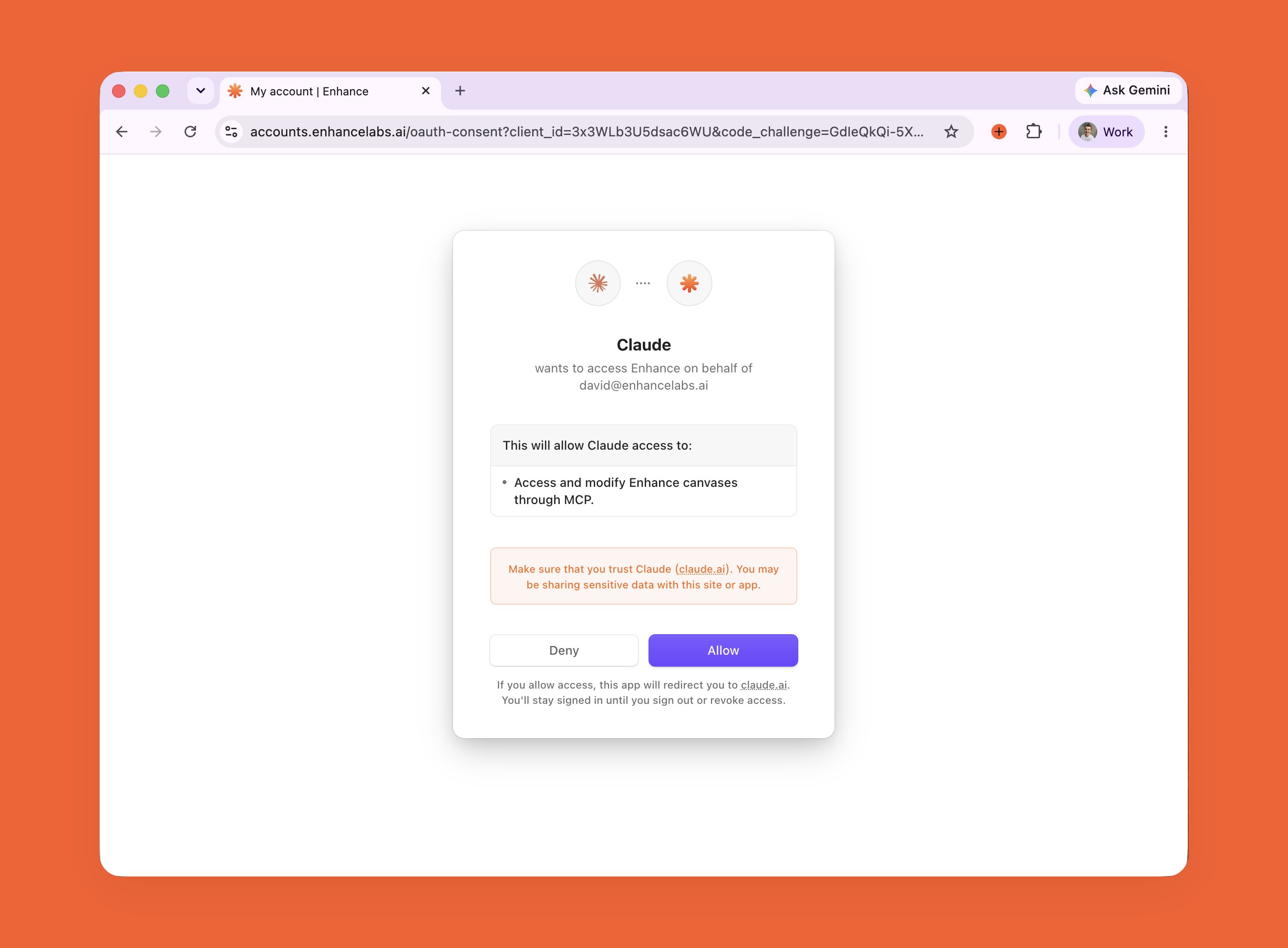
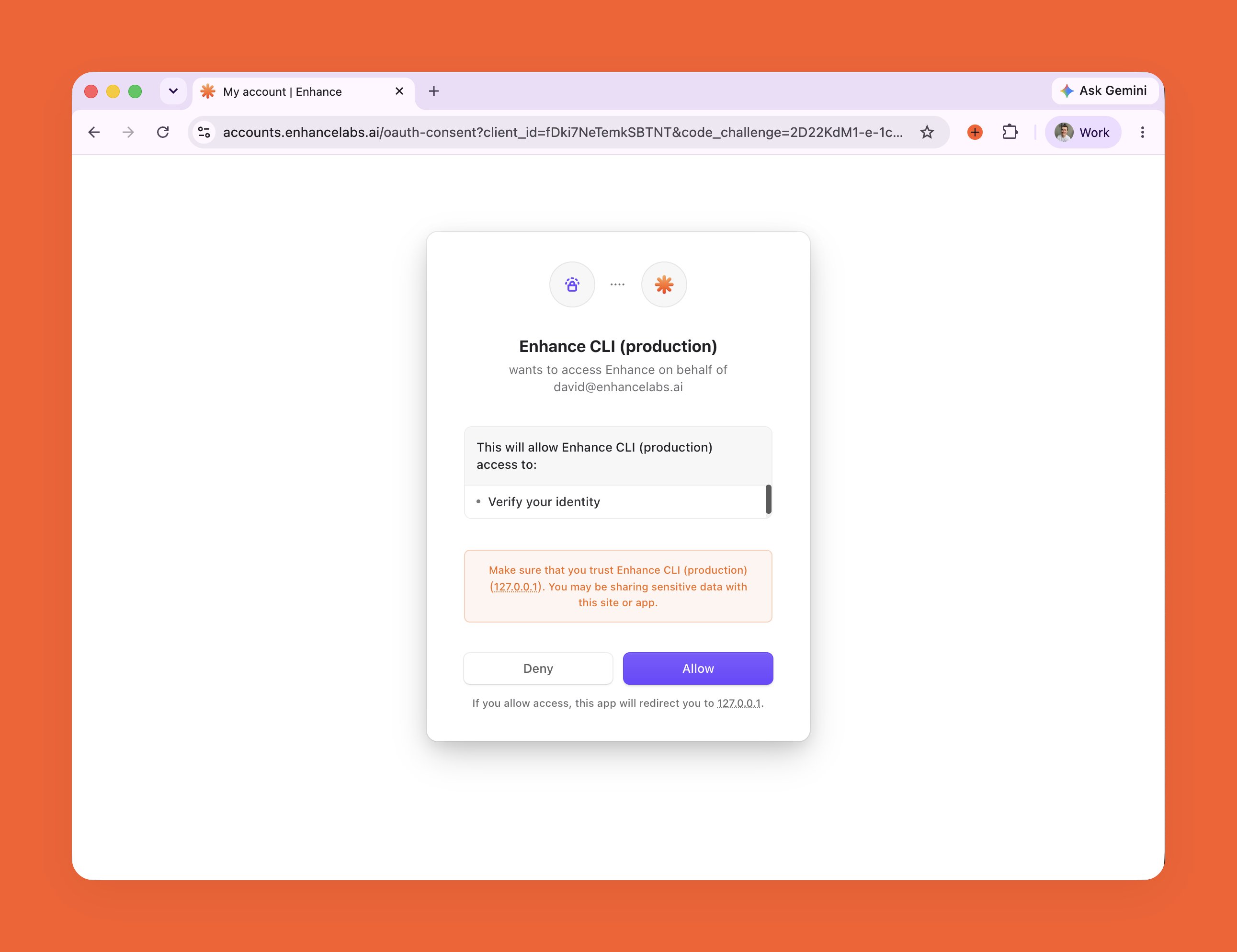
  <Step title="Lastly, Claude will open a browser for a one-time OAuth, click Allow">
    <img src="https://mintcdn.com/enhance-labs/b7nVqCYDKh507TlF/images/enhance-b07-5-38-37.png?fit=max&auto=format&n=b7nVqCYDKh507TlF&q=85&s=5ac19d3e25a822eb0c0c827c06ec8530" alt="Enhance B07 5 38 37" width="2583" height="1988" data-path="images/enhance-b07-5-38-37.png" />

    Once connected, you'll be re-directed back to Claude and you should see the Enhance available under your list of Plugins.
  </Step>
</Steps>

<br />

<br />

**MCP**

<Steps>
  <Step title="Open the desktop app and head to the Code tab" />

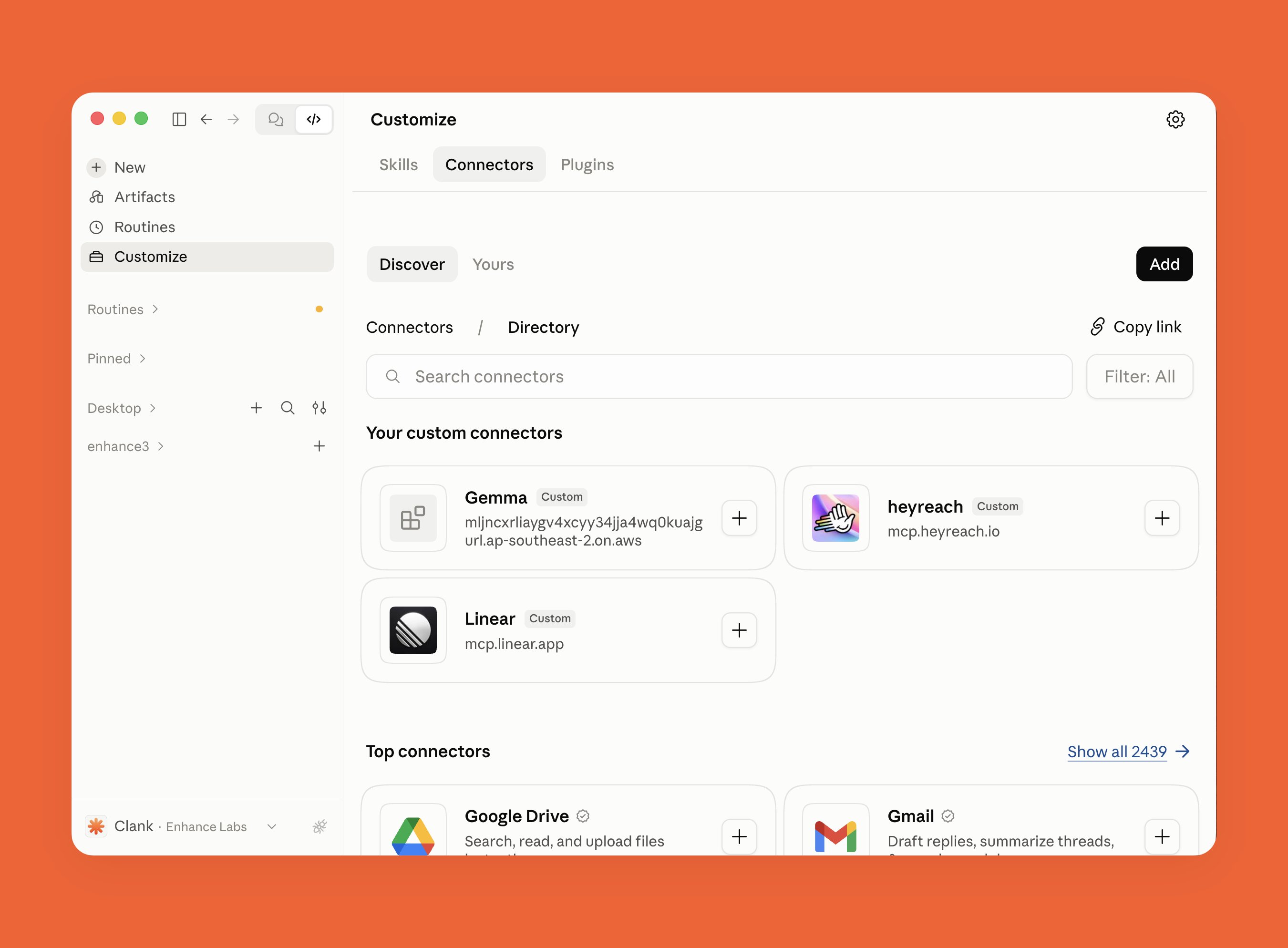
  <Step title="Click Customize in the side bar then click Connectors > Add ">
    <img src="https://mintcdn.com/enhance-labs/Anegp3cvBTdZDbYx/images/enhance-01-3-00-57.png?fit=max&auto=format&n=Anegp3cvBTdZDbYx&q=85&s=aa7e1975626a32fff52127b18d9d174f" alt="Enhance 01 3 00 57" width="2701" height="1988" data-path="images/enhance-01-3-00-57.png" />
  </Step>

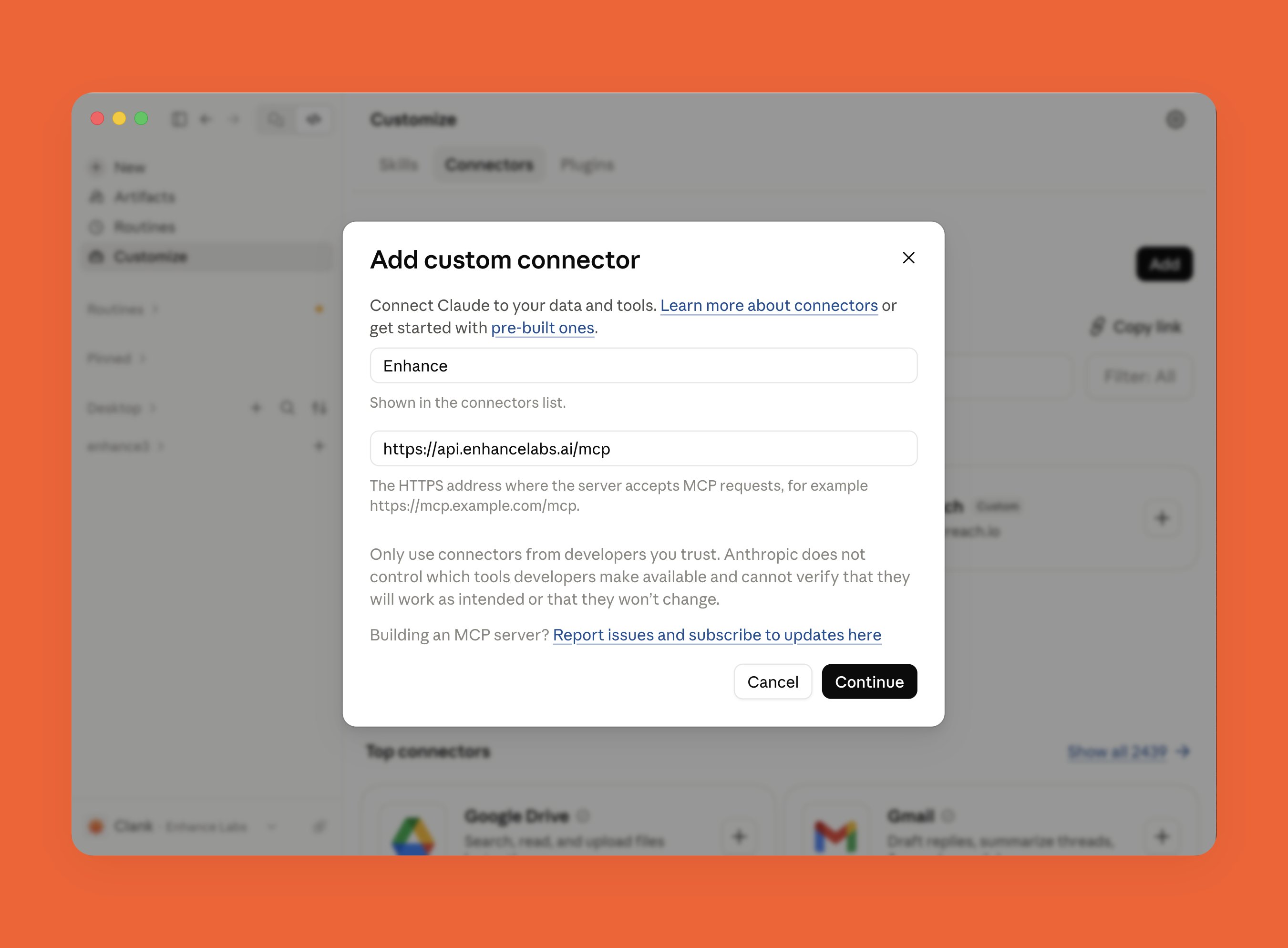
  <Step title="Enter `Enhance` as the name and `https://api.enhancelabs.ai/mcp` as the url and click Continue ">
    <img src="https://mintcdn.com/enhance-labs/Anegp3cvBTdZDbYx/images/enhance-03-3-01-31.png?fit=max&auto=format&n=Anegp3cvBTdZDbYx&q=85&s=9aea9dd764faff899fccfff1bb90e630" alt="Enhance 03 3 01 31" width="2701" height="1988" data-path="images/enhance-03-3-01-31.png" />
  </Step>

  <Step title="Scroll through the permissions and click Add" />

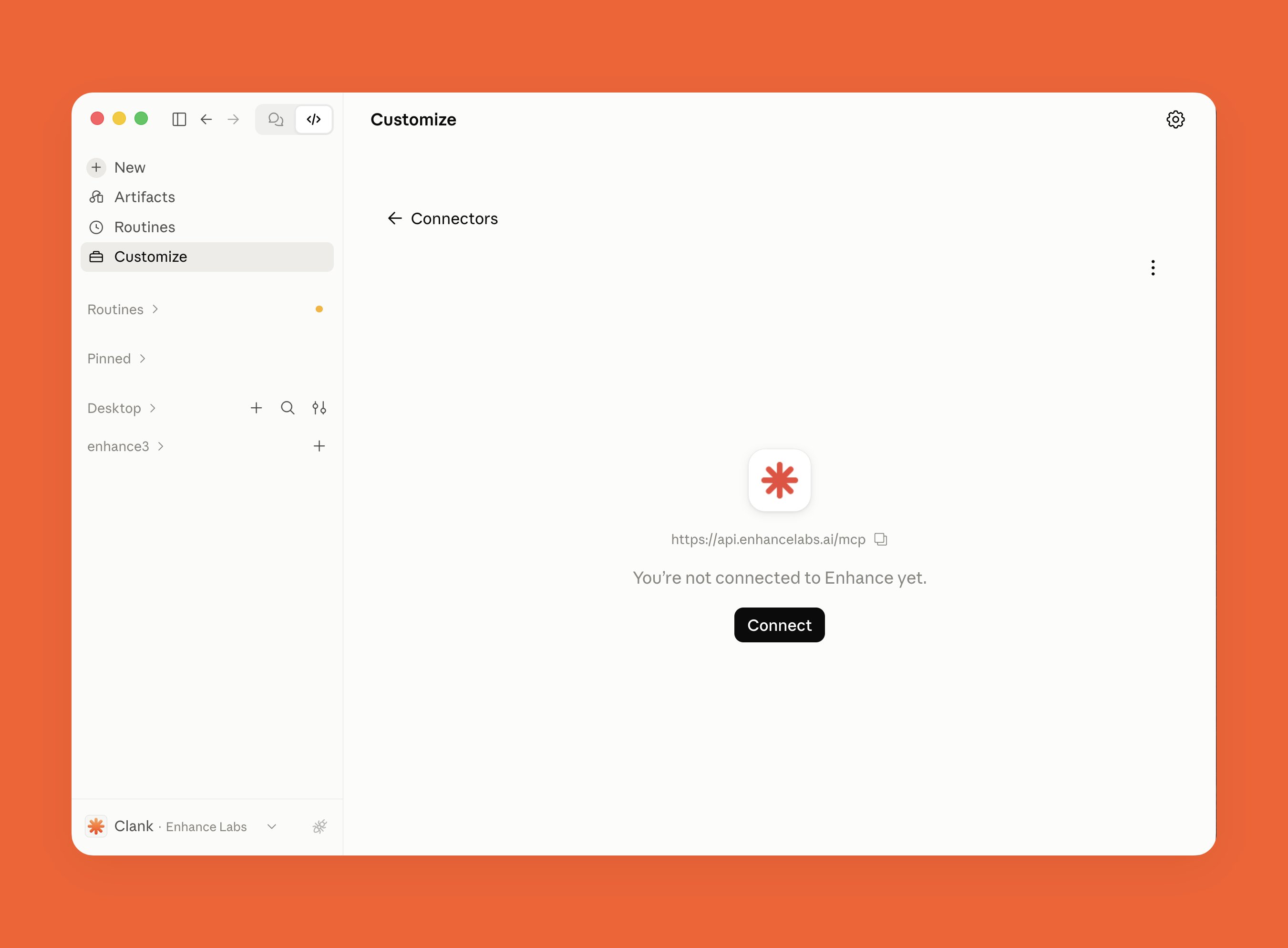
  <Step title="Then click Connect ">
    <img src="https://mintcdn.com/enhance-labs/Anegp3cvBTdZDbYx/images/enhance-06-3-01-55.png?fit=max&auto=format&n=Anegp3cvBTdZDbYx&q=85&s=d58a984b23ac7a01b043c6704e21b6ca" alt="Enhance 06 3 01 55" width="2701" height="1988" data-path="images/enhance-06-3-01-55.png" />
  </Step>

  <Step title="Claude will open a link in your browser asking if you are connecting a connector, click Continue connecting" />

  <Step title="Lastly, Claude will open a browser for a one-time OAuth, click Allow">
    <img src="https://mintcdn.com/enhance-labs/Anegp3cvBTdZDbYx/images/enhance-08-3-03-04.png?fit=max&auto=format&n=Anegp3cvBTdZDbYx&q=85&s=d7e084c64986bd6c73adce7077f1fe21" alt="Enhance 08 3 03 04" width="2701" height="1988" data-path="images/enhance-08-3-03-04.png" />

    Once connected, you'll be re-directed back to Claude and you should see the Enhance MCP server in the list of available MCPs when you run the `/mcp` command.
  </Step>
</Steps>

<br />

## Connect to Codex

**Plugin (Recommended)**
<Steps>
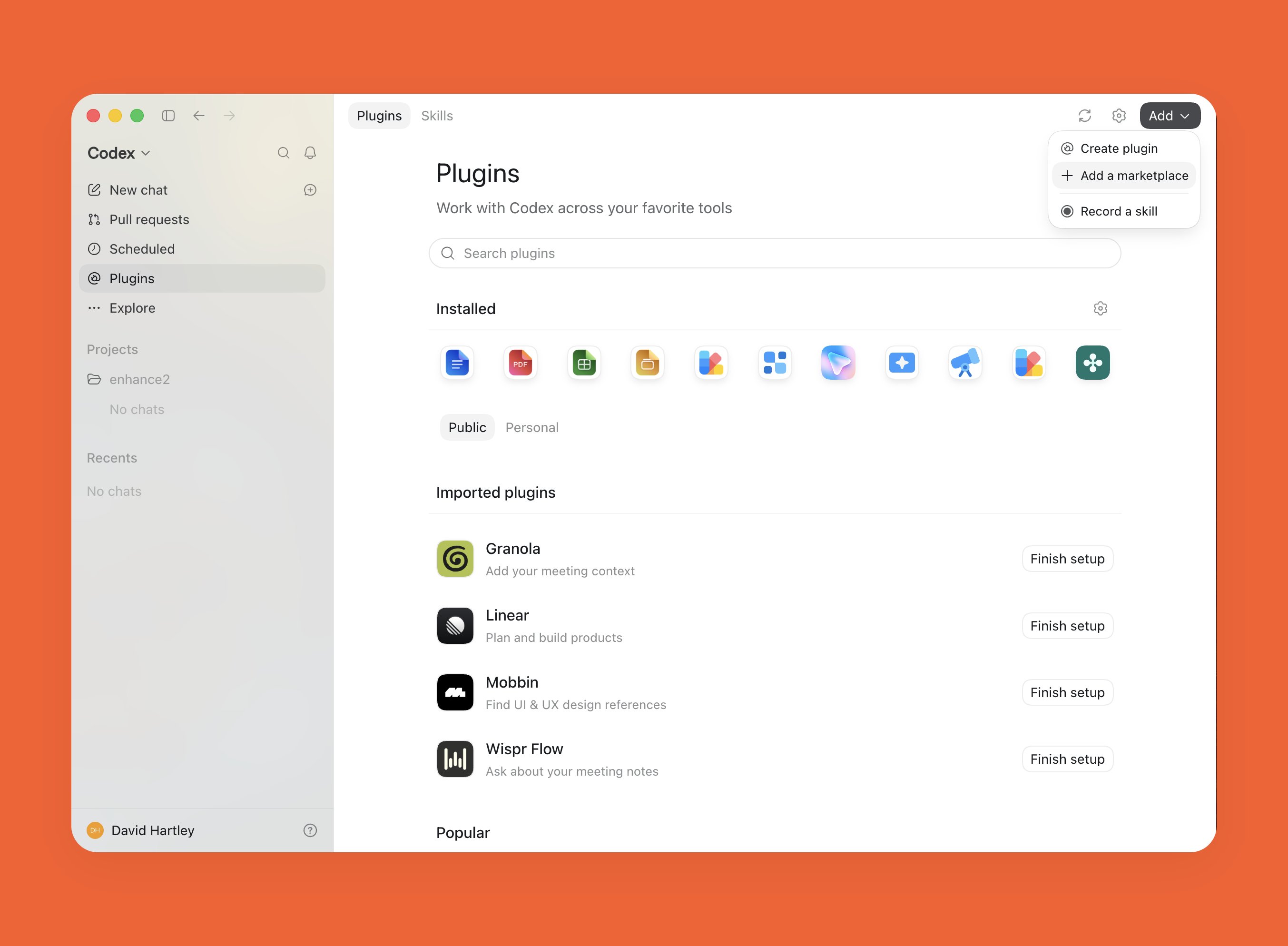
  <Step title="Open the Codex desktop app and click Plugins in the side bar then Add > Add a marketplace">
    <img src="https://mintcdn.com/enhance-labs/q0j7U5OATgMqmY20/images/enhance-d01-10-07-39.png?fit=max&auto=format&n=q0j7U5OATgMqmY20&q=85&s=96c58ded2ce12fabfaecf4b7c37b4b5a" alt="Enhance D01 10 07 39" width="2707" height="1988" data-path="images/enhance-d01-10-07-39.png" />
  </Step>

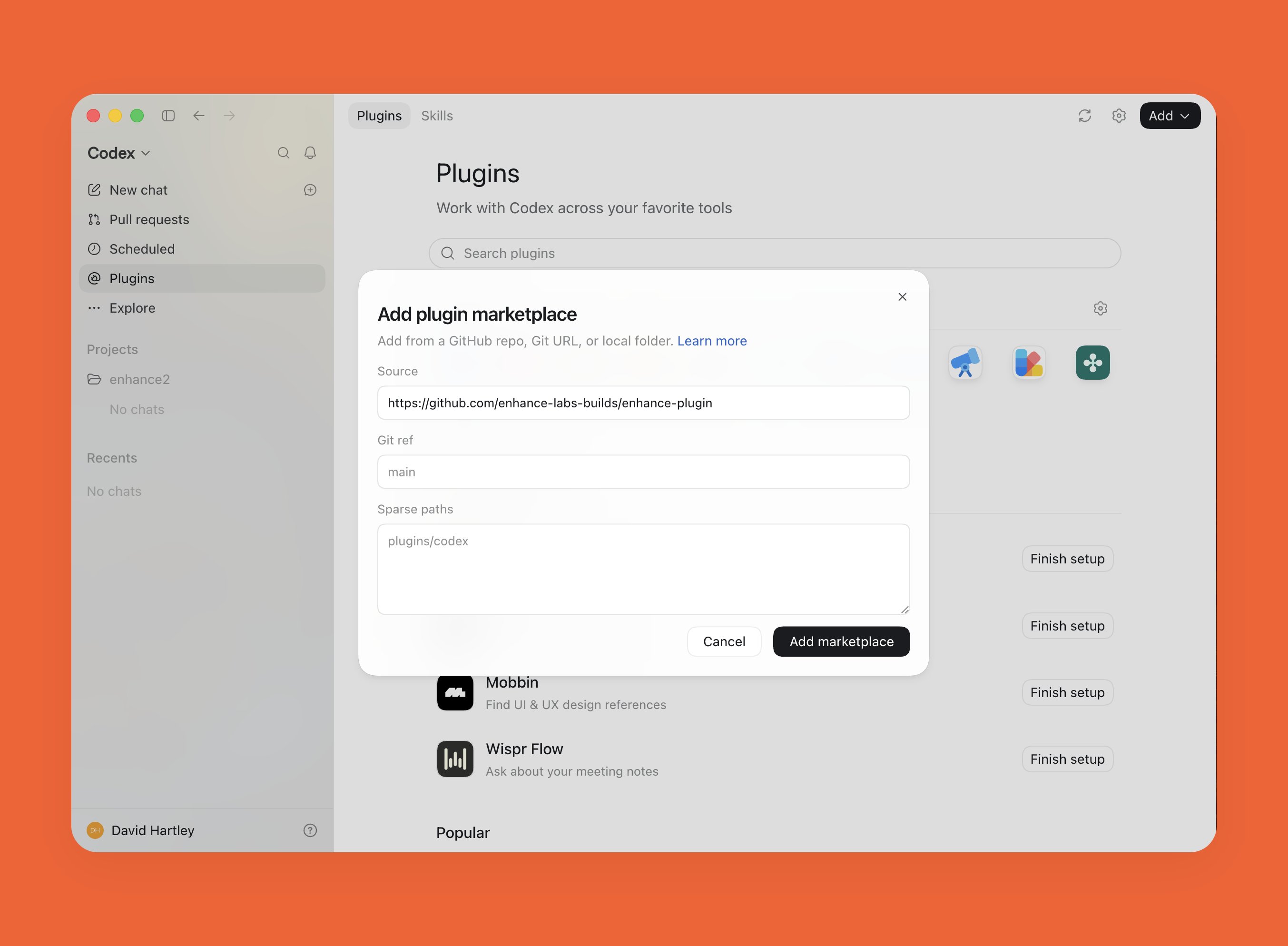
  <Step title="Paste the Enhance marketplace url `https://github.com/enhance-labs-builds/enhance-plugin` and click Add Marketplace">
    <img src="https://mintcdn.com/enhance-labs/q0j7U5OATgMqmY20/images/enhance-d02-10-08-21.png?fit=max&auto=format&n=q0j7U5OATgMqmY20&q=85&s=fe5845e1a2d1a6a5621e1c31096cbb8b" alt="Enhance D02 10 08 21" width="2707" height="1988" data-path="images/enhance-d02-10-08-21.png" />
  </Step>

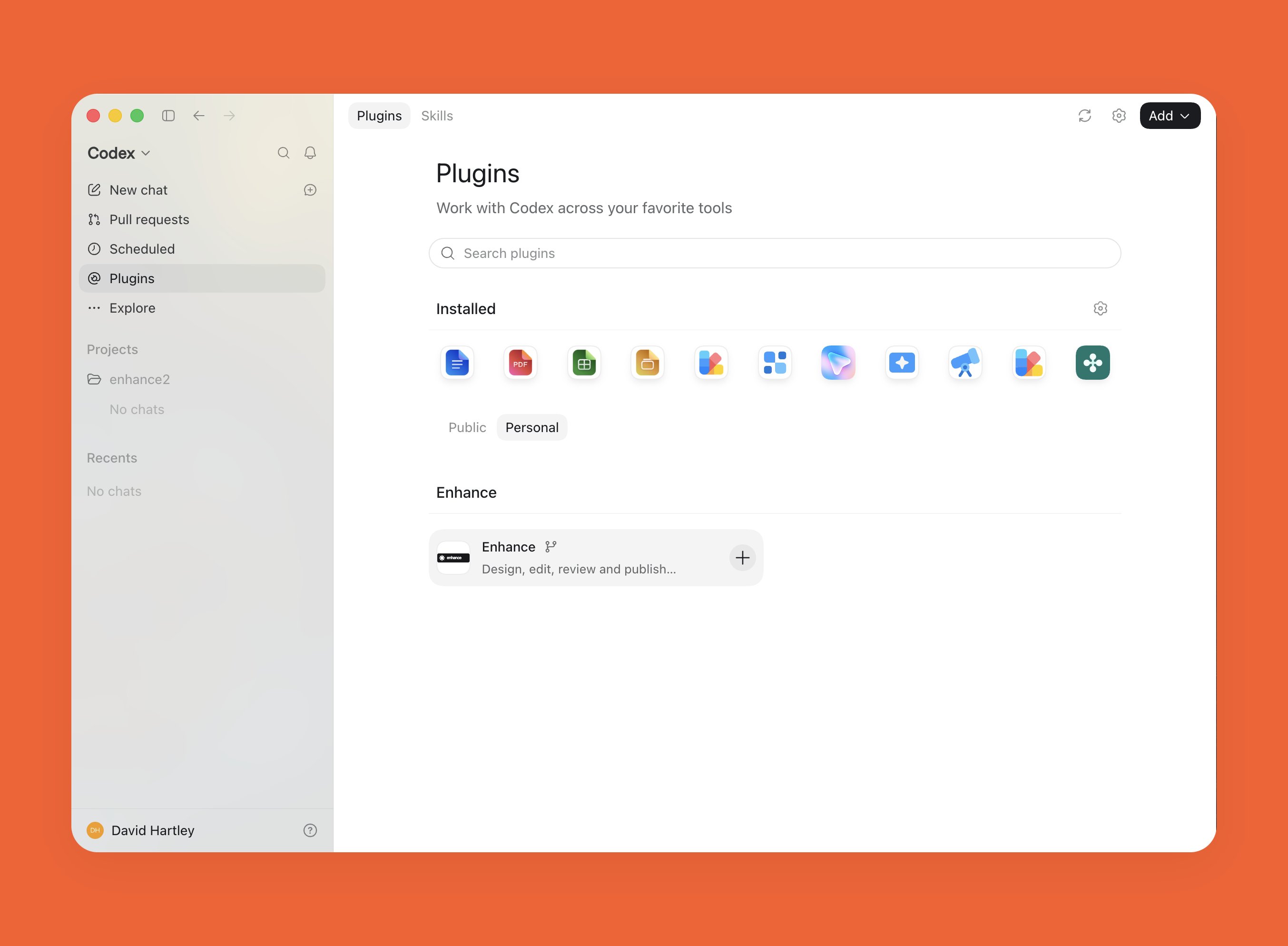
  <Step title="Navigate to Plugins > Personal and click the + button on the Enhance Plugin to install Enhance ">
    <img src="https://mintcdn.com/enhance-labs/q0j7U5OATgMqmY20/images/enhance-d03-10-09-20.png?fit=max&auto=format&n=q0j7U5OATgMqmY20&q=85&s=05903f0f237a88a3e26daef9dd4ff83e" alt="Enhance D03 10 09 20" width="2707" height="1988" data-path="images/enhance-d03-10-09-20.png" />

    Once connected you should see Enhance when typing `@Enhance` in a chat. On your first use of Enhance, Codex will open a browser for a one-time OAuth. Click Allow when this opens to use the plugin.
  </Step>
</Steps>

<br />

<br />

**MCP**

<Steps>
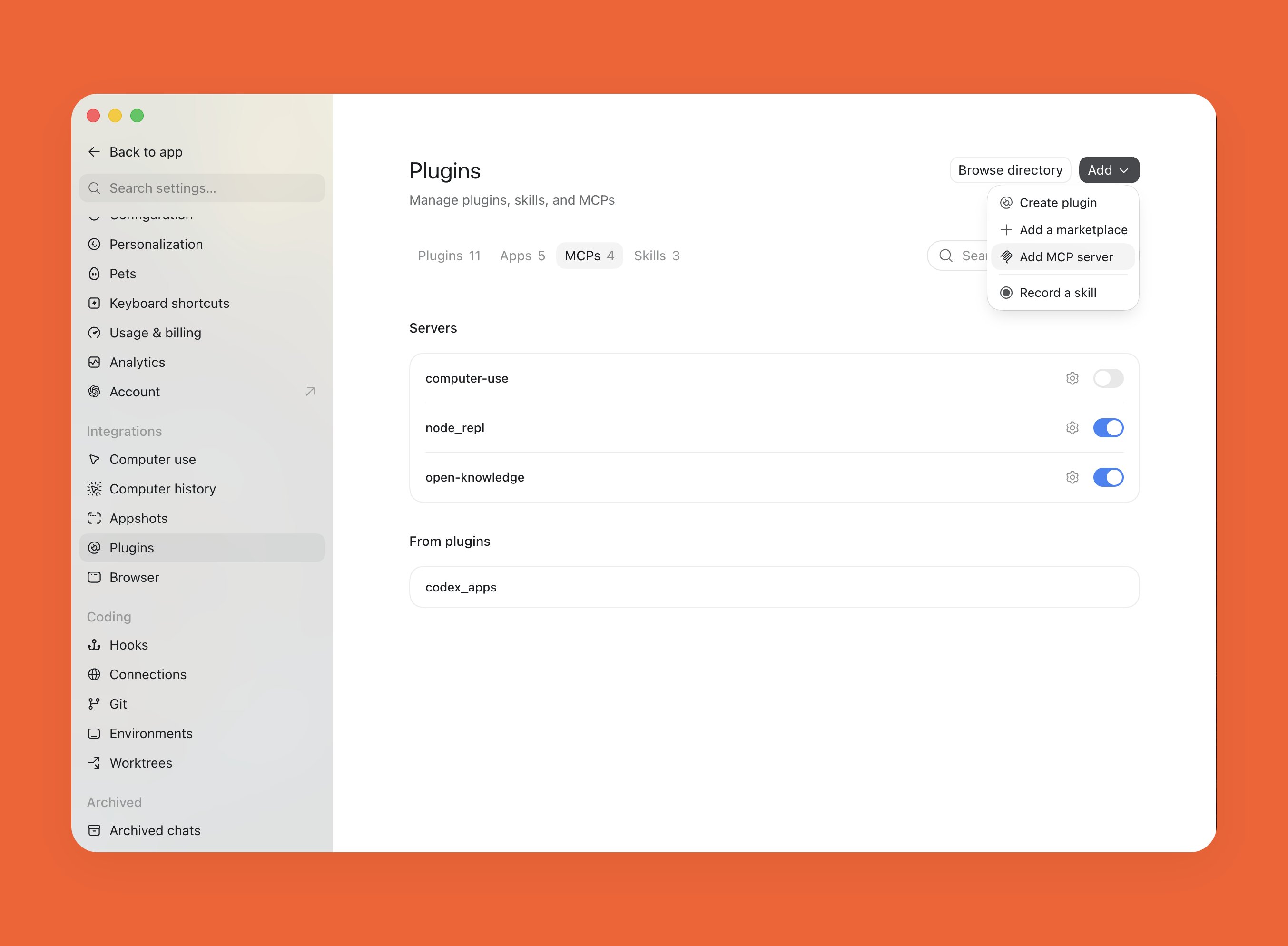
  <Step title="Open the Codex desktop app and go to Settings > Plugins then Click Add > Add MCP server ">
    <img src="https://mintcdn.com/enhance-labs/UQ1FQ5W6HgDFf9VS/images/enhance-c01-9-41-17.png?fit=max&auto=format&n=UQ1FQ5W6HgDFf9VS&q=85&s=952383eb22c28792ea5ba18f5d47c128" alt="Enhance C01 9 41 17" width="2707" height="1988" data-path="images/enhance-c01-9-41-17.png" />
  </Step>

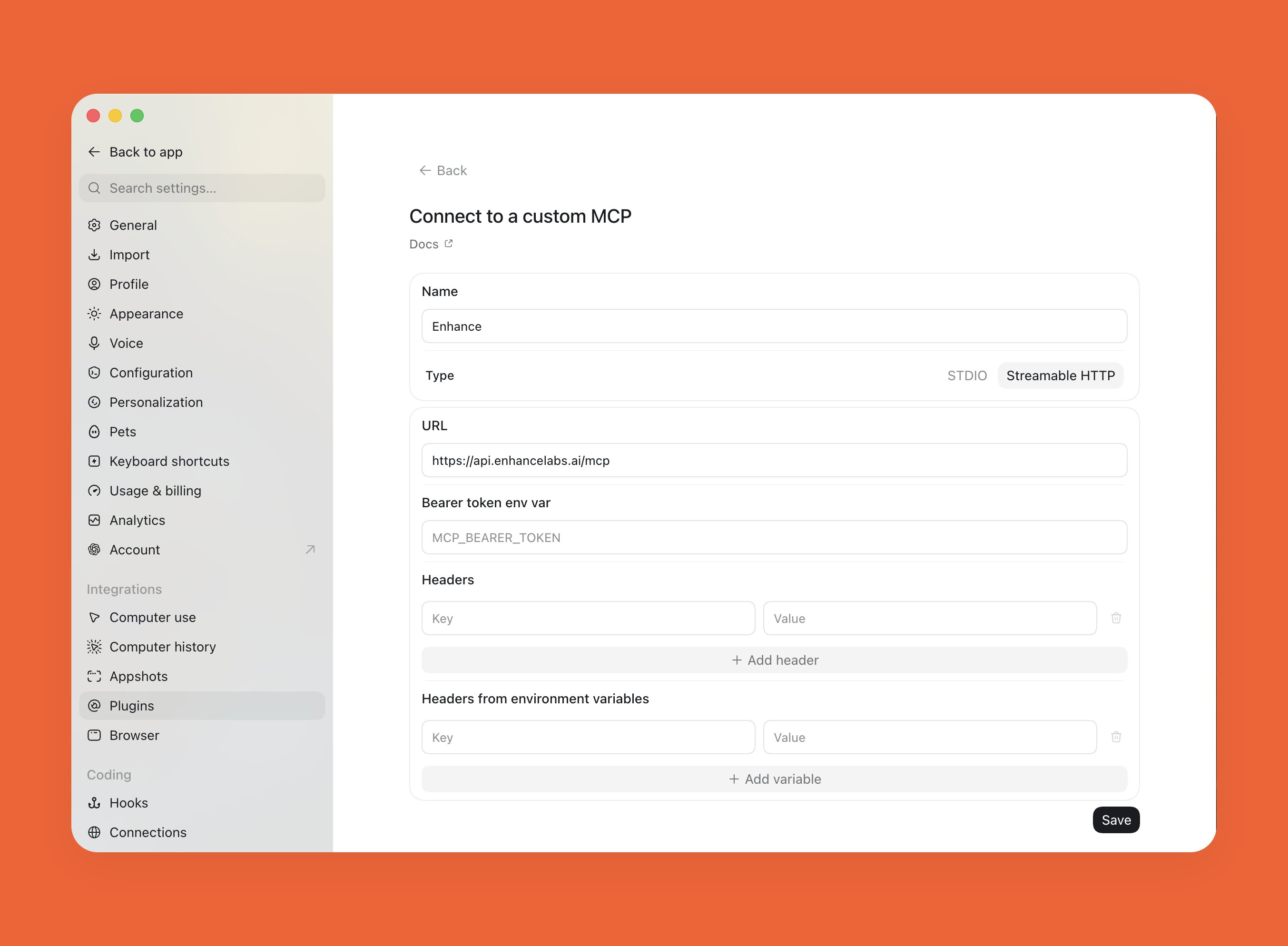
  <Step title="Select &#x22;Streamable HTTP&#x22;, put `Enhance` as the name and `https://api.enhancelabs.ai/mcp` as the URL then click Save">
    <img src="https://mintcdn.com/enhance-labs/UQ1FQ5W6HgDFf9VS/images/enhance-c02-9-28-25.png?fit=max&auto=format&n=UQ1FQ5W6HgDFf9VS&q=85&s=5c351a258a04028047e0e9e8f54c186f" alt="Enhance C02 9 28 25" width="2707" height="1988" data-path="images/enhance-c02-9-28-25.png" />
  </Step>

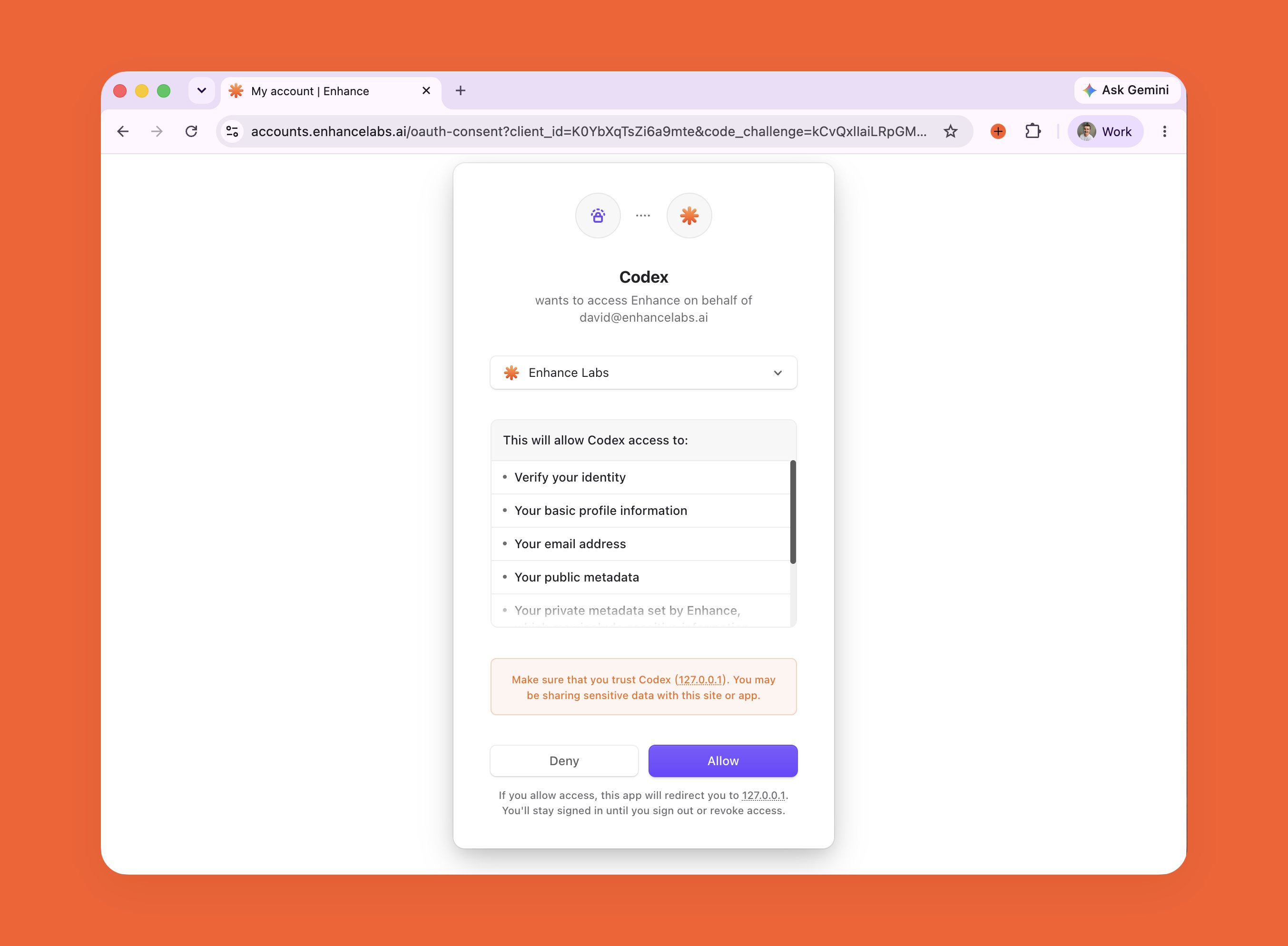
  <Step title="Then click the Authenticate button on Enhance in the list of MCP servers and Codex will open a browser for a one-time OAuth, click Allow">
    <img src="https://mintcdn.com/enhance-labs/UQ1FQ5W6HgDFf9VS/images/enhance-c03-9-29-55.png?fit=max&auto=format&n=UQ1FQ5W6HgDFf9VS&q=85&s=a44f3cc54185b97086f6e516a021ed2c" alt="Enhance C03 9 29 55" width="2707" height="1988" data-path="images/enhance-c03-9-29-55.png" />

    Once connected, you'll be re-directed back to Codex and you should see the Enhance MCP server in the list of available MCPs.
  </Step>
</Steps>

<br />

<br />

<br />

## Connect to Cursor

**MCP**

<Steps>
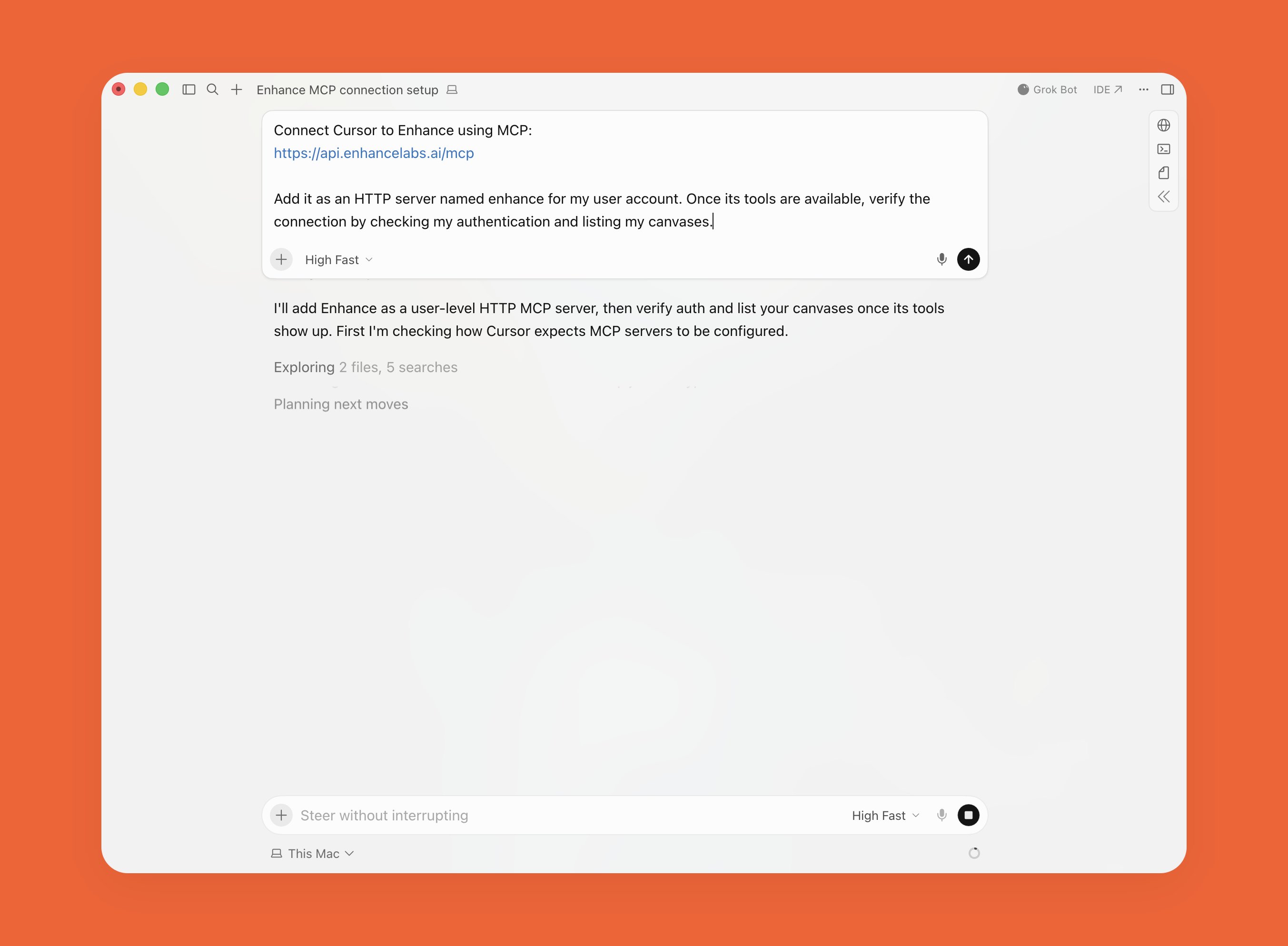
  <Step title="Open the Cursor desktop app and paste the following command in a new chat">
    ```text wrap theme={null}
    Connect Cursor to Enhance using MCP:
    https://api.enhancelabs.ai/mcp

    Add it as an HTTP server named enhance for my user account. Once its tools are available, verify the connection by checking my authentication and listing my canvases.
    ```
    <img src="https://mintcdn.com/enhance-labs/BjF8VPJ6dZBvZJpp/images/enhance-e02-2-21-37.png?fit=max&auto=format&n=BjF8VPJ6dZBvZJpp&q=85&s=5e3a5f698110fdfda84cc8932e595835" alt="Enhance E02 2 21 37" width="2706" height="1988" data-path="images/enhance-e02-2-21-37.png" />
  </Step>

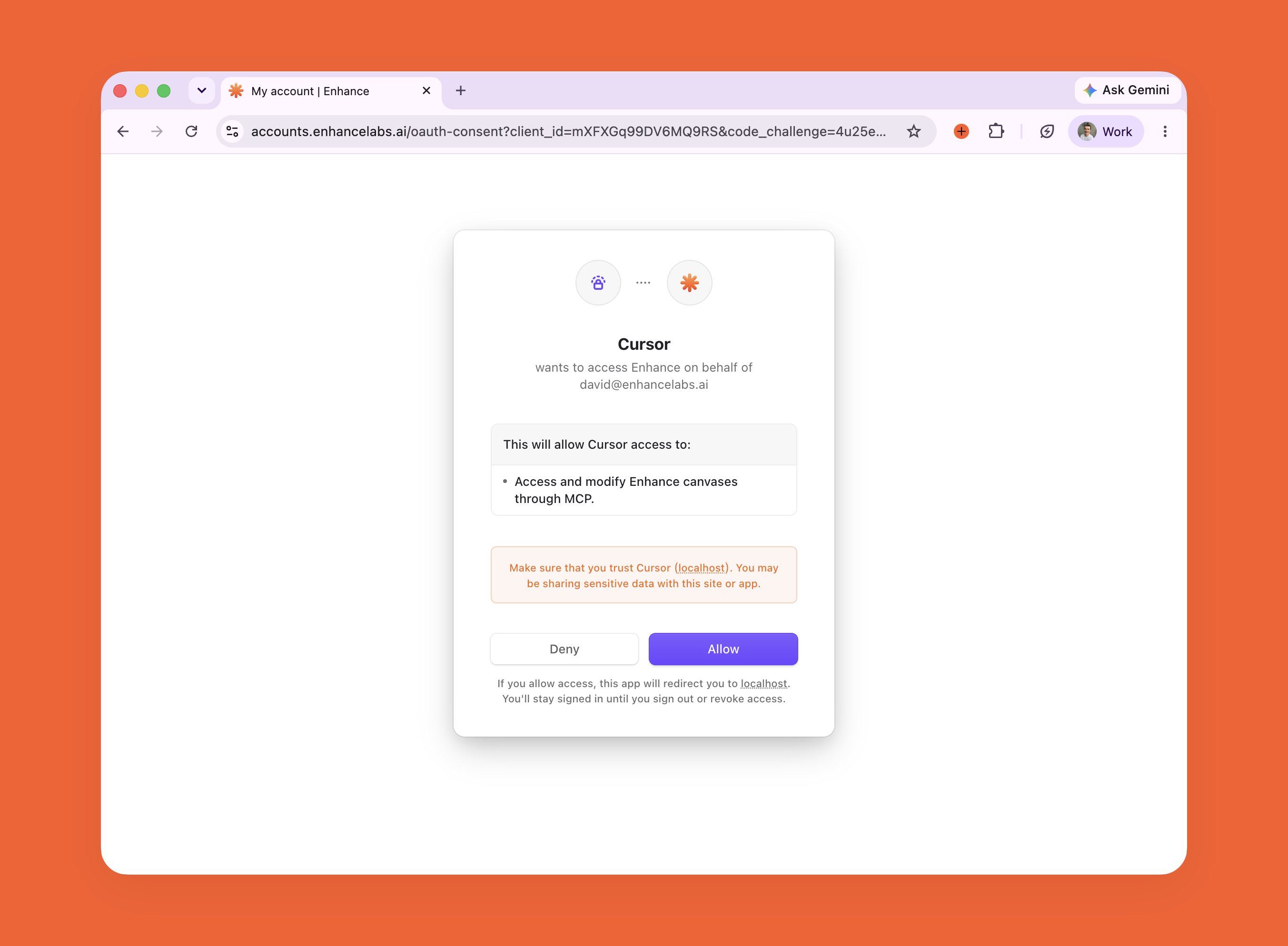
  <Step title="Click Authenticate when prompted by Cursor in the chat. This will open a browser for a one-time OAuth, click Allow">
    <img src="https://mintcdn.com/enhance-labs/BjF8VPJ6dZBvZJpp/images/enhance-e01-2-25-46.png?fit=max&auto=format&n=BjF8VPJ6dZBvZJpp&q=85&s=5e6a12fc5d5c6221b69df45243673675" alt="Enhance E01 2 25 46" width="2706" height="1988" data-path="images/enhance-e01-2-25-46.png" />

    Once connected, you'll be re-directed back to Cursor and you should see the Enhance MCP server in the list of available MCPs under Customize > MCPs
  </Step>
</Steps>